What Is WiFi Calling? A Simple Guide for Android and iPhone
Published: 20 Nov 2026
Ever had no signal at home, but great WiFi? You try to call a friend, and the call keeps dropping. That feels so annoying, right? WiFi calling fixes this problem. It lets you make calls and send texts over WiFi, using your normal phone number. You do not need a new app. In this guide, you will learn what WiFi calling is and how it works. You will also see its pros and cons. Best of all, you will get easy steps to turn it on for Android and iPhone. Ready to get better calls at home? Let’s start!
What Is WiFi Calling?
WiFi calling lets you make calls and send texts over WiFi. Your phone uses the internet instead of the cell tower. You keep your own phone number. Do you need a new app? No.
WiFi Calling Meaning in Simple Words
Think of it as a normal call that travels through your home internet.
- Your contacts see the same number as always.
- You do not need to change any settings on their side.
- Some people call it “wireless calling” or “internet calling.” All three names mean the same thing.
Does every phone have it? No. Both your phone and your carrier must support it. Most new Android phones and iPhones do.
What Does the WiFi Calling Icon Mean?
Look at the top of your screen. Do you see “WiFi Calling” or a small WiFi symbol near your signal bars? That means your call is going over WiFi.
You can find it here:
- iPhone: “Wi-Fi” appears next to your carrier name.
- Android: A small calling symbol appears near the WiFi bars.
You may also see these terms in your settings:
- Cellular network dependent: This feature relies on your carrier and SIM.
- Prefer WiFi while roaming: Your phone uses WiFi for calls when you travel abroad.
Real-life example: Sara lives in a flat with thick walls. Her signal is weak in the bedroom, so her calls dropped every day. She turned on WiFi calling. Now her calls stay clear in every room.
How Does WiFi Calling Work?
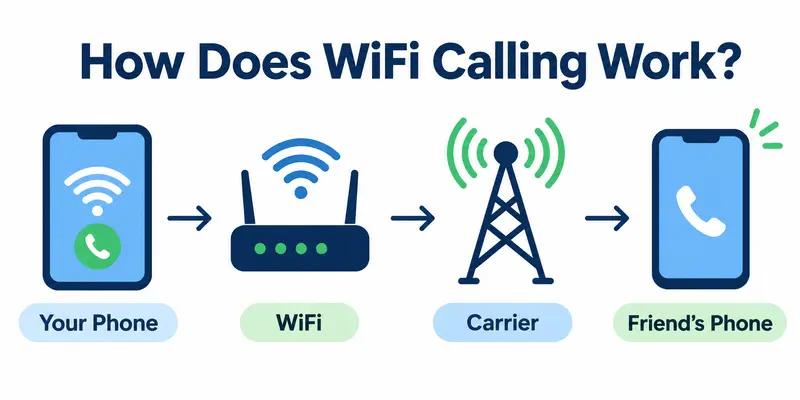
WiFi calling sends your voice over the internet. Then your carrier connects the call to the other person. It all happens in seconds.
What Happens When You Make a Call
Here is the simple flow:
- You dial a number as usual.
- Your phone checks for a WiFi connection.
- Your voice travels over your WiFi to your carrier.
- Your carrier connects the call to the other person.
The other person does not need WiFi. They can use any phone. Call quality depends on your internet speed. A slow connection can make your voice sound choppy.
WiFi Calling vs Cellular Calling
Which one is better for you? Let’s compare them in a simple way.
WiFi Calling
- It needs a WiFi network.
- It often works better indoors.
- Call quality depends on your internet speed.
- It can be cheaper abroad. This depends on your plan.
Cellular Calling
- It needs a signal from a cell tower.
- It can be weak inside thick walls or basements.
- Call quality depends on your signal strength.
- It may cost extra when you travel abroad.
In short: Use WiFi calling when your signal is weak, and your WiFi is strong. Use cellular calling when you are outside and have a good signal.
WiFi Calling vs VoIP Apps Like Instagram
Apps like Instagram also use the internet for calls. But they work differently.
- WiFi calling: You use your own phone number. You call any phone. You need no extra app.
- VoIP apps: You use the app’s account. The other person needs the same app.
Both are useful. WiFi calling feels like a normal call. Apps work well for chats with friends who use the same app.
Advantages and Disadvantages of WiFi Calling
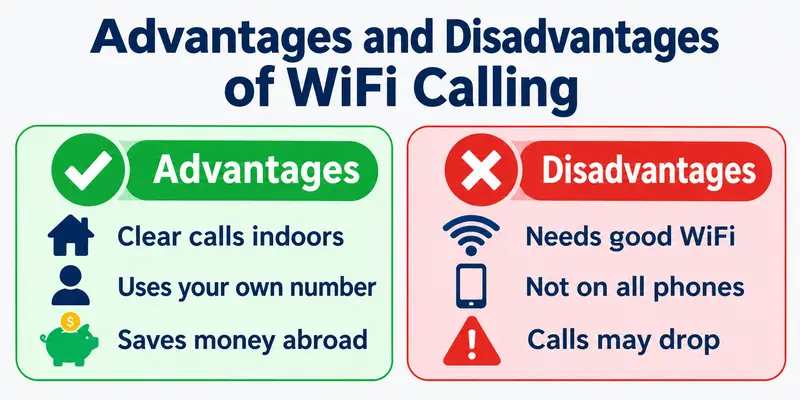
WiFi calling is a handy feature, but it is not perfect. It gives you clear calls at home and saves money when you travel. But it also needs a good internet link and the right phone. Let’s look at both sides so you can decide if it fits you.
| Advantages of WiFi Calling |
|---|
|
| Disadvantages of WiFi Calling |
|---|
|
Is WiFi Calling Free, and Does It Use Data?
These are the most common questions about WiFi calling. Let’s answer each one in a simple way.
Is WiFi Calling Free?
It depends on your carrier and your plan. Most carriers do not charge extra for WiFi calling. But your calls may still use your plan minutes.
- Local calls often count as normal calls on your plan.
- Some carriers offer free calls to certain countries.
- Some plans charge for international calls, even over WiFi.
- Roaming fees often do not apply on WiFi.
Always check your plan first. Rules differ for each carrier. Do you want to avoid a surprise bill? Call your carrier or look at your plan details.
Does WiFi Calling Use Data?
Yes, it uses a small amount of internet data. But it uses your WiFi data, not your mobile data.
- A call uses roughly 0.5 to 1 MB per minute. This changes with the call quality.
- A one-hour call uses about 30 to 60 mb.
- If your WiFi plan has a limit, keep an eye on it.
For most homes, this is tiny. A short video can use much more.
Does WiFi Calling Use Minutes?
On most plans, yes. A WiFi call counts like a normal call. If your plan has unlimited minutes, you have nothing to worry about. If your plan has a minute limit, WiFi calls use it up.
Is WiFi Calling Safe?
Yes, it is safe for most people. Carriers protect your calls with encryption. This means other people cannot easily listen in.
Follow these simple tips:
- Use your home WiFi or a trusted network.
- Avoid open public WiFi when you can.
- Keep your phone software up to date.
Which Phones Support WiFi Calling?
Does your phone have this feature? Most new phones do. But two things must match. Your phone and your carrier must both support it.
Popular Phones with WiFi Calling
- iphone: Most models support it.
- Samsung Galaxy: Most new models support it.
- >r}yecFpixel: Most models support it.
- OnePlus: Many models support it.
- Oppo and Vivo: Many models support it.
Older or budget phones may not have it. The rules also change from country to country.
How to Check If Your Phone Supports It
- Open your phone’s Settings.
- Search for “WiFi Calling.”
- See if the option appears.
- If you do not see it, update your phone software.
- Still not there? Ask your carrier if they support it on your SIM.
How to Turn On WiFi Calling on Android
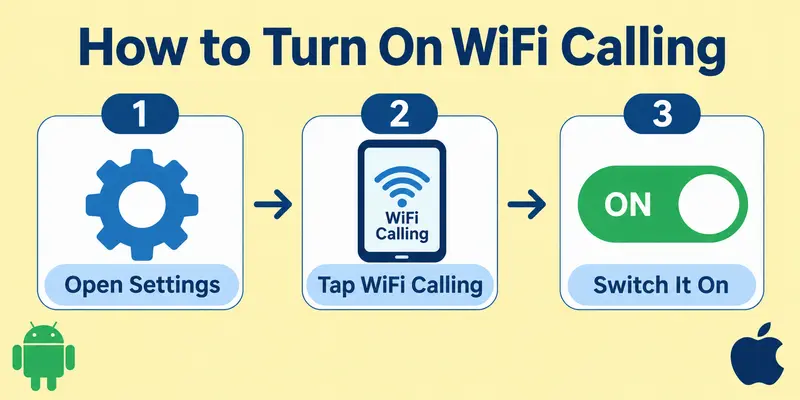
Setting it up takes less than a minute. Menu names change from phone to phone. But the steps are almost the same.
Steps for Most Android Phones
- Open Settings.
- Tap Network & Internet, Connections, or SIM & Network.
- Tap your SIM or mobile network.
- Tap WiFi Calling.
- Switch it on.
- Add an emergency address if your phone asks for one.
Can’t find it? Open Settings and type “WiFi Calling” in the search bar.
WiFi Calling on Samsung Galaxy
- Open the Phone app.
- Tap the three dots at the top right.
- Tap Settings.
- Switch on WiFi Calling.
Some Samsung phones also show it in Settings > Connections.
WiFi Calling on Google Pixel
- Open Settings.
- Tap Network & Internet.
- Tap SIMs, then pick your SIM.
- Switch on WiFi Calling.
You can also open the Phone app, tap the three dots, and go to Settings > Calls.
WiFi Calling on OnePlus
- Open Settings.
- Tap WiFi & Network.
- Tap SIM & Network, then pick your SIM.
- Switch on WiFi Calling.
On some OnePlus phones, the option sits under Mobile Network. Check there if you don’t see it.
What If the Option Is Missing?
Don’t worry. Try these quick fixes:
- Update your phone software.
- Restart your phone.
- Check that your SIM is active.
- Ask your carrier if they support WiFi calling on your plan.
Once it is on, look for the WiFi calling icon at the top of your screen. It shows that the feature is working.
How to Turn On WiFi Calling on iPhone
Do you have an iPhone? Good news. The steps are simple, and the setup takes about a minute.
Steps to Turn On WiFi Calling on iPhone
- Open Settings.
- Tap Phone.
- Tap WiFi Calling.
- Switch on WiFi Calling on This iPhone.
- Tap Enable if a message pops up.
- Add or confirm your emergency address.
Some carriers also show a Cellular option in Settings. If you don’t see WiFi Calling under Phone, check there.
How to Know It Is Working
Look at the top of your screen. You will see “Wi-Fi” next to your carrier name. That means your calls now go over WiFi.
WiFi Calling on iPad and Other Devices
You can use WiFi calling on your iPad too. Your iPhone and iPad must use the same Apple ID.
- On your iPhone, go to Settings > Phone > Calls on Other Devices.
- Switch on Allow Calls on Other Devices.
- Pick the devices you want to use.
Not working on your iPhone? Update ios, restart your phone, and check if your carrier supports it.
How to Turn Off WiFi Calling
Want to switch it off? It takes just a few taps. The steps are the same as turning it on.
Turn Off WiFi Calling on Android
- Open Settings.
- Tap Network & Internet, Connections, or SIM & Network.
- Tap your SIM.
- Tap WiFi Calling.
- Switch it off.
On Samsung phones, open the Phone app, tap the three dots, tap Settings, and switch off WiFi Calling.
Turn Off WiFi Calling on iPhone
- Open Settings.
- Tap Phone.
- Tap WiFi Calling.
- Switch off WiFi Calling on This iPhone.
Why Turn It Off?
- Your WiFi is slow, and calls sound choppy.
- Your mobile signal is strong, and you don’t need it.
- You want your phone to use only the cell network.
Should You Keep WiFi Calling On or Off?
Not sure what to pick? Don’t worry. The right choice depends on where you are and how good your WiFi is.
Keep It On If
- Your mobile signal is weak at home or work.
- Your WiFi is fast and stable.
- You travel abroad and want to save on roaming.
- You spend a lot of time in basements, lifts, or thick-walled buildings.
Turn It Off If
- Your WiFi is slow, and calls sound choppy.
- Your mobile signal is already strong.
- You often use public WiFi that feels unsafe.
- Your carrier charges extra for WiFi calls.
A Simple Tip
Try it for one week. Make a few calls at home. Do they sound clear? Then keep it on. If they sound worse, switch it off. So, which one fits you?
WiFi Calling Not Working? Easy Fixes
Is your WiFi calling not working? Don’t panic. Most problems have a simple fix. Try these steps one by one.
Quick Fixes to Try First
- Check your WiFi. Open a web page. Does it load fast? If not, move closer to your router.
- Turn WiFi calling off and on. Go to your settings. Switch it off, wait a few seconds, and switch it on again.
- Restart your phone. This clears many small bugs.
- Turn Airplane mode on and off. This resets your phone’s network links.
If the Problem Stays
- Update your phone software. Old software can block the feature.
- Check your SIM. Make sure it is active and sits well in the tray.
- Reset network settings.
- On iPhone: Settings > General > Transfer or Reset iPhone > Reset > Reset Network Settings.
- On Android: Settings > System > Reset options > Reset WiFi, mobile & bluetooth.
- Try another WiFi network. Does it work there? Then your home router may be the problem.
- Restart your router. Unplug it for 30 seconds and plug it back in.
Why the Option May Be Missing
- Your carrier does not support WiFi calling on your plan.
- Your phone model does not support it.
- Your region does not offer it yet.
Still Not Working?
Call your carrier. Ask if WiFi calling is active on your SIM. They can fix account problems that you cannot see.
Can You Use WiFi Calling Without a SIM or Service?
Good question! The answer depends on what you mean.
No Signal, but You Have a SIM
Yes, it works. You need an active SIM or esim. Your phone does not need a cell signal. WiFi does the job.
No SIM at All
No, built-in WiFi calling will not work. It needs a SIM or eSIM from a carrier that supports it.
What Can You Do Instead?
You can use a calling app. Apps like WhatsApp or Google Voice make calls over WiFi. Some need a phone number to sign up. Choose a trusted app, and avoid open public WiFi.
Conclusion
WiFi calling fixes weak signal problems at home. You use your own number, and you do not need a new app. It can also save money when you travel. Now you know what it is, how it works, and how to turn it on for Android and iPhone. You also know the easy fixes if it stops working. Ready to try it? Turn it on today and make one test call from your favorite room. Does it sound clear? Share your result with a friend who has weak signal at home. They will thank you!
Faqs
Yes, on many plans. You need a WiFi network and a carrier that supports it. Check your plan for fees first.
It depends. WiFi calling is better when your signal is weak and your WiFi is strong. Cellular calling is better when you are outside with a good signal.
No. It is built into most new phones. You only turn it on in your settings.
Yes. Most new models support it. Your carrier must support it too. Open your settings and search for “WiFi Calling” to check.
Yes. Most carriers let you send and receive texts over WiFi too.
Not all carriers do. Ask your carrier, or look for the option in your phone settings.
On many phones, yes. Your phone moves the call to the cell network when you leave WiFi range. This works best when you have a good mobile signal. Some calls may drop, so test it first.
No. Only you need it. The other person can use any phone on any network.


- Be Respectful
- Stay Relevant
- Stay Positive
- True Feedback
- Encourage Discussion
- Avoid Spamming
- No Fake News
- Don't Copy-Paste
- No Personal Attacks
- Be Respectful
- Stay Relevant
- Stay Positive
- True Feedback
- Encourage Discussion
- Avoid Spamming
- No Fake News
- Don't Copy-Paste
- No Personal Attacks
