How Do I Screenshot on a Samsung? Easy Steps for Phones, Tablets, and More
Published: 27 Nov 2026
Need to save a chat, a receipt, or a map fast? A screenshot does it in seconds. It captures what’s on your screen. So, how do I screenshot on a Samsung? You have many easy ways. You can press two buttons, swipe your hand, or use your voice. This guide covers all the main methods. You will get clear steps for Samsung phones, tablets, and other devices. You will also learn where your screenshots go and how to fix common problems. Each step is short and simple. Grab your phone and follow along. Ready? Let’s start.
What Is a Screenshot and Why Use One?
A screenshot is a photo of your screen. It shows exactly what you see at that moment. Your phone saves it in the Gallery app.
People take screenshots every day. Here are some common reasons:
- Save a ticket, receipt, or booking number
- Keep a map or a set of directions
- Share a funny chat with a friend
- Show a tech problem to someone who can help
- Save a recipe or a useful tip
Screenshots are fast. You do not need to write anything down. You just press, swipe, or speak.
How Do You Take a Screenshot on a Samsung Phone? 4 Easy Methods
Samsung gives you more than one way to take a screenshot. Pick the one that feels best for you. Menu names can change a little between models. The steps below work for most Galaxy phones.
Method 1: Press the Side and Volume Down Button
This is the most common way. It works on almost every Galaxy phone.
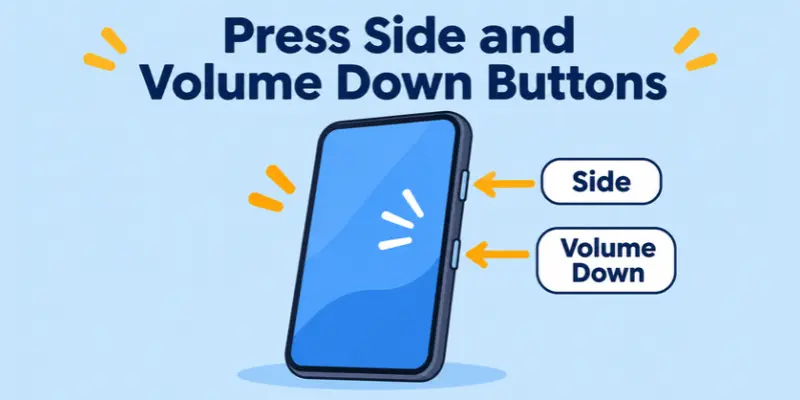
- Open the screen you want to save.
- Find the Side power button on the right edge of your phone.
- Find the Volume Down button on the same edge.
- Press both buttons at the same time.
- Release them quickly.
Your screen will flash. A small toolbar then appears at the bottom. Your screenshot is ready.
Tip: Do not hold the buttons too long. A long press can open the power menu or Bixby instead.
Method 2: Palm Swipe to Capture
This method uses your hand. It needs no buttons. You must turn it on first.
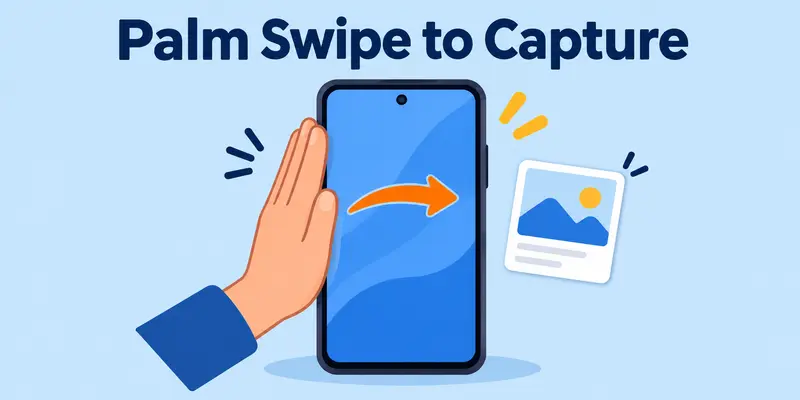
Turn it on:
- Open Settings.
- Tap Advanced features.
- Tap Motions and gestures.
- Switch on Palm swipe to capture.
Take the screenshot:
- Place the side of your hand on the edge of the screen.
- Swipe across the screen to the other side.
- Keep your hand flat and touching the glass.
Many people fail the first time. They swipe too fast. Or they lift their hand too soon. Try a steady swipe. It works well after a few tries.
Method 3: Ask Bixby
Bixby is Samsung’s voice helper. It can take a screenshot for you. This is great when your hands are busy.
- Turn on Bixby Voice in your settings.
- Open the screen you want to save.
- Say, “Hey Bixby, take a screenshot.”
The phone captures the screen right away.
Method 4: Use the Assistant Menu
Some people find two-button presses hard. The Assistant menu gives a simple option. It adds a floating button to your screen.
Turn it on:
- Open Settings.
- Tap Accessibility.
- Tap Interaction and dexterity.
- Switch on Assistant menu.
Take a screenshot:
- Tap the floating button.
- Tap Screenshot.
This method also helps when a phone button is broken.
Quick Comparison
- Side + Volume Down: Best for fast, everyday use. You need no setup.
- Palm swipe: Best for one-hand use. Turn it on in Settings first.
- Bixby voice: Best when your hands are busy. Turn on Bixby Voice first.
- Assistant menu: Best for easy access. Turn it on in Accessibility first.
How Do I Screenshot on a Samsung and Capture a Long Page?
Some pages are too long for one screen. Think of a chat, a web page, or a recipe. Scroll capture solves this problem. It joins many screens into one picture.
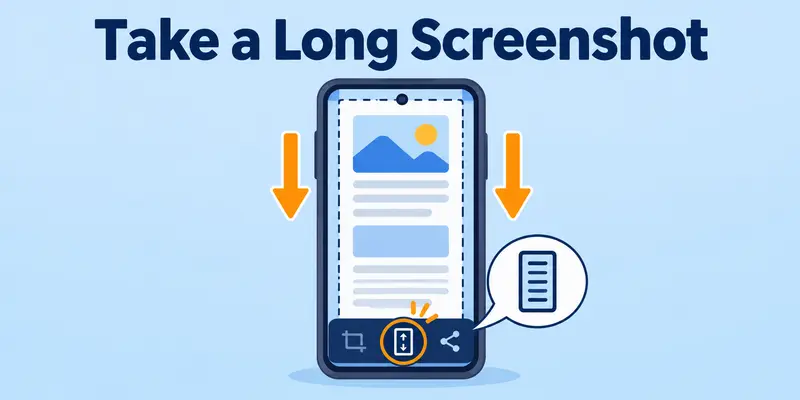
Here is how to use it:
- Take a normal screenshot.
- Look at the toolbar at the bottom.
- Tap the icon with two arrows pointing down.
- Tap it again to capture more of the page.
- Stop when you have everything you need.
The toolbar does not show up? Open Settings, then Advanced features. Tap Screenshots and screen recorder. Switch on Show screenshot toolbar. Some apps do not allow scroll capture. That is normal.
Real-life example: Ali finds a long recipe on a website. He does not take ten screenshots. He takes one long screenshot. Then he sends it to his mother in one message.
How to Capture Only Part of the Screen (Smart Select)
Sometimes you need only a small part of the screen. Smart Select lets you pick that part. You do not need to crop later.
- Open the screen you want.
- Swipe the Edge panel handle toward the center of the screen.
- Tap Smart Select.
- Pick a shape, like a rectangle or an oval.
- Drag the box over the part you want.
- Tap Done to save it.
The Edge panel is not on your phone? Open Settings, then display. Switch on Edge panels.
Smart Select has other tools too:
- Animation: records a short moving clip as a GIF
- Pin to screen: keeps a small picture floating on your screen
This tool also protects your privacy. You can capture only the part you want to share. Your other messages stay out of the picture.
How Do You Screenshot on a Samsung Tablet?
Tablets work much like phones. Samsung tablets no longer have a Home button. That makes things simple.
Button method:
- Open the screen you want.
- Press the Power button and the Volume Down button together.
- Release them quickly.
Palm swipe: This works on tablets too. Turn it on in Settings, under Advanced features. Then swipe the side of your hand across the screen.
S Pen method: Does your tablet come with an S Pen? Then you have one more option.
- Pull out the S Pen.
- Open Air Command.
- Tap Screen Write.
- Draw or write on the screenshot.
- Tap Save.
Keyboard method: A keyboard may be connected to your tablet. Some keyboards have a Print Screen key. Press it to capture the screen. All these ways work well. Choose the one you like most.
How to Screenshot on Other Samsung Devices
Samsung makes more than phones and tablets. Here are quick steps for other devices.
Samsung Galaxy Book Laptops
These laptops run Windows. Use these shortcuts:
- Windows key + Print Screen: saves the full screen. Find it in Pictures, then Screenshots.
- Windows key + Shift + S: lets you pick an area to capture.
Samsung DeX Mode
DeX turns your phone or tablet into a desktop-style screen. The Print Screen key on your keyboard works here. You can also use the normal button method on your phone.
Older Galaxy Phones
You may own an older phone. Here is what changes:
- Galaxy S7 and older: press the Power button and the Home button together.
- Galaxy S8 and newer: press the Side (or Power) button and Volume Down together.
Palm swipe also works on many older models.
How Do You Screenshot on Android?
You may not own a Samsung. Maybe a friend needs help. The good news is that most Android phones work in a similar way.
- Most Android phones: press the Power button and Volume Down together.
- %Hh2)(Bpixel: use the same buttons. You can also open the recent apps screen and tap Screenshot.
- Some other brands: swipe down with three fingers. Check your settings to turn this on.
The steps change a little by brand and Android version. Look in your phone’s gesture settings for more options. Or search your phone’s name with the word “screenshot.”
How to Take a Screenshot on an iPhone
Maybe you are switching from Samsung to iPhone. Or maybe you are helping a family member. The steps are different, but the result is the same.
iPhone with Face ID (no Home button):
- Press the Side button and the Volume Up button together.
- Release them quickly.
iphone with a Home button:
- Press the Side button (or Top button) and the Home button together.
- Release them quickly.
Where Do Screenshots Go?
You took the screenshot. Now where is it? Do not worry. It is easy to find.
- Open the Gallery app.
- Tap Albums.
- Open the Screenshots album.
Your newest screenshot sits at the top.
The toolbar also appears right after you capture. It lets you:
- Crop the picture
- Draw or write on it
- Share it with others
- Delete it
Screenshot Not Working? Try These Fixes
Did your screenshot fail? Do not panic. These simple fixes solve most problems.
- Check your button timing. Press both buttons at the same moment. Release them fast.
- Check palm swipe. Make sure it is switched on in Settings.
- Free up storage. A full phone cannot save new pictures. Delete old files or apps.
- Look for blocked apps. Some apps stop screenshots. Banking apps and private browser tabs often do this. You will see a message on the screen.
- Restart your phone. A restart fixes many small glitches.
- Update your software. Open Settings, then Software update. Install any new updates.
Tips for Better Screenshots
A few small habits make your screenshots cleaner and safer.
- Clear the screen first. Close pop-ups and extra windows.
- Silence notifications. A message can pop up and spoil the picture.
- Hide private details. Crop out names, numbers, and passwords before you share.
- Use screenshots as proof. A screenshot can show a rude message or a scam. Keep it safe in case you need it later.
- Use Smart Select. Capture only what you need.
Conclusion
So, how do I screenshot on a Samsung? It is easy. You can press the Side and Volume Down buttons, swipe your palm, ask Bixby, or use the Assistant menu. You also learned how to capture a long page and pick only part of the screen. You know the steps for tablets, laptops, Android phones, and iPhones. And you know how to fix a screenshot that will not work. Now it is your turn. Which method will you try first?
Faqs
Yes, in most cases. Press the buttons as usual. Some apps block screenshots to protect privacy. You may also need to tell people first. It is polite to ask.
Yes. Swipe down from the top of the screen. Open the quick panel. Tap Screen recorder. This saves a video, not a picture.
The app may protect its content. Some video and banking apps do this. The phone cannot capture the screen in these apps.
Yes. Use palm swipe, Bixby voice, or the Assistant menu. All three work without pressing buttons.
- Open the Gallery app.
- Tap Albums, then Screenshots.
- Press and hold one picture.
- Tap the other pictures you want to remove, or choose All.
- Tap Delete.
Samsung does not send any alert. Most chat apps do the same. A few apps work differently. Some apps tell the other person about a screenshot. Check the app you use. Respect other people’s privacy too.
The app or your phone blocks screenshots. Banking apps and private browser tabs often do this. A work phone can also block them. Your company may set this rule. Try another app or screen. Ask your IT team about a work phone.


- Be Respectful
- Stay Relevant
- Stay Positive
- True Feedback
- Encourage Discussion
- Avoid Spamming
- No Fake News
- Don't Copy-Paste
- No Personal Attacks
- Be Respectful
- Stay Relevant
- Stay Positive
- True Feedback
- Encourage Discussion
- Avoid Spamming
- No Fake News
- Don't Copy-Paste
- No Personal Attacks
