Power Saving Mode: What It Is and How to Use It
Published: 25 Nov 2026
Is your phone battery dying too fast? You are not alone. Many people face this problem every day. Power saving mode can help. It is a simple setting that makes your battery last longer, and you can turn it on in just a few taps. In this article, you will learn what power saving mode is and what it does. You will see the steps for Samsung, Android, iPhone, and Lenovo. You will also learn how to turn it off and when to use it. How many times a day do you look for a charger? Let’s fix that.
What Is Power Saving Mode?
Power saving mode is a phone setting that helps your battery last longer. When you turn it on, your phone cuts back on tasks that use a lot of power. It lowers the screen brightness, slows down some apps, and limits background activity. Your phone still works for calls, texts, and daily use.
Different brands use different names for this feature. Samsung and many Android phones call it Power Saving Mode or Battery Saver. Apple calls it Low Power Mode. Some phones also call it energy-saving mode. The names change, but the goal is the same. Do you often see a low battery warning? Your phone may even offer to turn this mode on for you. Say yes, and you get more time before the next charge.
What Does Power Saving Mode Do?
Power saving mode changes a few settings on your phone. Each change saves a small amount of power. Together, they add up. Here is what happens when you turn it on.

Screen Changes
Your screen uses a lot of battery. This mode makes it easier on your phone.
- It lowers the screen brightness.
- It shortens the screen timeout, so the screen turns off faster.
- On some phones, it lowers the screen resolution.
Slower Performance
Your phone limits how fast its processor runs. Apps may open a little slower. Games may not run as smoothly. Basic tasks like calls and texts stay fine.
Less Background Activity
Many apps work quietly in the background. They check for new data and send updates. This mode stops most of that work.
- Apps sync less often.
- Auto updates pause.
- Some apps sleep until you open them.
Other Limits
Your phone may also turn off small extras. These can include vibration, animations, and always-on features. Some phones also limit location and network use.
Which of these changes do you notice most? Most people see the dimmer screen first.
Example: Imagine you leave work at 6 p.m. with 20% battery. You still need to take a bus and call a friend. You turn on power-saving mode. Your phone lasts until you get home.
Power Saving Mode on Different Phones
Every brand has this feature. The steps are similar, but the names change. Pick your phone below.

Power Saving Mode in Samsung
Samsung gives you two levels. You can pick the one that fits your day.
Steps:
- Open Settings.
- Tap Battery. On some phones, tap Battery and device care, then Battery.
- Tap Power saving.
- Turn the switch on.
Levels:
- Medium: Your phone limits some features. It still feels normal.
- Maximum: Your phone limits almost everything. Only key apps and settings stay active.
Which level do you need today? Use Medium for a normal day. Use Maximum when your battery is very low.
Power Saving Mode for Android
Most Android phones call this feature Battery Saver.
Steps:
- Open Settings.
- Tap Battery.
- Tap Battery Saver.
- Turn on Use Battery Saver.
You can also set a schedule. Your phone then turns it on by itself at a set battery level. This is a handy tip. You never forget to turn it on.
Other brands use their own names. Huawei calls it Battery Saver or Power Saving. HTC calls it Power Saver. The menu is in the same place on most phones. Check the Battery page first.
Power Saving Mode on iPhone
Apple uses a different name. iPhone calls it Low Power Mode.
Steps:
- Open Settings.
- Tap Battery.
- Turn on Low Power Mode.
There is a faster way too. Add Low Power Mode to your Control Center. Then swipe down and tap it. Your iphone turns on the mode in one tap.
When Low Power Mode is on, the battery icon turns yellow. This tells you the mode is active.
Power Saving Mode on Lenovo
Lenovo makes phones and laptops. The steps are different for each.
On a Lenovo phone:
- Open Settings.
- Tap Battery.
- Tap Battery Saver or Power Saving.
- Turn it on.
On a Lenovo laptop:
- Click the battery icon on your taskbar.
- Move the slider to Best power efficiency.
You can also open the Lenovo Vantage app. It has a battery mode setting too.
Note: Menu names can change by model and software version. If you do not see an option, use the search bar in Settings. Type “battery” and tap the result.
How to Turn Power Saving Mode Off
Power saving mode is helpful, but you do not need it all day. Sometimes your phone feels slow. Games may lag, and some apps may not update. Turning the mode off fixes this. Here is how to do it on each phone.
Turn It Off on Samsung
- Open Settings.
- Tap Battery. On some phones, tap Battery and device care, then Battery.
- Tap Power saving.
- Turn the switch off.
You can also swipe down from the top of your screen. Find the Power saving icon in the quick panel. Tap it to turn it off.
Turn It Off on Android
- Open Settings.
- Tap Battery.
- Tap Battery Saver.
- Turn off Use Battery Saver.
The quick panel works here too. Swipe down and tap the Battery Saver icon.
Turn It Off on iPhone
- Open Settings.
- Tap Battery.
- Turn off Low Power Mode.
Or open Control Center and tap the Low Power Mode icon. The battery icon turns from yellow back to normal.
A Helpful Tip
Many phones turn this mode off by themselves. This happens when the battery reaches a safe charge level. On an iPhone, it turns off at 80%. Charge your phone for a while, and the mode may switch off on its own.
Does your phone still feel slow? Check the battery page first. The mode may be on without you knowing.
Example: Ali wants to play a game after work. The game keeps lagging. He checks his phone and finds power-saving mode on. He turns it off, and the game runs smoothly.
Does Power Saving Mode Really Work?
Yes, it does. But it is not magic. This mode helps your battery last longer, and the gain depends on how you use your phone.
How Much Can It Save?
The exact amount changes from phone to phone. Your screen, apps, and battery age all matter. Most people notice that their phone lasts noticeably longer. The mode cuts the tasks that drain power the fastest.
When It Helps Most
- You have an older phone with a weaker battery.
- You are away from a charger for many hours.
- You use your phone mostly for calls, texts, and light browsing.
When It Helps Less
- Your battery is already almost empty.
- You play games or stream videos all day.
- You use the camera or GPS for long periods.
In these cases, your phone still uses a lot of power. The mode slows the drain, but it cannot stop it.
What About Your Battery Health?
Power saving mode does not fix a weak battery. If your battery drains fast even with this mode on, the battery may be old. A battery replacement may be the better fix.
Do you turn the mode on early or late? Turn it on early. You save more power that way.
Example: Jon has a three-year-old phone. By afternoon, her battery drops below 50%. She turns on power saving mode at lunch. Her phone now lasts until she gets home.
Pros and Cons of Power Saving Mode
Power saving mode is useful, but it has trade-offs. Let’s look at both sides so you can decide what fits you.
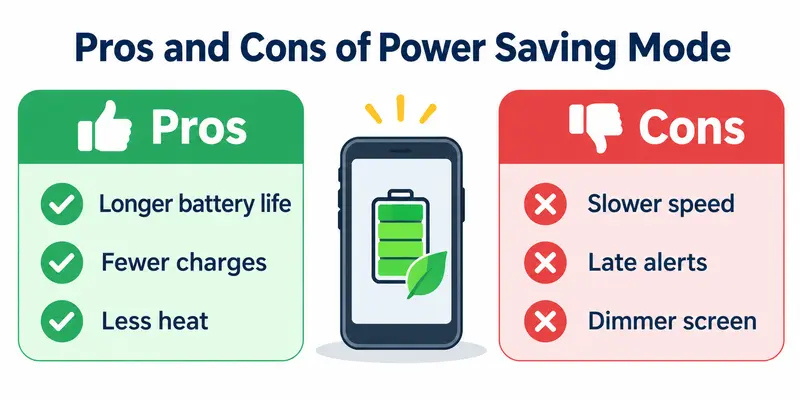
Pros
- Longer battery life. Your phone lasts more hours between charges.
- Fewer charges. You carry your charger less often.
- Less stress. You worry less when the battery is low.
- Easy to use. You turn it on in a few taps.
- Free to use. Every phone has it, and it costs nothing.
- Less heat. Your phone works less, so it stays cooler.
Cons
- Slower performance. Apps may open slowly, and games may lag.
- Late notifications. Emails and chats may arrive after a delay.
- Dimmer screen. Some people find it hard to read outdoors.
- Limited features. Some phone tools may stop working until you turn the mode off.
- Paused updates. Apps may not refresh until you open them.
- Fewer visual effects. Animations and some smooth effects may switch off.
Is It Worth Using?
For most people, yes. The pros are bigger than the cons. You can always turn the mode off when you need full speed. Which one matters more to you: speed or battery life? Your answer tells you when to use this mode.
When Should You Use Power Saving Mode?
You do not need this mode all the time. Use it when it helps most. Here are the best times.
Good Times to Use It
- On a long trip. You may be away from a charger for hours.
- When your battery is low. Turn it on at 20% to get extra time.
- During an emergency. Your phone must stay alive for calls.
- On a busy day. Meetings, errands, and travel drain your battery fast.
- Overnight. If you forget to charge, it helps your phone last until morning.
Using It with Google Maps
Maps and GPS use a lot of power. Long trips can drain your battery fast. Some phones, like google pixel, offer a power-saving option inside Google Maps. It reduces battery use during navigation. Check the Maps settings on your phone to see if you have it.
When Not to Use It
- While gaming. You need full speed for smooth play.
- During video calls. Slower performance can hurt call quality.
- When you wait for urgent alerts. Notifications may come late.
Are you about to do something important on your phone? Turn the mode off first.
Example: Alex drives to a new city with Google Maps on. His battery drops to 15% halfway there. He turns on power-saving mode. His phone lasts until he arrives.
Extra Tips to Save Battery
Power-saving mode is one tool. These small habits help you save even more. Try them today.
- Turn on dark mode. Dark screens use less power, especially on OLED displays. OLED is a screen type that lights each pixel on its own.
- Lower your brightness. Use auto brightness, or set it low by hand.
- Close unused apps. Apps running in the background drain power.
- Switch off Wi-Fi, bluetooth, and GPS when you do not need them. These tools search for signals all day.
- Update your phone. New software often fixes battery problems.
- Check battery use. Open Settings, then Battery. See which apps use the most power. Delete the ones you do not need.
A Note on Standby Power Saving
Some phones have a smart feature that limits apps you rarely use. It puts them to sleep, so they stop draining power. Look for it in your battery settings. Names change by brand, so search “battery” in Settings.
Which tip will you try first? Pick one, and see the difference by tomorrow.
Conclusion
Power saving mode is a simple way to make your battery last longer. It dims your screen, limits background work, and slows some tasks. You can turn it on or off in a few taps, whether you use Samsung, Android, iPhone, or Lenovo. Use it on long trips, busy days, and when your battery is low. Turn it off when you need full speed for games or video calls. Here is your next step: open your battery settings today and find this feature. Then try one extra tip from this article. Will you turn on power-saving mode the next time your battery drops to 20%?
Faqs
Yes, it is safe. It only changes a few settings to save power. It does not harm your phone or your battery.
Yes, you can. Your phone will work fine for calls, texts, and light use. But you may notice slower apps and a dimmer screen. Turn it off when you need full speed.
No, it does not. You can still call and send texts. Some app alerts may come late, though.
Your phone may have an auto setting. It turns the mode on when the battery drops to a set level, like 20%. You can change this level in your battery settings.
Medium limits some features, and your phone still feels normal. Maximum limits almost everything. Only key apps and settings stay active. Use Maximum when your battery is very low.
Yes, the goal is the same. Apple uses a different name. Both settings cut power use to make your battery last longer.
The mode limits how fast your processor runs. This saves power but slows some apps and games. Turn the mode off if you need more speed.
No, it does not. It only slows the drain. If your battery dies fast even with the mode on, it may be old. A battery replacement may be the better fix.




- Be Respectful
- Stay Relevant
- Stay Positive
- True Feedback
- Encourage Discussion
- Avoid Spamming
- No Fake News
- Don't Copy-Paste
- No Personal Attacks
- Be Respectful
- Stay Relevant
- Stay Positive
- True Feedback
- Encourage Discussion
- Avoid Spamming
- No Fake News
- Don't Copy-Paste
- No Personal Attacks
