What Is Always On Display? Meaning, Benefits, and Battery Facts
Published: 19 Oct 2026
Ever seen a phone screen show the time while it is locked? You did not touch it. You did not press any button. Yet the time, date, and battery level are right there. That is the always-on display feature. It keeps useful info on your screen all day. You can check the time in one glance. You can also see new alerts without waking your phone.
But how does it work? Does it drain your battery? Should you keep it on? In this guide, you will learn what it means, how it works on iPhone and Android, and how to save battery. Let’s start!
What Is Always On Display?
Always on display is a feature on some phones. It shows basic info on your screen even when the phone is locked. The screen does not turn fully black. Many people call it AOD. It is common on phones with OLED and AMOLED screens. OLED and AMOLED are screen types. Each pixel makes its own light.
What does it show? Here are the usual things:
- The time and date
- Your battery level
- Icons for new calls, texts, and apps
- Music controls on some phones
The text is small, and the screen is dim. It does not light up your whole room.
Here is a real-life example. Your phone sits on your desk. You are busy with work. You glance at it and see the time. You do not need to touch it. You do not need to press a button. Simple, right?
How Does Always-On Display Work?
The idea is simple. Your phone lights up only a few pixels. The rest stay off. This works well on OLED and AMOLED screens. Each pixel makes its own light. A black pixel is a pixel that is switched off. So a black background uses almost no power. Only the clock and icons glow.
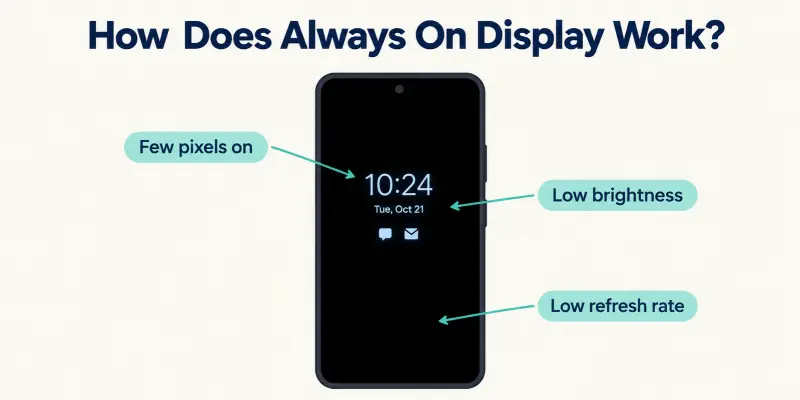
Your phone also saves power in other ways:
- Low brightness: The text is dim, not bright.
- Low refresh rate: The screen updates fewer times each second. Some phones drop to 1 Hz. That means one update per second.
- Small lit area: Only a few pixels stay on.
Sensors help too. They tell your phone when to turn the screen off. For example:
- The phone is in your pocket or bag.
- The phone is face down on a table.
- A bedtime or sleep mode is on.
Think of a small night lamp. It gives a soft glow. It does not light the whole room. It uses very little power.
Does this mean the feature is free for your battery? Not quite. We will cover that soon.
Always On Display on iPhone
Apple added this feature in 2022. The first phones were the iPhone 14 Pro and 14 Pro Max. Now more models have it.
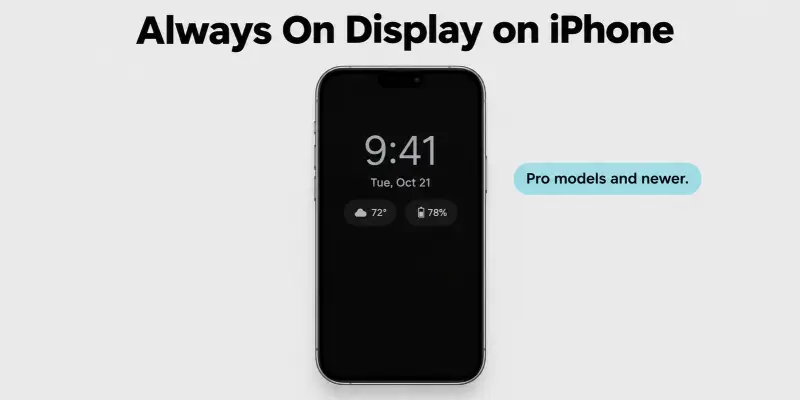
Which iPhones have it?
- iPhone 14 Pro and 14 Pro Max
- iPhone 15 Pro and 15 Pro Max
- iPhone 16 Pro and 16 Pro Max
- iPhone 17, 17 Pro, and 17 Pro Max
- iPhone Air
The standard iPhone 14, 15, and 16 do not have it.
How is it different?
The iPhone does not show a plain black screen. It dims your lock screen. Your wallpaper, widgets, and alerts stay visible. Everything just looks softer.
When does it turn off?
Your iphone shuts it off to save power. This can happen when:
- The phone is face down.
- The phone is in your pocket.
- Low Power Mode is on.
- Sleep Focus is on.
- Your Apple Watch moves away from your iPhone.
How to turn it on or off
- Open Settings.
- Tap Display & Brightness.
- Tap Always On display.
- Switch it on or off.
On supported models, it is on by default. Can’t see this option? Your iPhone does not support it.
Always On Display on Android and Samsung Phones
Android phones had this feature long before the iPhone. Samsung calls it AOD. Many other brands offer it too. Google Pixel, Huawei, OnePlus, and more all have a version. Some brands call it “always on lock screen.”
What can you show?
- Clock, date, and battery level
- Notification icons
- Music controls
- A custom image or theme
Display modes on Samsung
Samsung gives you a few choices:
- Tap to show: The screen lights up when you tap it.
- Show always: The screen stays on all day.
- Show as scheduled: You pick the hours.
- Show for new notifications: The screen lights up when an alert arrives.
How to turn it on
- Open Settings.
- Tap Lock screen and AOD.
- Tap Always On Display.
- Switch it on and pick a mode.
How to customize it
Want a personal touch? You can change the clock style and theme. You can also add an image and set the brightness. Pick a dark image. It looks better and uses less power. Menu names change from brand to brand. They also change between software versions. If you cannot find the setting, search “always” in your Settings app.
Always On Display Logo and Icons: What Do They Mean?
Look at your locked screen. You may see small icons. Each one has a job.
Common icons
- App icons: These show new texts, calls, or app alerts.
- Battery icon: This shows your charge level. It may show a charging sign too.
- Fingerprint icon: Some phones show this where you place your finger.
- Music controls: You can play, pause, or skip a song.
Is there an official AOD logo?
Not really. There is no single logo that all phones use. Each brand has its own small icons. Samsung’s AOD icon in Settings looks like a small clock on a screen.
Want to use your own logo or image?
Many phones let you pick a picture for this screen. Choose a simple image with a black background. A bright, busy picture uses more power.
Pros and Cons of Always-On Display
Is this feature worth using? Let’s look at both sides.
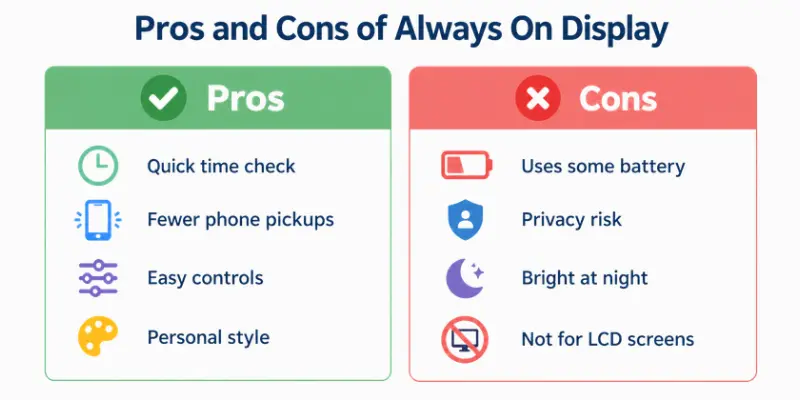
Pros
- Quick time check: You see the time in one glance. You do not touch the phone.
- Fewer phone pickups: You check alerts without waking the screen.
- Useful at a desk: The phone works like a small clock.
- Easy controls: You can manage music right from the locked screen.
- Personal style: You can pick a clock, theme, or image.
Cons
- Uses some battery: The screen stays partly on. We cover this in the next section.
- Privacy risk: Other people can see your alerts. Hide the message details in Settings if this worries you.
- Too bright at night: A lit screen can bother you in a dark bedroom.
- Not for every phone: LCD screens use more power for this feature. It suits OLED and AMOLED best.
- Small screen wear risk: Static images can cause burn-in on OLED screens over a long time. Phones dim and shift the display to lower this risk.
The pros win for most people. Do you often check the time? Then you will likely love it.
Does Always On Display Drain Your Battery?
Yes, it does use some battery. The screen stays partly on, so it needs power. But the drain is usually small.
Why the drain is small
- Only a few pixels light up.
- The screen is dim.
- The refresh rate is low.
Which screens are better?
OLED and AMOLED screens handle this best. Black pixels switch off completely. LCD screens use more power. They light up the whole screen, even for a small clock.
How much battery will you lose?
It depends on your phone and your habits. A newer phone with a big battery will barely notice. An older phone with a weak battery will feel it more. Test it yourself. Check your battery use for one day with AOD on. Then check one day with it off.
Easy tips to save battery
- Use “tap to show” instead of “show always.”
- Set a schedule, such as daytime only.
- Pick a dark, simple clock or image.
- Lower the brightness.
- Turn off notification icons you do not need.
- Switch on power-saving mode when the battery is low.
Does turning it off save battery? Yes, a little. But you lose a handy feature. Try the tips first.
Should You Turn Always-On Display On or Off?
The right choice depends on you. Use this simple guide.
Keep it on if:
- You work at a desk and check the time often.
- You want to see alerts without touching your phone.
- Your phone has an OLED or AMOLED screen.
- Your battery lasts all day with room to spare.
Turn it off if:
- Your battery runs low before the day ends.
- Your phone has an LCD screen.
- You sleep with your phone near your bed, and the light bothers you.
- You do not want others to see your alerts.
Not sure? Try the middle way.
Use “tap to show” or a schedule. You get the benefits with less drain. For example, set it to run from 8 AM to 10 PM.
Still unsure? Test it for one week. Then keep what works for you. What do you think you will choose?
Best Always On Display Apps
Does your phone lack this feature? You can try an app – apps like this work on Android phones. iPhones do not support them.
What do these apps do?
- Show a clock and date on a dark screen.
- Show notification icons.
- Offer themes and clock styles.
Examples to try
- Always On AMOLED: A popular app with simple clock styles.
- Always On Display – AMOLED Clock: An app with many clock and theme choices.
Stay safe and save power
- Download only from Google Play or your phone’s official app store.
- Check the reviews and the permissions the app asks for.
- Use it on OLED or AMOLED phones. LCD screens lose battery fast.
An app is a good backup. But a built-in feature works better. It is made for your phone.
Conclusion
Always on display is a handy feature. It shows the time, date, and alerts on a locked screen. It works best on OLED and AMOLED phones, and it drains the battery little for most people. You now know how it works, which iPhones and Android phones have it, and how to save power. So what should you do next? Try it for a week. Use “tap to show” or a schedule if you worry about battery, then keep the setting that fits your day. Will you keep your AOD on?
Faqs
No, it is not bad for most phones. It uses low brightness and a low refresh rate. Burn-in on OLED screens is a small risk over a long time. Phones dim and shift the display to lower it.
Many Samsung Galaxy phones have it. So do google pixel, OnePlus, and Huawei phones. Some iPhones have it too. Check your phone’s Settings to be sure.
This is not an AOD setting. You often see it on product photos or store demo phones. It means the item is shown for looks and may not be for sale.
Yes. Open Settings and find the AOD option. Then switch it off.
Your phone senses when it is covered. It turns the screen off in a pocket or bag. A case that covers the screen can do the same.

- Be Respectful
- Stay Relevant
- Stay Positive
- True Feedback
- Encourage Discussion
- Avoid Spamming
- No Fake News
- Don't Copy-Paste
- No Personal Attacks
- Be Respectful
- Stay Relevant
- Stay Positive
- True Feedback
- Encourage Discussion
- Avoid Spamming
- No Fake News
- Don't Copy-Paste
- No Personal Attacks
