What Is Mobile Network State Disconnected: Causes, Solutions, and Fixes
Published: 25 Aug 2026
Imagine trying to make an important call or send a message, only to be interrupted by a frustrating “Mobile Network State Disconnected” error. For many mobile users, this is a common yet irritating issue that can completely disrupt their day. Whether you’re trying to reach a friend, access an app, or even conduct business, this disconnection can be inconvenient.
For mobile operators, it’s not just a technical glitch—it’s a potential source of customer frustration and lost trust. Understanding why the disconnect happens and how it affects both users and operators is key to solving the problem and improving the mobile experience for everyone.
What is a mobile network state disconnect?
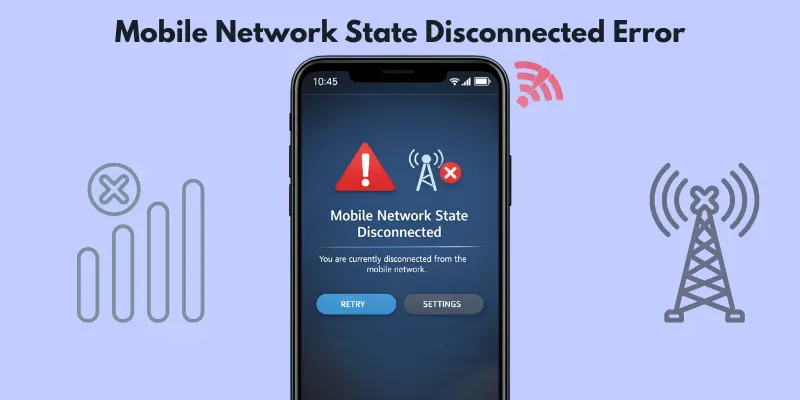
The “Mobile Network State Disconnected” error happens when your mobile device loses its connection to the mobile network. This means your phone can’t send or receive calls, texts, or data until it reconnects. It’s like your phone is trying to talk to the outside world, but something is blocking the signal.
How Mobile Networks Work
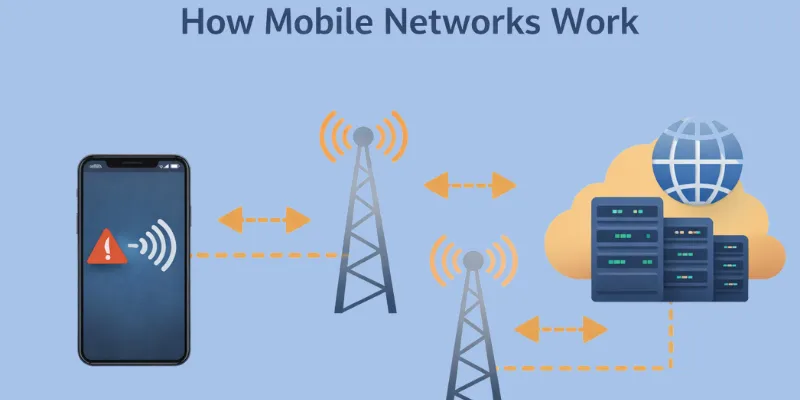
To understand this error, it’s helpful to know a bit about how mobile networks function. Mobile networks rely on cell towers, which send signals to your phone, and protocols that make sure everything runs smoothly. When your phone connects to a network, it talks to a nearby cell tower to get information or make calls. All of this communication relies on a steady connection.
However, sometimes something goes wrong, and the connection is lost. This is when you see the “Mobile Network State Disconnected” error.
Common Causes of the Error
There are a few reasons why your mobile device might disconnect:
- Network Congestion: When too many people are using the network in one area, it can slow down or drop the connection, causing errors.
- Poor Signal Strength: If you’re in an area with weak signal coverage, your phone may lose connection to the network.
- Temporary Device or Network Issues: Sometimes, it could be something as simple as your phone needing a restart or a temporary issue with your mobile provider’s network.
- Software or Hardware Problems: Occasionally, problems with the phone’s software or hardware can also interrupt the connection.
Real-World Implications of Disconnections
When your phone experiences this “disconnected” error, it can be more than just a minor annoyance. Imagine you’re trying to make an urgent call or send a quick text, but you can’t because of a network issue. You might also lose access to the internet or apps, which can be frustrating, especially when you’re relying on your phone for important tasks.
Why It Matters
The “Mobile Network State Disconnected” error affects both users and mobile operators. For users, it’s about lost time, missed calls, and an overall frustrating experience. For mobile operators, it’s about maintaining smooth and reliable service to keep customers satisfied. This balance between the technical and real-world aspects of the problem is crucial for understanding the impact of such disconnections.
Common Causes of Mobile Network Disconnection
Various issues can cause mobile network disconnections. Some of them are simple, while others can be more complicated. Let’s dive into the most common causes and explain them in a way that’s easy to understand.
SIM Card Issues
A damaged, expired, or improperly inserted SIM card blocks your network connection. This small issue causes big problems.
- Damaged or dirty SIM cards fail to connect properly
- Improperly inserted SIM cards lose signal often
- Expired SIM cards stop working with your carrier
Tip: Always check your SIM card first when facing network issues.
WiFi and Mobile Data Conflict
Does your mobile data stop working the moment you turn on WiFi? This happens more than you think. Many phones can’t use WiFi and mobile data at the same time. When you turn on WiFi, your phone automatically switches off mobile data. This creates the “Mobile Network State Disconnected” error, even though nothing is actually broken.
Why This Happens
- Some Android phones lack the hardware feature for simultaneous connections.
- Your phone picks one connection type and drops the other.
- This isn’t a bug. It’s simply how the device works.
How to Check If This Is Your Problem
- Open Settings on your phone.
- Tap Connections or WiFi & Network.
- Turn WiFi off completely.
- Wait 10 seconds.
- Check if mobile data reconnects.
Incorrect APN Settings
Your phone’s Access Point Name (APN) settings act as the gateway between your device and the internet. These settings tell your phone exactly how to reach your carrier’s mobile data network. When these settings are wrong or missing, your phone struggles to load web pages, use apps, or make internet-based calls — even though you technically have signal.
- Wrong APN settings block mobile data completely
- Missing APN details prevent internet-based calling
- Outdated APN configurations cause slow or failed connections
Tip: Check your APN settings and match them to your network provider’s requirements.
Network Outages or Interference
Sometimes the problem isn’t your phone at all. External factors outside your control can block or weaken your connection completely. Planned maintenance, technical failures, and physical obstacles all play a role in disrupting your mobile network, even when your device works perfectly fine.
- Planned maintenance and technical difficulties cause temporary outages
- Unexpected network congestion slows down or drops connections
- Physical barriers like tall buildings or mountains block signal strength
Tip: If your area faces frequent outages, check your carrier’s service status page before troubleshooting your phone.
Software or Device Malfunctions
Your phone’s software works behind the scenes to keep your network connection stable. When bugs, glitches, or outdated software creep in, this connection breaks down. Even brand-new phones face these issues, especially after a recent update or a long period without a restart.
- Outdated software fails to support current network protocols
- Bugs and glitches interfere with network connection stability
- Hardware malfunctions occasionally cause persistent disconnection issues
Tip: Restart your phone first, then check for software updates if disconnections continue.
Roaming Problems
Traveling outside your home network’s range creates unique connection challenges. Your phone must switch to a different network, and this switch doesn’t always go smoothly. Differences in settings, coverage, and compatibility between networks often disrupt your service right when you need it most.
- Remote areas often lack strong roaming network coverage
- International travel requires proper roaming settings activation
- Network compatibility issues cause connection drops while switching
Tip: Enable data roaming before you travel and confirm your carrier supports your destination.
How to Fix the Mobile Network State Disconnected Error
If you’re facing the “Mobile Network State Disconnected” error, don’t worry! Here are simple, step-by-step solutions to get you back online, whether you’re a beginner or more tech-savvy.
Step-by-Step Solutions for Common Issues
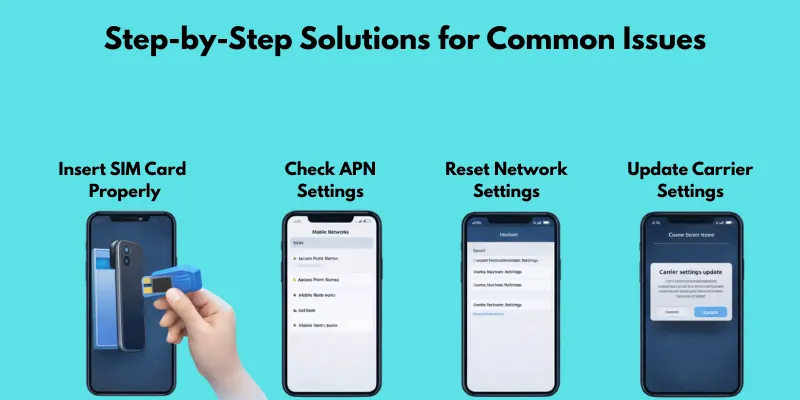
Inserting the SIM card properly.
Occasionally, the problem is as simple as an improperly inserted SIM card. Here’s what to do:
- Turn off your phone.
- Remove the SIM card.
- Check for any visible damage, like scratches or dirt.
- Reinsert the SIM card properly, ensuring it’s placed in the right slot.
This quick fix can often resolve connection issues and save you frustration!
Resetting APN Settings
Incorrect APN settings can prevent you from accessing mobile data. To reset them:
- Go to your phone’s Settings.
- Find Mobile Networks or Cellular Networks.
- Look for the APN (Access Point Name) section.
- Reset the APN settings to default according to your mobile carrier’s recommendations.
This should help restore your mobile data connection.
Network Reset
A network reset clears any errors in your network settings. Here’s how to perform one:
- Go to Settings.
- Tap General or System.
- Find the Reset option and select Reset Network Settings.
This will reset your network settings and should resolve any connection issues.
Enabling Data Roaming (If Necessary)
When traveling or in certain areas, you might need to enable data roaming to connect to a different network:
- Open Settings.
- Go to Mobile Networks or Cellular Networks.
- Toggle Data Roaming on if you’re outside your home country or coverage area.
This allows your phone to connect to networks in different regions.
Checking Carrier Settings
Sometimes, updating your carrier settings can fix connection problems:
- Open Settings.
- Tap About Phone.
- Look for Carrier Settings.
- If an update is available, apply it.
This ensures your phone is using the correct settings from your mobile provider.
iPhone-Specific Fixes
Most fixes online focus only on Android. But iPhones face this issue too. Here’s what actually works for iPhone users.
Step 1: Toggle Airplane Mode
- Open Control Center by swiping down from the top-right corner.
- Tap the Airplane Mode icon.
- Wait 15 seconds.
- Tap it again to turn Airplane Mode off.
Step 2: Check Carrier Settings Update
- Open Settings.
- Tap General.
- Tap About.
- If an update pops up, tap Update.
Step 3: Reset Network Settings
- Open Settings.
- Tap General.
- Scroll down and tap Transfer or Reset iPhone.
- Tap Reset.
- Select Reset Network Settings.
- Enter your passcode to confirm.
Step 4: Check for ios Updates
- Open Settings.
- Tap General.
- Tap Software Update.
- Install any available update.
Step 5: Remove and Reinsert the SIM (Physical SIM Only)
- Turn off your iPhone.
- Use the SIM eject tool to remove the tray.
- Check the SIM for damage or dirt.
- Reinsert the SIM firmly.
- Turn your iphone back on.
Real-Life Example:
Your iPhone shows no signal after a software update. You try restarting, but nothing changes. You reset network settings instead, and your iPhone reconnects within seconds.
Additional Troubleshooting for Advanced Users
Software Updates
Keeping your phone’s software up to date can resolve lingering connectivity issues. Check for updates:
- Go to Settings.
- Select Software Update.
- If any updates are available, install them.
Updating your software can fix bugs that cause network errors.
Clear the cache or reinstall the networking app
For more tech-savvy users, clearing the cache of your network management app or reinstalling it might help:
- Go to Settings.
- Tap Apps or Applications.
- Find the Network Management app.
- Tap Clear Cache or uninstall and reinstall the app.
This can help resolve any issues with the app’s functionality.
Check for interference or overloaded networks
Advanced users can also look for network problems or try switching to a different frequency band:
- Go to Settings.
- Tap Network or Mobile Networks.
- Look for the option to choose a different network band, like 4G LTE. Switching bands can help if the current network is slow or has problems.
Preventing Future Network Disconnections
If you’ve been dealing with mobile network disconnections, it’s important to know that there are steps you can take to prevent them from happening again. By maintaining your settings, staying updated, and being proactive, you can keep your mobile network stable and avoid future frustrations.
Tips for Keeping Your Mobile Network Stable
Regularly check and maintain your networking settings
It’s important to regularly check and update your network settings, at least every few months. Ensure that your APN settings and network preferences align with your provider’s requirements to prevent any potential disruptions.
- Update APN settings to match the latest carrier recommendations.
- Check network preferences every few months to ensure they’re up to date.
Keep Your Phone’s Software Up to Date
Keeping up with software updates is essential for the stability of your network. Many updates resolve problems and make your phone’s network work better, which stops connection problems from happening in the future.
- Regularly check for software updates under Settings > Software Update.
- Install security patches that may improve network reliability and performance.
Set Your Phone to Automatically Select the Best Network
Ensure that your phone is set to automatically choose the best available network. This ensures you’re always connected to the strongest and most reliable signal in any given area, helping you avoid disconnections.
- Enable auto-network selection under Mobile Networks settings.
- This setting ensures your phone connects to the best available network in your location.
Monitor the signal strength and avoid areas with poor coverage
Use apps to track signal strength and avoid areas with weak or unreliable coverage. Locations like underground spots or places with many obstructions, such as large buildings, can interfere with the signal and cause disruptions.
- Use apps like Network Signal Info to check signal strength in your area.
- Avoid locations with high interference, such as basements or large metal structures.
Use WiFi calling when the network signal is low or unstable
When your mobile signal is weak, enabling Wi-Fi calling can keep you connected. This feature allows you to make calls and send texts over Wi-Fi, which is especially helpful in areas with poor cellular coverage.
- Enable Wi-Fi calling through your phone’s settings when your signal is weak.
- Use Wi-Fi for calls and messages to avoid relying on a poor cellular network.
For Operators: How to Handle Network Disconnections
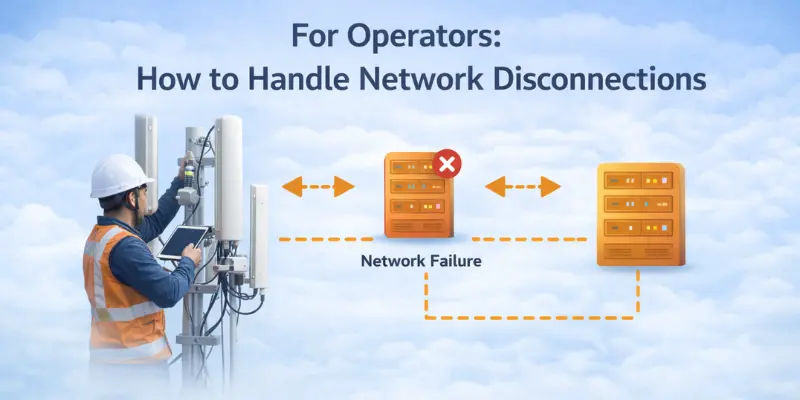
Network disconnections can be frustrating for both users and telecom operators. For service providers, ensuring a stable, reliable network is essential for maintaining customer satisfaction and minimizing disruptions. Here are some best practices for operators to reduce network disconnections and improve overall connectivity.
Best Practices for Service Providers to Ensure Better Connectivity
Optimizing Network Infrastructure to Minimize Disconnections
To keep up with more traffic, you should regularly upgrade your network hardware, like routers and cell towers. This will help keep things from getting too crowded during busy times and lower the risk of disconnections.
- Upgrade hardware to support more users and traffic.
- Use network monitoring tools to identify and fix issues before they impact users.
Investing in Network Redundancy for Continuous Service
Implementing backup systems, such as additional cell towers and data routing, ensures uninterrupted service even if part of the network fails. This redundancy keeps users connected even during network failures.
- Set up backup systems to ensure consistent service.
- Plan for backups to make sure services continue to work smoothly.
Collaborating with Device Manufacturers for Optimal Performance
Assist smartphone manufacturers in optimizing their devices for your network. This minimizes connectivity problems related to device settings, like incorrect APN configurations or software issues.
- Optimize device compatibility with network settings.
- Address device-related issues that may disrupt connectivity.
Enhancing Customer Support and Providing Clear Education
Providing users with clear troubleshooting guides and resources can help them solve common network issues. A well-trained customer support team can address problems quickly and improve overall user experience.
- Provide troubleshooting guides and resources to help users resolve issues.
- Train support teams to handle network problems efficiently and improve user satisfaction.
Final Tips: The Importance of Staying Informed
Stay proactive by regularly checking your mobile network settings and keeping your device up to date. Knowledge is key—whether you’re troubleshooting on your own or working with your service provider, staying informed will help you handle network issues more effectively.
The mobile network landscape can be complex, but with the right tools and information, you can prevent disruptions before they happen and enjoy a smoother mobile experience. Keep your network settings in check, and always be ready to make small adjustments to stay connected and avoid disconnections.
Conclusion
We’ve covered the key aspects of the “Mobile Network State Disconnected” error—what causes it, how to fix it, and how to prevent it in the future. By understanding the technical reasons behind the issue and applying the right solutions, both users and operators can minimize disruptions and improve their overall mobile experience.
FAQs
The “Mobile Network State Disconnected” error usually occurs when your phone loses network connectivity. This can be caused by weak signal strength, a malfunctioning SIM card, or issues with the network provider. Sometimes, software problems or incorrect settings can also disrupt the connection.
To fix this error, restart your phone. Verify that your SIM card is properly inserted and not damaged. You can also reset your APN settings, update your phone’s software, or toggle airplane mode on and off to restore the connection.
Your phone might keep disconnecting due to a weak signal, network congestion, or issues with the mobile provider. Software bugs, incorrect settings, or a SIM card issue could also be the cause. Try moving to an area with a better signal or restarting your phone to fix it.
To prevent future network disconnections, keep your phone’s software up to date and regularly check your network settings. You can also set your phone to automatically select the best network and avoid areas with poor coverage. If you’re traveling, enable data roaming for a more stable connection.
Yes, the “Mobile Network State Disconnected” error is a common issue for many phone users. It usually happens due to temporary issues with network connection, settings, or signal strength. While it can be annoying, it’s typically easy to fix with some basic troubleshooting.



- Be Respectful
- Stay Relevant
- Stay Positive
- True Feedback
- Encourage Discussion
- Avoid Spamming
- No Fake News
- Don't Copy-Paste
- No Personal Attacks
- Be Respectful
- Stay Relevant
- Stay Positive
- True Feedback
- Encourage Discussion
- Avoid Spamming
- No Fake News
- Don't Copy-Paste
- No Personal Attacks
