What is Haptic Feedback on iPhone? Complete Guide (2026)
Published: 25 Sep 2026
Have you ever felt a small tap on your iphone when typing? That is what haptic feedback on iPhone is called. It is a light vibration your phone gives when you touch the screen. For example, when you type or press buttons, you feel a quick response. Many users get confused and think it is the same as normal vibration. That is why people search for what haptic feedback on iPhone is to understand how it really works. It helps make your phone feel more real and easy to use.
What Is Haptic Feedback on iPhone?
It is a small touch response you feel when using your phone. It gives a quick, soft tap when you press something on the screen, making actions feel more real and smooth. Many people think it is the same as vibration, but it is different. Normal vibration is strong and used for calls or alerts, while haptic feedback is light and used for small actions like typing or changing settings. Apple uses a special part called the Taptic Engine, which creates these fast and precise taps, making the experience feel more natural and responsive.
How iPhone Haptic Feedback Works
Have you ever felt a tiny tap or vibration while using your iPhone and wondered how it happens? That is iPhone haptic feedback in action. It makes the phone feel more responsive and real, even though the screen is flat. This feature helps you know that your touch or action is registered without looking at the screen. It works quietly, quickly, and precisely, giving a smooth and natural feeling every time you interact with your iPhone.
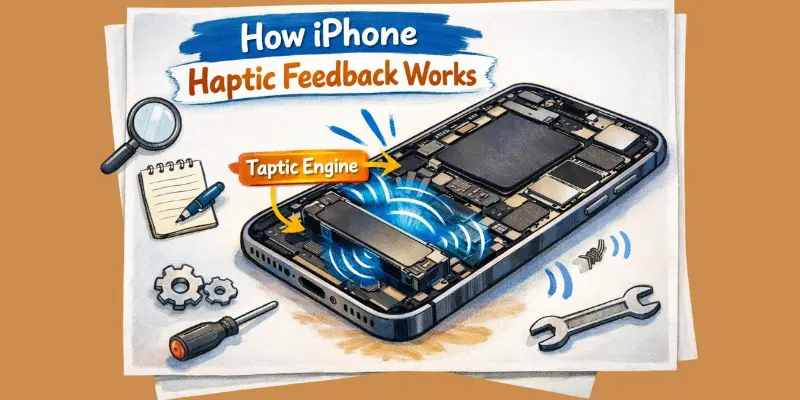
How it works:
- The Taptic Engine creates fast and controlled micro-vibrations
- These vibrations feel like gentle taps, not strong shaking
- It responds instantly when you touch the screen
Real-life examples:
- Keyboard typing: You feel a light tap on each key
- Notifications: A short, soft pulse alerts you
- Long press (Haptic Touch): A gentle feedback confirms your action
Which iPhone Models Support Haptic Feedback?
Not sure if your iPhone has this feature? Let’s clear that up. Apple added haptic feedback starting with the iPhone 7 and iPhone 7 Plus. These were the first models with the Taptic Engine built in.
Here’s a simple breakdown:
- iPhone 6s and older: No Taptic Engine. These models only have basic vibration.
- iPhone 7 to iPhone 16 (all models): Full haptic feedback support. Every model since 2016 has this feature.
- iphone se (all generations): Yes, these also support haptic feedback.
So if you own any iPhone from 2016 onward, good news — you already have this feature. You just need to turn it on in Settings.
Quick tip: Not sure which model you have? Go to Settings → General → About. Your model name will show right there.
Haptic Feedback vs Vibration – Key Difference
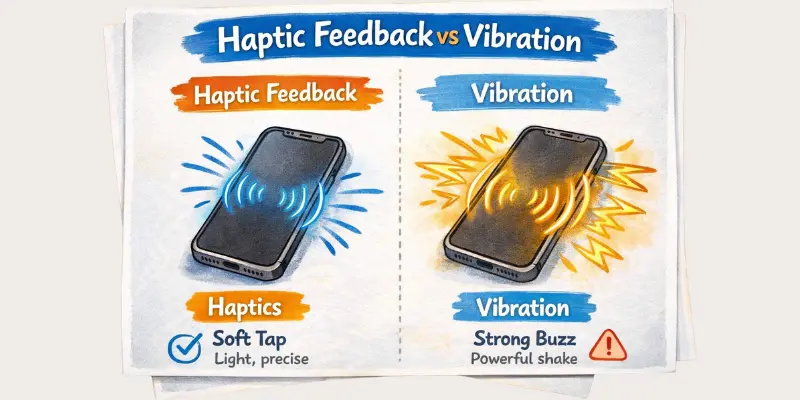
Understanding haptic feedback vs vibration helps you know why iPhones feel so smooth and responsive. Here’s the difference in simple points:
- Precision:
- Haptics: High – very accurate and controlled taps
- Vibration: Low – general strong shake
- Feel:
- Haptics: Soft taps you can barely notice
- Vibration: Strong buzz that you clearly feel
- Usage:
- Haptics: Used for UI feedback like typing, buttons, and Haptic Touch
- Vibration: Used for calls, alarms, and notifications
Types of Haptics on iPhone
iPhone uses different types of haptics to make your experience smooth and interactive. Each type serves a specific purpose:
- System Haptics:
These are used for general UI interactions like opening apps, toggling switches, or moving between menus. They give small, precise taps to confirm your actions. - Keyboard Haptics:
When you type, keyboard haptics provide a soft tap for every key press. This makes typing feel more real, like pressing physical buttons. - Notification Haptics:
For calls, alerts, and notifications, your iPhone uses haptics to give short, gentle pulses. This ensures you notice alerts without loud vibrations.
Each type of haptics on iPhone improves usability and makes your interactions more natural and satisfying.
Haptic Feedback in Apps and Games
Do you play games on your iPhone? Then you have felt haptic feedback without even knowing it.
Many apps use this feature to make your experience feel real. It is not just for typing or settings. Games and apps use it too.
Here’s how apps use haptic feedback:
- Games: You feel a small tap when you shoot, jump, or crash into something. This makes the game feel alive.
- Social media apps: Some apps give a gentle tap when you like a post or refresh your feed.
- Fitness apps: You feel a soft buzz when you finish a workout goal. It feels like a small reward.
- Maps and navigation: A quick tap can tell you when to turn, so you don’t need to look at the screen every second.
Why does this matter? It makes apps feel more fun and easy to use. You don’t just see the action — you feel it too.
How to Turn On Haptic Feedback on iPhone
Turning on haptic feedback on iPhone is simple, even for beginners. Follow these easy steps:
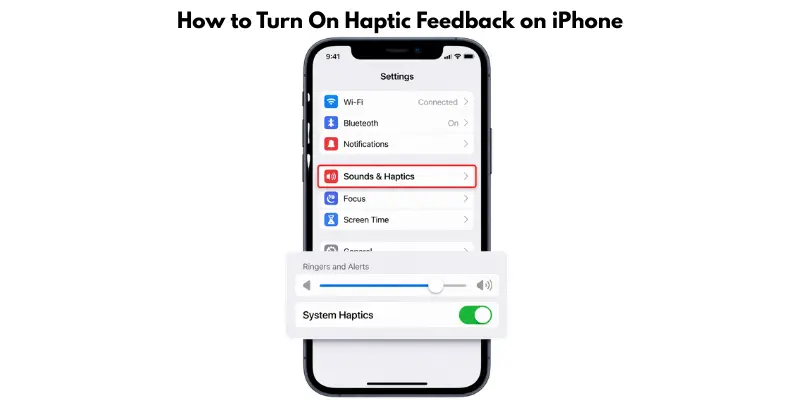
- Open Settings: Tap the Settings app on your iPhone.
- Go to Sounds & Haptics: Scroll down and select Sounds & Haptics.
- Enable System Haptics: Make sure System Haptics is turned ON.
Once done, your iPhone will give gentle taps for actions like typing, pressing buttons, and using Haptic Touch. This makes your phone feel more responsive and interactive.
How to Change Haptic Settings & Vibration on iPhone
You can customize iPhone haptic settings and vibration patterns to make your phone feel more personal. Here’s how:
- Custom Vibration: You can create your own vibration pattern for calls or alerts. Go to Settings → Sounds & Haptics → Ringtone → Vibration → Create New Vibration. This way, every alert can feel unique.
- Increase or Decrease Vibration: iPhone lets you adjust vibration intensity for notifications and haptics. Go to Settings → Accessibility → Touch → Vibration, then toggle it ON or OFF.
- Limitations: Apple does not give full control over haptic feedback. You can adjust some settings, but system haptics and keyboard taps have a fixed intensity that cannot be fully customized.
Should You Keep iPhone Haptics On or Off?
Deciding whether to keep iPhone haptics on or off depends on your preferences and usage. Here’s a simple guide:
Pros of Keeping Haptics On:
- Better user experience: Small taps make the phone feel more responsive and real.
- Typing feel improves: Keyboard haptics give feedback with every key press, making typing smoother and satisfying.
Cons of Keeping Haptics On:
- Slight battery use: Haptics use a little extra battery power.
- Can feel annoying: Some users may not like the constant taps for typing or actions.
Overall, keeping iPhone haptics on or off is about balancing comfort, battery life, and how much you enjoy the tactile feedback.
Common Problems & Fixes for iPhone Haptics
Sometimes iPhone haptic feedback can run into problems, but most are easy to fix. Here are a few common issues along with their simple solutions:
Common Issues:
- Haptics not working: You don’t feel any taps when using the phone.
- Vibration too weak: The feedback feels too soft or almost unnoticeable.
- Keyboard vibration not working: Typing doesn’t give any tactile response.
Easy Fixes:
- Restart your iPhone: Sometimes a simple restart brings haptics back.
- Check settings: Go to Settings → Sounds & Haptics → System Haptics and make sure it’s ON.
- Update ios: Make sure your iPhone has the latest software, as updates often fix bugs affecting haptics.
Conclusion
This feature gives you a soft, precise response for every tap, keypress, and notification, making it feel more real and responsive than normal vibration — that’s haptic feedback on iPhone. For the best results, keep System Haptics ON in Settings → Sounds & Haptics and adjust vibration intensity in Accessibility → Touch → Vibration. This ensures your iPhone feels smooth, responsive, and easy to use every day.
FAQs
Haptic feedback on iPhone is a small, soft tap you feel when interacting with the screen. It gives subtle vibrations for typing, button presses, notifications, and Haptic Touch, making the phone feel more responsive.
No. Normal vibration is strong and used for calls or alerts, while haptic feedback is light, precise, and used for UI interactions and typing.
Go to Settings → Accessibility → Touch → Vibration. Turn it ON to increase the vibration strength for notifications and haptics.
Most iPads do not have full haptic feedback like iPhones. Some models support limited touch feedback, but it’s not as precise as iPhone haptics.
Check if System Haptics is ON in Settings → Sounds & Haptics. Also, restart your iPhone and ensure the software is updated. Sometimes, minor bugs can temporarily stop vibrations.




- Be Respectful
- Stay Relevant
- Stay Positive
- True Feedback
- Encourage Discussion
- Avoid Spamming
- No Fake News
- Don't Copy-Paste
- No Personal Attacks
- Be Respectful
- Stay Relevant
- Stay Positive
- True Feedback
- Encourage Discussion
- Avoid Spamming
- No Fake News
- Don't Copy-Paste
- No Personal Attacks
