Redmi Note 7 Burn In: Causes, Fixes, and How to Prevent Screen Burn
Published: 25 Sep 2026
Have you ever noticed faint icons, keyboard outlines, or shadows lingering on your phone screen? Many users experience Redmi Note 7 burn in, where ghost images or app outlines stay visible even after switching screens. This happens when certain pixels wear out faster than others over time. Knowing why it occurs can help you take simple steps to prevent permanent marks and keep your display clear. By following a few easy tips, you can protect your screen and enjoy a crisp, sharp display for longer.
What Is Screen Burn-In on Smartphones?
Screen burn-in is a display issue in which a faint image stays on the screen for a long time. It happens when the same icons or bars stay in one place for many hours. This effect is also called permanent image retention. Burn-in is more common on OLED screens, while LCD screens usually show only temporary image retention. Some users search for screen burn Xiaomi or burn-in Xiaomi when they notice shadow icons or marks on their phone’s display.
Redmi Note 7 Display Type: Does It Have LCD or OLED Screen?
This is the most important thing to know before worrying about burn-in. The Redmi Note 7 uses an IPS LCD panel, not an AMOLED or OLED display. This detail changes everything about how you should think about the issue.
Here’s why it matters:
- OLED screens light up each pixel individually. Over time, pixels showing the same image (like a navigation bar) can wear unevenly, causing a genuinely permanent ghost image.
- LCD screens, like the one in the Redmi Note 7, use a backlight behind a fixed layer of liquid crystals. Individual pixels don’t “burn out” the same way. What people call burn-in on this phone is technically image retention — a temporary effect that usually fades within minutes to hours.
- True, permanent burn-in on an IPS LCD panel is rare and usually points to a manufacturing defect rather than normal wear.
Is Redmi Note 7 Burn-In a Real Problem?
Yes, some users have reported this issue on their phones. People often talk about it on phone forums and on Reddit. Many describe faint shadows of the keyboard, navigation buttons, or status bar staying visible for a short time. The good news is that in most cases, these marks are temporary and fade on their own.
Here’s what users typically report:
- It’s not common across all devices — most cases are minor, not a serious hardware failure.
- Faint shadows of the keyboard, navigation buttons, or status bar.
- Marks that stay visible briefly even after the screen changes.
- The issue usually shows up after long screen use, high brightness, or the same image staying on screen for hours.
What Users Are Saying: Burn-In Reports from Forums
On phone forums and community discussion boards, several owners have described similar experiences. Common reports include:
- Faint gray-scale ghosting after browsing apps like YouTube, Instagram, or a web browser for 15–30 minutes at high brightness.
- Marks that disappear almost completely after the phone rests (screen off) for about an hour.
- A general agreement among long-time LCD users that this is image retention, not true burn-in — since Xiaomi’s Redmi Note 7 doesn’t use an OLED panel.
Some users have also compared notes with owners of earlier Redmi models (like the Note 4 and Note 5), which used similar LCD panels and showed the same temporary ghosting pattern. This reinforces that the behavior is tied to LCD panel characteristics in general, not a defect unique to the Note 7.
Signs of Redmi Note 7 Screen Burn
If your screen shows this issue, you may notice some clear signs. One common symptom is a faint shadow of the status bar that stays visible even when you switch apps. You might also see the keyboard outline on the screen after typing for a long time. Another sign is when navigation buttons appear as ghost images, even when they are not on the screen.
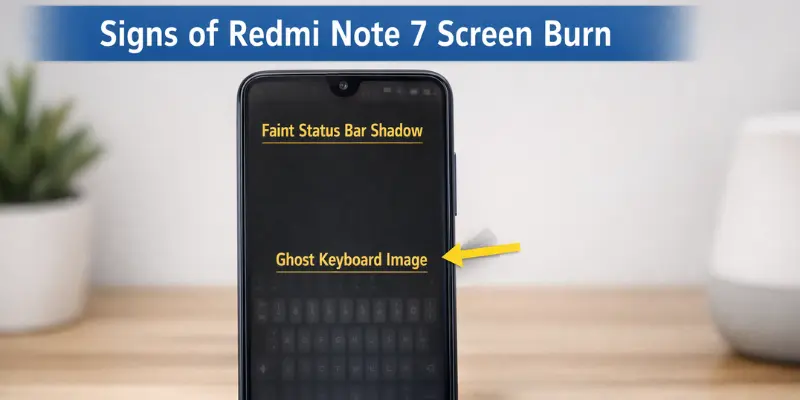
Sometimes users confuse this with screen bleeding, but that’s a different issue — it usually shows up as uneven light around the edges of the display. Screen burn, on the other hand, appears as faint ghost images of icons or bars. Spotting the difference early helps you take the right steps and avoid long-term display problems.
What Causes Redmi Note 7 Burn In?
Several factors can lead to this problem. Understanding these causes can help you prevent screen issues and protect your display.
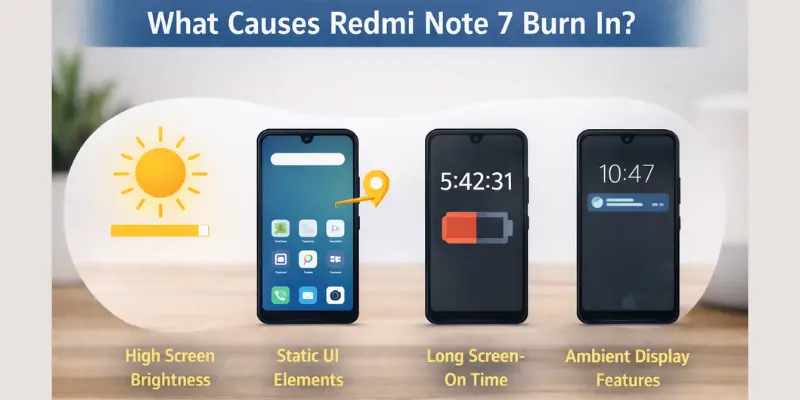
High Screen Brightness
Keeping your phone at a very high brightness for long periods can wear out pixels faster. This makes parts of the screen show ghost images or faint shadows over time. Key points:
- Setting brightness to maximum for hours stresses pixels.
- Outdoor sunlight mode can increase pixel wear.
- Long-term high brightness accelerates ghost image formation.
Static UI Elements
If you often use apps or games with fixed icons, buttons, or menus, those elements stay on the screen in the same spot. Over time, this can lead to ghost images, especially in the status bar or navigation areas. Key points:
- Persistent icons in apps or games create uneven pixel wear.
- Status bar or navigation buttons are common areas affected.
- Frequent use of apps with static layouts increases risk.
Long Screen-On Time
Using your phone for hours without a break puts more strain on the screen. The longer certain pixels stay active, the more likely they are to leave faint marks over time. Key points:
- Continuous video watching or gaming keeps pixels lit.
- Extended scrolling or reading apps increases pixel stress.
- No rest periods for the screen accelerate burn-in.
Poor Display Calibration
Sometimes the display settings are not optimized. Incorrect color balance or contrast can stress pixels unevenly, making burn-in more likely. Key points:
- Over-saturated colors can wear certain pixels faster.
- High contrast settings increase stress on specific areas.
- An uncalibrated display may show uneven pixel aging.
Ambient Display Features
Features like ambient display keep part of the screen on all the time. They show notifications or the clock, which is handy. But if you use this feature too much, it can slowly lead to screen burn. Key points:
- Always-on notifications can leave faint shadows.
- Clock or widgets on the ambient display stress the same pixels repeatedly.
- Continuous use of ambient mode accelerates pixel wear.
How to Fix Redmi Note 7 Burn In
If you’re noticing ghost images on your screen, don’t worry. There are simple ways to fix it or stop it from getting worse. You can do all of this right from your phone’s settings.
Reduce Screen Brightness
High brightness makes pixels wear out faster. Lowering it can help reduce ghost images. Tips:
- Go to Redmi note 7 settings → Display → Brightness.
- Use auto-brightness to adjust based on light conditions.
- Avoid keeping maximum brightness for long periods.
Enable Dark Mode
dark mode uses fewer bright pixels and reduces stress on the screen. Tips:
- Open Redmi note 7 settings → Display → Dark Mode.
- Enable dark mode for apps that support it.
- Use system-wide dark mode for prolonged screen use.
Change Wallpaper
Static wallpapers can worsen burn-in over time. Changing wallpapers frequently helps. Tips:
- Pick wallpapers with moving patterns or darker backgrounds.
- Avoid bright, static images with fixed icons.
- Change your home screen wallpaper every few days.
Screen Refresh Apps
Some apps can help refresh your display and reduce ghost images. Tips:
- Search for screen refresh apps in the Play Store.
- Use pixel shifting or color cycling features.
- Run the app for a few minutes daily to help even out pixel wear.
Display Reset Settings
Resetting display settings can sometimes fix minor burn-in effects. Tips:
- Go to Redmi Note 7 settings → Additional Settings → Reset Display Settings.
- This restores default calibration and reduces uneven pixel stress.
- Combine this with lower brightness and dark mode for the best results.
Redmi Note 7 Screen Burn vs Screen Bleeding
Many users mix up screen burn with screen bleeding. But these are two different problems. Screen burn shows faint outlines of icons or bars that stay on your display. screen bleeding, on the other hand, looks like uneven light leaking from the edges of the screen. Here’s a simple comparison:
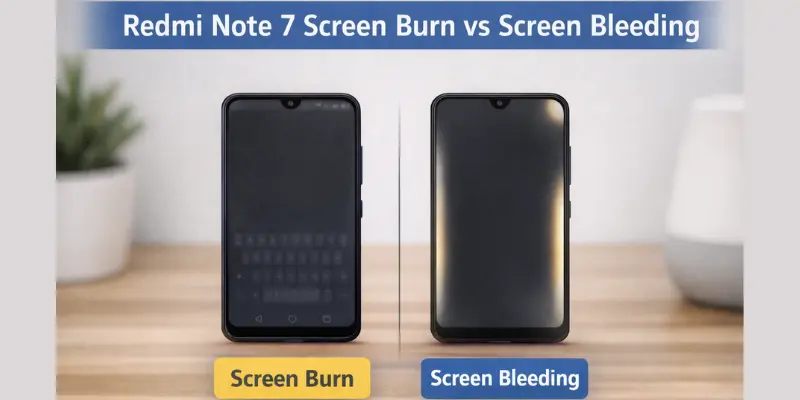
| Issue | Meaning |
| Screen Burn | Temporary ghost image that fades over time |
| Screen Bleeding | Light leak from the edges or corners of the screen |
Understanding the difference helps you take the right steps. Prolonged static images mostly cause screen burn, while screen bleeding usually comes from panel defects or pressure on the screen.
Do Other Xiaomi Phones Have Screen Burn Issues?
Yes, Xiaomi screen burn issues are not limited to the Redmi Note 7. Some users report similar problems on newer models, especially the Redmi Note 8 and Redmi Note 8 Pro. Ghost images, status bar shadows, or faint icons may appear after long screen use.
Redmi Note 8 and Redmi Note 8 Pro Burn-In
- Many users notice the Redmi Note 8 screen burn when static apps or bright images stay on the display for hours.
- Redmi Note 8 burn-in often appears as faint outlines of buttons or the keyboard.
- Burn in Redmi Note 8 is usually minor and sometimes disappears after restarting the phone or changing the wallpaper.
These issues show that long screen-on time, high brightness, and static UI elements can cause burn-in across multiple Xiaomi phones. Being aware of this can help prevent screen burn on your device.
How to Prevent Redmi Note 7 Burn In
Preventing this issue is easier than fixing it. A few simple habits can keep your screen healthy and cut down on ghost images or shadows.
- Lower Brightness – Keep the screen brightness moderate instead of maximum. This reduces pixel wear over time.
- Avoid Static Images – Don’t keep the same app or wallpaper open for hours. Change layouts or wallpapers regularly.
- Use Auto Screen Timeout – Set your phone to turn off the display automatically after a short period of inactivity.
- Enable Dark Mode – Dark mode uses fewer bright pixels, which helps reduce screen stress.
- Update MIUI Regularly – System updates can include fixes and optimizations that protect your display from burn-in.
When Should You Replace the Screen?
Sometimes, Redmi Note 7 burn-in can become permanent. If ghost images or shadows stay on your screen all the time, and don’t fade after trying fixes like lowering brightness or changing wallpapers, it may be time for a screen replacement.
Check your warranty first. Some Xiaomi warranties cover display issues from normal use. But damage from heavy use is usually not covered. Replacement cost depends on your service center or repair shop. It can get pricey, so try all the practical fixes first. In short, permanent marks that don’t fade are the main reason to go for a screen replacement.
Conclusion
Redmi Note 7 burn in is rare but can happen, especially with long screen-on time or static images. Most issues are preventable with simple habits like lowering brightness, enabling dark mode, and changing wallpapers regularly. Temporary ghost images usually fade, but if the burn-in becomes permanent, screen replacement may be the only option. By following these tips, you can keep your phone display clear and avoid long-term problems.
FAQs
Burn-in happens when the same icons, buttons, or images stay on the screen for a long time. High brightness, long screen-on time, and static UI elements increase the risk. Features like ambient display can also stress certain pixels.
Yes, in many cases, burn-in is temporary. You can reduce it by lowering brightness, enabling dark mode, changing wallpapers, or using screen refresh apps. Permanent burn-in may require a screen replacement.
Screen burn is not very common, but some Xiaomi phones, including Redmi Note 7, Redmi Note 8, and Redmi Note 8 Pro, have reported minor issues. Proper care and screen habits can prevent it.
To check for burn-in, open a completely white or black image on full screen. Look closely for faint shadows, ghost icons, or outlines of previous apps. This simple test helps you spot early signs of burn-in.
Yes, most screen burn issues can be prevented with simple habits. Lower screen brightness, use dark mode, avoid static images for long periods, and enable auto screen timeout to protect your display.
No, Redmi Note 7 burn in mainly affects the display visually. It does not slow down your phone or affect apps, but it can be distracting if ghost images or shadows appear on the screen.




Good work