iOS 26.3.1 Checklist: What to Do After Updating Your iPhone
Published: 10 Mar 2026
By: MPG News
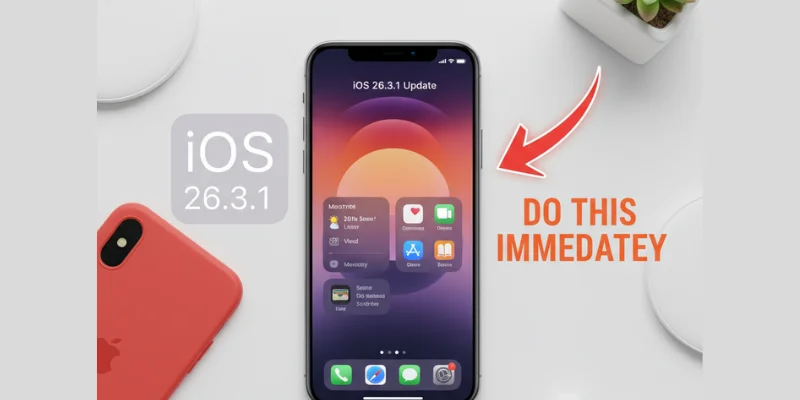
Updating your iPhone to iOS 26.3.1 brings important security fixes and performance improvements. Even though it may look like a small update, it protects your device from security issues and makes your iphone run more smoothly. To get the most out of this update, follow this iOS 26.3.1 checklist of five essential steps.
1. Confirm the Update Is Installed
First, make sure your iPhone is running iOS 26.3.1. Go to Settings > General > Software Update and check the version. If it isn’t installed yet, follow the prompts to download and install it.
To save time in the future, turn on automatic updates in the same menu. Toggle on Download iOS Updates and Install iOS Updates. This keeps your iPhone up-to-date with the latest features and security fixes without any extra effort.
Tip: Automatic updates are like having a personal helper who keeps your iPhone safe while you focus on using it.
2. Enable Background Security Updates
iOS 26.3.1 includes background security updates. This feature installs critical security patches automatically. Go to Settings > Privacy & Security > Security Responses & System Files and turn the toggle on.
With this enabled, your iPhone stays protected without interrupting your daily tasks. You won’t have to wait for a full system update to fix security issues.
3. Check for Carrier Settings Updates
Carrier updates are small but important. They improve your phone’s network performance, call quality, and data speed. After updating iOS 26.3.1, go to Settings > General > About. If a carrier update is available, you’ll see a prompt to install it.
Regularly checking ensures smooth calls and faster internet. It’s especially helpful if you travel often or switch carriers.
4. Update Your Apps
Apps may not work properly if they are not updated after a system update. Open the App Store and update all apps. This ensures they are optimized for iOS 26.3.1.
For convenience, turn on automatic app updates in Settings > App Store > App Updates. This keeps your apps ready to use without interruptions.
Example: If you use a banking app or a fitness tracker, updating it prevents crashes and missing features.
5. Check Your Battery Health
A healthy battery is key to smooth performance. Go to Settings > Battery > Battery Health and check the maximum capacity. Ideally, it should be above 80%.
If it’s lower, your iPhone may drain faster or slow down. Consider replacing the battery if needed to maintain performance and extend your device’s lifespan.
Maximize Your iPhone Experience
Following this ios 26.3.1 checklist keeps your iPhone secure, fast, and reliable. Confirm the update, enable background security updates, check for carrier updates, update apps, and monitor battery health.
By doing these simple steps, your iPhone will stay efficient and safe. Staying proactive helps ensure a smooth experience, fewer problems, and better performance every day.





- Be Respectful
- Stay Relevant
- Stay Positive
- True Feedback
- Encourage Discussion
- Avoid Spamming
- No Fake News
- Don't Copy-Paste
- No Personal Attacks
- Be Respectful
- Stay Relevant
- Stay Positive
- True Feedback
- Encourage Discussion
- Avoid Spamming
- No Fake News
- Don't Copy-Paste
- No Personal Attacks
