How to Hide Apps on Android (Complete Guide)
Published: 11 Sep 2026
Many people want more privacy on their phones. Some apps are personal. Some are work-related. Some are not for kids. That is why many users search for how to Hide Apps on Android. You may want to hide banking apps. Maybe you want to hide social media from your children. Or you simply want a clean home screen. The good news is this: yes, you can hide apps on Android.
Android gives you different ways to do it. Some phones have built-in options. Others need simple settings changes. In this guide, I will show you easy methods step by step. Let’s get started.
Why Do People Hide Apps on Android?
Hiding apps is not just about secrecy. There are many good reasons to do it. Let’s look at the most common ones.
Privacy for Personal Apps
Many apps hold private data. Banking apps, dating apps, and messaging apps often have sensitive information. Hiding them keeps your data safe from prying eyes.
Protecting Kids from Certain Apps
Parents often hide apps from their children. Social media, games, or shopping apps may not be right for young kids. Hiding these apps helps parents control what their children see.
Lending Your Phone to Someone
Do you often lend your phone to friends or family? You may not want them to see every app. Hiding personal or work apps keeps things private while you share your device.
A Clean and Organized Home Screen
Some people just want a simple home screen. Too many icons can look messy. Hiding rarely used apps makes your phone look neat and easy to use.
Tip: Think about why you want to hide an app. This helps you pick the best method for your needs.
Can You Hide Apps on Android?
Yes, you can hide apps on Android. Some phones have a built-in option to hide apps. Newer devices with Android 15 offer a feature called Private Space. You can also use a third-party launcher or app hider app. The method depends on your phone model and Android version.
Native Feature (Built-In Option)
Many Android brands provide a built-in app hide feature. You can find it in the home screen settings or app drawer settings. For example, some Samsung and Xiaomi phones include this option. It removes the app icon from the main screen. The app still runs normally in the background.
Private Space (Android 15)
Android 15 introduced a feature called Private Space. It lets you lock and hide selected apps in a secure area. You need a password or fingerprint to open it. This works well for banking or personal apps. It adds extra privacy and safety.
Third-Party Launcher
A launcher changes how your home screen looks and works. Some launchers allow you to hide apps easily. You open launcher settings and select the apps to hide. This method is quick and simple. Many users prefer it for more control.
App Hider Apps
You can also install app hider apps from the Play Store. These apps hide other apps inside a secure vault. Some even change the app name or icon. This method helps if your phone has no built-in option. Always choose an app with good ratings and reviews.
How to Hide Apps on Android (Step-by-Step Methods)
There are different ways to hide apps on your phone. Follow the method that matches your device.
Method 1 – How to Hide Applications on Android Phone
This is the easiest method. Many Android phones offer this option in home screen settings. To hide applications on an android phone, follow these simple steps.
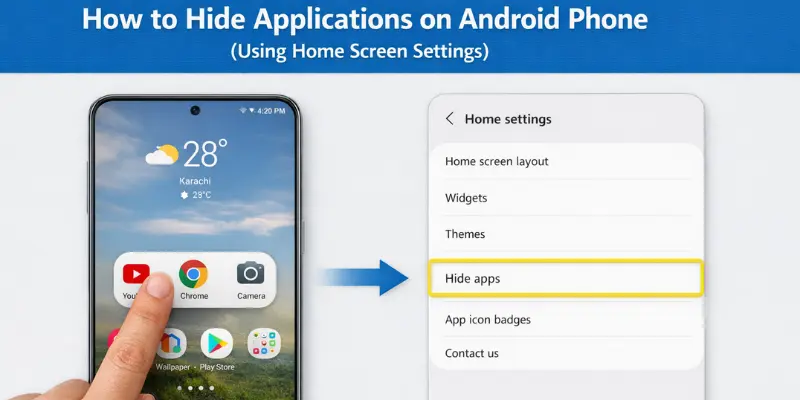
Step 1: Long-press on the home screen
Tap and hold on any empty area of your home screen. A small menu will appear.
Step 2: Open Settings
Tap on “Home Settings” or “Settings.” The name may change depending on your phone.
Step 3: Find the Hide Apps option
Scroll down and look for “Hide apps.” This is usually inside the home screen or app drawer settings. This is also where people learn how to hide apps in settings.
Step 4: Select the apps
Choose the apps you want to hide. Then tap “Done” or “Apply.”
That’s it. The app icon will disappear from the home screen and app drawer. The app will still work normally in the background.
Method 2 – How to Hide Apps in Settings
This method works on many Android phones. You use the app drawer settings to hide apps quickly.
Follow these simple steps.
Step 1: Open the App Drawer
Swipe up from the home screen. This will open the full app list.
Step 2: Tap the 3-dot menu
Look at the top corner of the screen. Tap the three dots to open more options.
Step 3: Select “Hide Apps”
From the menu, tap on “Hide Apps.” On some phones, it may say “Home Screen Settings” first.
Step 4: Confirm your selection
Choose the apps you want to hide. Then tap “Done” or “Apply” to confirm.
Method 3 – How to Hide Apps Using Private Space
This method gives you extra privacy. It is a new feature in Android 15. Many users still do not know about it.
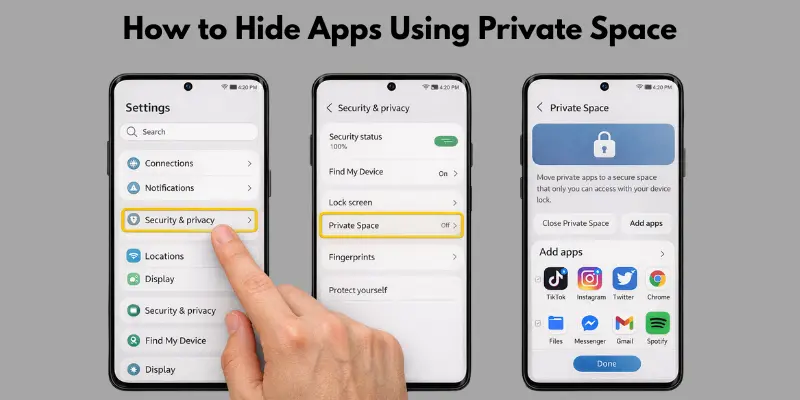
What Is Private Space?
Private Space is a secure area inside your phone. It lets you keep selected apps separate from the main screen. You can lock it with a PIN, password, or fingerprint. Think of it like a small locked room inside your phone. Only you can open it.
This feature is very useful for banking apps, work apps, or personal chats.
How to Enable Private Space
Follow these simple steps:
- Open Settings on your phone.
- Tap on Security & Privacy.
- Find and select Private Space.
- Set up a PIN or fingerprint.
After setup, your Private Space will be ready to use.
How to Move Apps to Private Space
Now move the apps you want to hide:
- Open Private Space from Settings.
- Tap Add Apps.
- Select the apps you want to move.
- Confirm your choice.
The apps will now stay inside Private Space. They will not appear in your main app drawer.
Method 4 – Samsung, Xiaomi, Oppo Specific Steps
Here are brand-specific ways to Hide Apps on Android on Samsung, Xiaomi, and Oppo phones. Different brands offer slightly different options, so this guide will help you find the right method for your device.
Samsung Hide Apps
If you use a Samsung phone, follow these steps:
- Open the App Drawer.
- Tap the three dots in the top corner.
- Select Home Screen Settings.
- Tap Hide Apps.
- Choose the apps and tap Done.
The apps will disappear from the home screen and app drawer. They will still work normally in the background.
Xiaomi Hidden Apps
On Xiaomi phones, the feature is inside App Lock.
- Open Settings.
- Tap Apps.
- Select App Lock.
- Turn it on and set a password.
- Enable Hidden Apps and choose your apps.
You can access hidden apps by using a special gesture on the screen.
Oppo App Lock
Oppo phones also provide an app hiding option.
- Open Settings.
- Tap Privacy.
- Select App Lock.
- Set a passcode.
- Choose apps and enable Hide Home Screen Icon.
This will hide the app icon and protect it with a password.
Method 5 – Hide Apps Using Guest Mode
Guest Mode is a built-in Android feature. It creates a separate space on your phone with its own apps and settings. This is perfect when you share your phone with others.
What Is Guest Mode?
Guest Mode lets someone use your phone without seeing your personal apps, photos, or messages. It works like a fresh phone with only basic apps.
How to Set Up Guest Mode
Follow these simple steps:
- Open Settings on your phone.
- Tap on System.
- Select Multiple Users.
- Tap Add Guest.
- Confirm to create the guest profile.
How to Switch to Guest Mode
- Swipe down from the top of your screen.
- Tap the profile icon.
- Select Guest.
- Your phone will switch to Guest Mode instantly.
Your personal apps and files stay hidden. The guest only sees a clean, basic setup.
Switching Back to Your Profile
- Swipe down again from the top.
- Tap the profile icon.
- Select your main account.
That’s it. All your apps and data are back, safe and untouched.
Tip: Use Guest Mode when lending your phone for a short time. It’s faster than hiding each app one by one.
How to View Hidden Apps on Android
Sometimes you may want to open apps you previously hid. Luckily, Android makes it easy to access them. If you are wondering how to view hidden apps on Android, follow these steps.
Step 1: Open the App Drawer
Swipe up from your home screen to see all apps.
Step 2: Tap the Menu
Look for the three-dot menu in the top corner and tap it.
Step 3: Open the Hidden Apps Section
From the menu, select Hidden Apps or a similar option. Here you will see all the apps you hid earlier.
Now you can open or unhide any app you need. This method works on most Android phones and keeps your hidden apps accessible when you need them.
How to Open Hidden Apps on Android
Sometimes you hide apps for privacy or organization, but later you need to open them. There are several easy ways to access your hidden apps. These steps also help you manage your apps better and understand how to Hide Apps on Android for future use.
Through App Drawer Hidden Section
Open your app drawer and tap the three-dot menu. Select the Hidden Apps section. You will see all apps you previously hid. Tap any app to open it.
Using the Search Bar
On most Android phones, you can use the search bar in the app drawer. Type the app name, and it will appear even if it’s hidden. Tap the app to open it quickly.
Through Settings → Apps
Go to Settings → Apps. Scroll or search for the hidden app. Tap it to open or manage it. This method works on all Android phones.
By following these methods, you can access your hidden apps easily while keeping your phone organized and private.
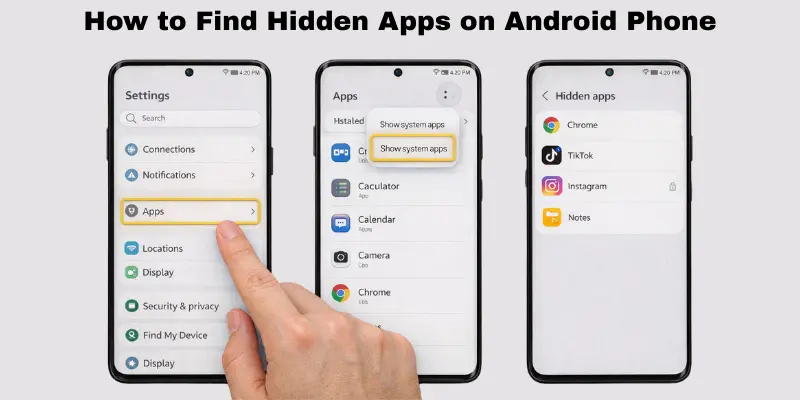
How to Find Hidden Apps on an Android Phone
Finding hidden apps on your phone is not always obvious. Some apps may be hidden from the home screen, disabled, or stored in Private Space or vault apps. Knowing the difference helps you manage your apps better.
Hidden from Home Screen
These apps are still installed, but don’t appear on the home screen. You can usually find them in the app drawer’s hidden section or by using a search bar.
Disabled Apps
Disabled apps are turned off and won’t run in the background. They are listed in Settings → Apps. You need to enable them to use them again.
Private Space Apps
Apps in Private Space are separated from the main phone area. You can only access them by entering your password, PIN, or fingerprint in the Private Space area.
Vault Apps
Vault apps or app hider apps store other apps in a secure, hidden folder. You must open the vault app first to access these hidden apps.
Troubleshooting Steps
If you still can’t find an app:
- Go to Settings → Apps and scroll through the list.
- Enable Show system apps to see apps hidden by default.
- Restart your phone in Safe Mode to check if a third-party app is hiding it.
Following these tips not only helps you locate hidden apps but also shows you practical ways to manage privacy and organization, making it easier to understand how to Hide Apps on Android.
How to Unhide Apps on Android
If you want to make a hidden app visible again, it’s simple. This step completes the full app management process.
Step 1: Go to the Hidden Apps List
Open your app drawer or app hider settings. Find the list of hidden apps.
Step 2: Uncheck the App
Select the app you want to unhide and uncheck it.
Step 3: Confirm
Tap Done or Apply. The app will now appear on your home screen and app drawer.
When You Hide an App, Where Does It Go?
When you hide an app on Android, it doesn’t get deleted. It just moves to a hidden location depending on the method you used:
- App Drawer: Some phones simply remove the app icon from the home screen but keep it in a hidden section of the app drawer.
- Private Space: If you use Android 15’s Private Space, the app moves to a secure area that requires a password, PIN, or fingerprint.
- Hidden Folder: Vault or app hider apps store hidden apps inside a special folder that only opens through the app hider.
Are App Hider Apps Safe?
Many people use app hider apps to keep their apps private. They can be helpful, but it’s important to know the pros and risks.
Pros
- Hide apps quickly without changing phone settings.
- Can rename or disguise apps for extra privacy.
- Some apps offer a secure vault with a password or fingerprint.
Risks
- Some app hiders may contain ads or bloatware.
- If the app is from an untrusted source, it could steal data.
- Hidden apps may not work correctly if the app hider crashes or is uninstalled.
Permissions
App hiders usually need access to storage, apps, and sometimes contacts. This is required to hide and run apps properly.
Why Built-In Methods Are Safer
Using your phone’s built-in hiding features or Private Space is generally safer. They don’t need extra permissions and are supported by your phone manufacturer. Built-in methods reduce the risk of data leaks and app crashes, making them a reliable choice for hiding your apps.
Conclusion
Now you know simple and effective ways to hide, view, and unhide apps on your Android phone. Whether using home screen settings, the app drawer, Private Space, or app hider apps, you can keep your apps private and your phone organized. Practice these methods to become confident with each option. You can also explore brand-specific features or secure vault apps for extra privacy. Following this guide helps you fully understand and master how to Hide Apps on Android, giving you complete control over your apps and peace of mind.
FAQs
Yes, many Android phones have built-in options to hide apps. You can use home screen settings or the app drawer. Some phones also have Private Space. You don’t need extra apps for this.
Yes, hidden apps keep running in the background. They just don’t appear on your home screen or app drawer. You can still get notifications from them. Hiding does not stop the app from functioning.
You can check the hidden apps section in the app drawer. You can also use Settings → Apps to see all installed apps. Private Space or vault apps require a password to access hidden apps.
Some system apps can be hidden, but not all. It depends on your phone model and Android version. For more control, you might need Private Space or a launcher app.
Trusted app hider apps can be safe. Check reviews and permissions before installing. Built-in methods are usually safer and don’t need extra access. Avoid apps from unknown sources.
No, hidden apps won’t appear on the home screen. But some apps may still send notifications. Using Private Space or app lockers adds extra security.
No, hiding apps only hides them from view. The apps still use storage and memory. To save space, you need to uninstall or move apps to an SD card.




- Be Respectful
- Stay Relevant
- Stay Positive
- True Feedback
- Encourage Discussion
- Avoid Spamming
- No Fake News
- Don't Copy-Paste
- No Personal Attacks
- Be Respectful
- Stay Relevant
- Stay Positive
- True Feedback
- Encourage Discussion
- Avoid Spamming
- No Fake News
- Don't Copy-Paste
- No Personal Attacks
