How to Back Up Phone Photos (Complete 2026 Guide)
Published: 10 Sep 2026
Your phone photos hold special memories like birthdays, trips, and family moments. But what if your phone gets lost, stolen, or damaged? That is why learning how to back up phone photos is so important. A photo backup keeps a safe copy, so your pictures stay protected. You can use cloud backup to save photos online or local backup to store them on a computer or hard drive. In this complete 2026 guide, you will learn the right way to protect photos on Android, Samsung, iPhone, iCloud, Mac, and even Snapchat.
How to Back Up My Photos (Quick Start Guide)
If you are asking how to back up my photos, the answer is simple. Photo backup means saving a copy of your pictures in another safe place. If your phone breaks or gets lost, your photos stay safe. That is why learning this guide is important for everyone.
What Does Photo Backup Mean?
Photo backup means creating a second copy of your images. For example, when your photos upload to your Google account or are saved on your computer, that is a backup. It protects you from losing important memories.
Automatic vs Manual Backup
Automatic backup saves photos by itself. You turn it on once, and it keeps uploading new pictures. This is easy and saves time.
Manual backup means you copy photos yourself. You connect your phone to a computer and move the files. This gives you more control.
Best Method for Beginners
If you are new, use automatic cloud backup. It is simple and works in the background. You do not need cables or technical skills.
Want extra safety? Use both cloud and computer backup. That way, your photos stay protected no matter what happens.
Free Storage Limits
Before you pick a backup method, you should know one thing: free storage is not unlimited. Each platform gives you a different amount of space, and running out can stop your backup without warning.
- Google Photos: Gives you 15GB free, but this space is shared across Gmail and Google Drive too. Once you hit the limit, backups pause until you free up space or buy more.
- iCloud: Gives you only 5GB free. This fills up fast if you have a lot of photos, so most iPhone users need to upgrade within a few months.
- Samsung Cloud: Storage varies by plan, but it works best only within Samsung devices. It’s less useful if you switch phone brands later.
Real-life example: Say you take 50 photos a day on a modern phone. At that rate, 5GB of free iCloud storage can fill up in just a few weeks. Knowing this upfront saves you from a backup that suddenly stops working.
How to Backup Photos on Android (Step-by-Step)
Backing up your photos on Android is simple. If you are wondering how to back up pictures on Android, the easiest way is to use Google Photos. It takes only a few minutes to set up, and after that, your photos are saved automatically.
How to Backup Pictures on Android Using Google Photos
If you want to know how to back up photos to Google, follow these easy steps:
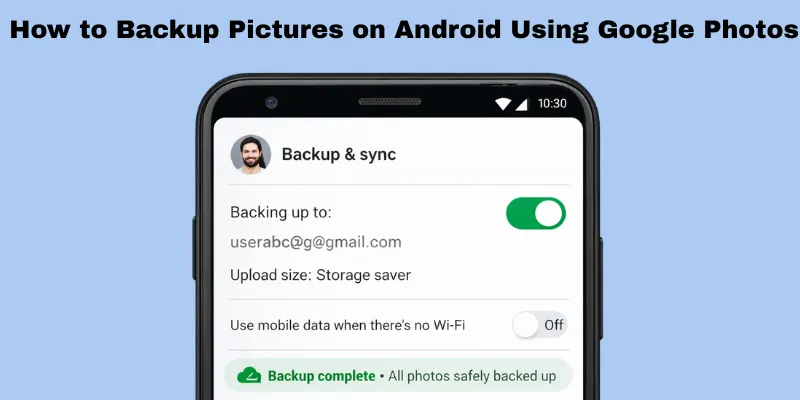
Turn On Backup & Sync
- Open the Google Photos app.
- Tap your profile picture.
- Tap Photos settings.
- Select Backup and turn it on.
Now your phone will start uploading photos.
Choose Account
- Make sure you select the correct Google account.
- Use the account you check regularly.
This is where your photos will be stored.
Backup Quality Settings
- Go to Backup settings.
- Choose your upload quality.
High quality saves space. Original quality keeps full detail but uses more storage. Pick what suits your needs.
Check If Photos Are Backed Up
- Open Google Photos.
- Look for a small cloud icon on your pictures.
- You can also check the backup status in settings.
If you see “Backup complete,” your photos are safe.
Tip: Connect to Wi-Fi before backing up. It saves mobile data and uploads faster.
How to Backup Photos to Google Drive (Manual Method)
If you want more control, you can learn how to back up photos to Google Drive using the manual method. This means you upload photos yourself instead of using automatic backup. It takes a few minutes but gives you full control.
Upload via Google Drive App
- Open the Google Drive app.
- Tap the + (Plus) button.
- Tap Upload.
- Select the photos you want to back up.
Your photos will upload to your Drive account.
Create Photo Folder
- Tap + (Plus) again.
- Select Folder.
- Name it something simple like “Phone Photos Backup.”
Move your uploaded photos into this folder. This keeps everything neat.
Organize Albums
- Create separate folders for events like “Birthday 2026” or “Family Trip.”
- Upload photos into the correct folder.
This makes it easy to find pictures later.
How to Backup My Photos on Google (Full Setup Guide)
Your phone photos hold memories you don’t want to lose. That is why knowing how to back up phone photos is important. On Google, backing up photos is simple and secure. Here’s a full setup guide to help you safely back up all your pictures.
Sign in to your Google Account
- Open your phone and go to Settings or the Google Photos app.
- Sign in with the Google account you want to use for backup.
Enable Google One Backup
- Open Google Photos.
- Tap your profile picture > Photos> Settings> Backup & sync.
- Turn on Backup & sync and enable Google One backup if available.
Background Backup Explanation
Once enabled, Google automatically backs up new photos in the background. This means you don’t have to do anything manually. Your images are safely stored in the cloud.
Where Are My Backed-Up Photos?
- Open Google Photos or drive.google.com.
- All your photos are stored under your account. You can view, download, or share them anytime.
This guide also shows how to back up photos to Google for Android, iphone, and other devices, so your memories stay safe and easy to access.
How to Back Up Photos to Google
Losing phone photos can be stressful, which is why knowing back up phone photos is essential. Google makes it easy to save your pictures locally or to an external device. Here’s how to do it step by step.
How to Backup Photos from Google to Your Phone
- Open Google Photos.
- Select the photos you want to save.
- Tap Download to save them directly to your phone’s gallery.
This keeps a copy on your device even if something happens to the cloud.
Back up Google Photos to an External Hard Drive (Google Takeout Method)
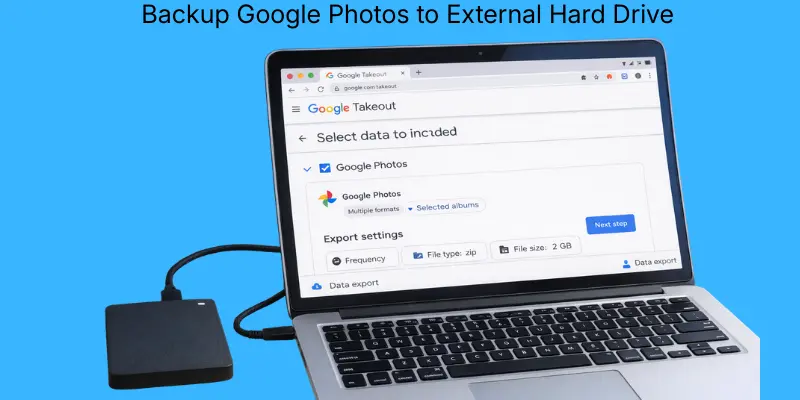
- Go to Google Takeout on your computer.
- Select Google Photos and choose the albums you want.
- Download the archive file.
- Copy the downloaded photos to an external hard drive for safe offline storage.
This method ensures you have both online and offline backups. It’s a reliable way to protect memories while learning how to back up photos from Google safely.
How to Backup Photos Samsung Phones
Samsung phones store many precious memories, so knowing how to backup photos Samsung is important. You can use Samsung’s own cloud service or Google Photos to keep your pictures safe.
Sync Samsung Gallery with Google Photos
- Open the Samsung Gallery app.
- Tap Settings > Sync with Google Photos.
- Turn on sync to automatically upload new photos to Google.
Samsung Cloud vs Google Backup
- Samsung Cloud: Keeps photos within Samsung devices. Good for device-to-device transfer.
- Google Backup: Works across all devices and platforms. Easier for long-term access.
Many users combine both for extra safety.
Fix: Samsung Photos Not Syncing
- Check Wi-Fi connection.
- Ensure Backup & sync is turned on in Google Photos.
- Update the Gallery and Google Photos apps.
Following these steps ensures your memories stay safe while learning the proper way to back up photos on Samsung.
How to Backup Photos from iCloud (iPhone Users)
iPhone photos hold precious memories, which is why knowing how to back up phone photos is so important. iCloud makes it easy to keep your pictures safe, and you can also move them to other platforms for extra security.
Download from iCloud.com
- Go to iCloud.com on your computer.
- Sign in with your Apple ID.
- Select Photos, choose the images you want, and click Download.
Use iCloud for Windows.
- Install iCloud for Windows on your PC.
- Sign in and enable Photos.
- Your iCloud photos will automatically sync to your computer.
Transfer iCloud Photos to Google Photos.s
- Download your photos from iCloud.
- Open Google Photos and upload them.
Following these steps is an easy and safe way to back up photos from iCloud while keeping your memories protected.
How to Backup Photos for Mac Users
Mac users store many important photos, so knowing how to back up phone photos is important to keep memories safe. Macs offer multiple ways to save pictures, both locally and online.
Use Photos App on Mac
- Open the Photos app on your Mac.
- All your imported iPhone or camera photos appear here.
Export Original Files
- Select the photos you want to back up.
- Go to File > Export > Export Unmodified Original.
- Choose a folder on your Mac to save the originals.
Back up to an External Drive
- Connect an external hard drive or USB drive.
- Drag your exported photos into the drive.
- This keeps a secure offline copy.
Sync with Google Photos
- Open Google Photos on your Mac.
- Upload selected photos to your account for cloud backup.
These steps make it simple and safe to back up photos on your Mac while ensuring your memories are protected everywhere.
How to Backup Photos from Snapchat
Snapchat photos can disappear easily, so knowing how to back up phone photos is very important. Backing up your Snapchat memories ensures you never lose your favorite snaps.
Save Snapchat Memories
- Open Snapchat and go to your profile.
- Tap Memories.
- Select the snaps you want to keep and save them.
Export to Camera Roll
- In Memories, tap a snap > Export > Save to Camera Roll.
- This saves a copy directly to your phone.
Upload to Google Photos
- Open Google Photos.
- Upload the exported snaps to your account.
- This adds an extra cloud backup.
Prevent Snapchat Photo Loss
- Always enable Memories backup in Snapchat settings.
- Regularly export important snaps to your phone or cloud.
These steps show the easiest way to back up photos from Snapchat and keep all your memories safe.
Common Photo Backup Problems (And Fixes)
Backing up photos is usually simple, but sometimes issues happen. Knowing back up phone photos and how to fix problems keeps your memories safe.
Google Photos Not Backing Up
- Make sure Backup & sync is turned on in Google Photos.
- Check your internet connection.
- Update the app to the latest version.
Photos Stuck Syncing
- Pause and restart the backup in Google Photos or iCloud.
- Clear the app cache on Android or restart your iPhone.
- Sync works faster on Wi-Fi.
Storage Full Error
- Check your cloud storage (Google One, iCloud, or Samsung Cloud).
- Delete unwanted files or upgrade your storage plan.
- Free up space on your phone if using local backup.
Missing Photos After Backup
- Check if the photos are in the correct account or folder.
- Sometimes syncing takes time—wait a few minutes.
- Re-upload missing images if needed.
How to Restore Deleted Photos
- Open Google Photos or iCloud and go to Trash/Recently Deleted.
- Select the photos and tap Restore.
- For local backups, copy from your external drive or computer folder.
By following these steps, you can solve common problems and safely learn how to back up phone photos without losing any memories.
How to Backup Photos Without Wifi or Internet
What if you’re traveling somewhere with no wifi? Cloud backup won’t work, but your photos still need protection. Here’s a simple offline method.
- Connect a card reader or cable to your phone. Most newer Android and iPhone (USB-C) models support this.
- Copy your photos to an external SSD or hard drive. Create a folder with the date or trip name, like “2026-06_Europe.”
- Make a second copy on another drive. This protects you even if one drive fails or gets lost.
- Store the drives separately. Keep one with you and one in a different bag or location.
This method needs no internet at all. It’s perfect for long trips, remote areas, or anywhere data is slow or expensive.
Best Way to Backup Phone Photos
Keeping your photos safe is easier when you follow expert tips. If you want to know how to back up phone photos the right way, this method works for everyone.
3-2-1 Backup Rule
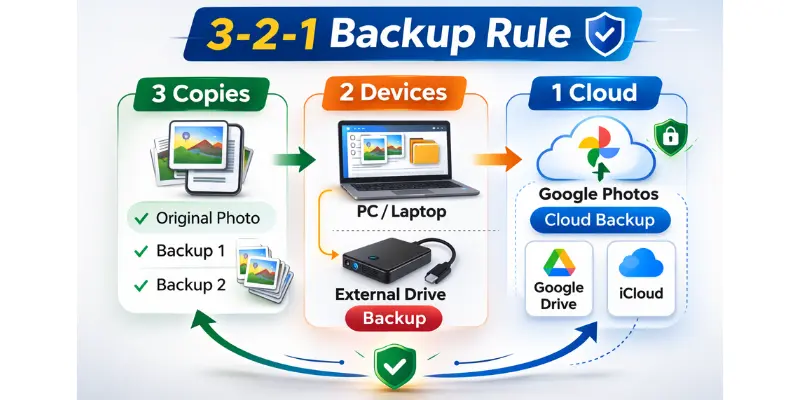
- Keep 3 copies of your photos.
- Store on 2 different devices (phone, computer, external drive).
- Keep 1 copy offsite (cloud storage).
This strategy ensures your memories are safe even if one device fails.
Cloud + External Drive Combo
- Use cloud backup like Google Photos, iCloud, or Samsung Cloud.
- Regularly copy photos to an external hard drive.
- Combining both gives automatic online backup and offline protection.
Auto Backup Setup Checklist
- Turn on Backup & Sync on your phone.
- Choose the correct account for storage.
- Check upload quality and storage limits.
- Test by adding a new photo and confirming it appears in backup.
Following these steps is the safest way to how to back up my photos and protect your memories from loss.
Conclusion
Now you know how to back up phone photos safely and easily. You’ve learned how to use cloud services, back up to a computer or external drive, and protect Snapchat memories. You also know how to fix common problems and keep multiple copies for extra safety. Take a few minutes to set up your backup and make sure all your photos upload correctly. You can also organize albums, try different backup methods, or add extra cloud storage for more security. With these steps, your memories are safe, and you can feel confident knowing nothing will be lost.
FAQs
Photo backup means saving a copy of your pictures in a safe place. This can be online in the cloud, on a computer, or on an external drive. If your phone is lost, broken, or stolen, your photos stay safe. Backups give peace of mind and protect your memories.
You can use apps like Google Photos, iCloud, or Samsung Cloud. Turn on Backup & Sync in the app settings. New photos upload automatically whenever you are connected to Wi-Fi. This saves time and keeps your photos safe without doing anything manually.
Yes, you can use a local backup. Connect your phone to a computer, USB, or external hard drive and copy your photos. This does not require an internet connection. It gives you full control over your files.
Cloud backups store your photos online in your account (Google, iCloud, or Samsung). Local backups are stored on your computer, USB, or external drive. You can access cloud backups from any device. Local backups are only available on the device you saved them to.
Sometimes photos are in the wrong folder, or the backup didn’t finish. Check the backup app to confirm all photos are included. You can manually upload missing photos if needed. Make sure your app is updated and syncing properly.
Open your backup app and go to Trash or Recently Deleted. Select the photos you want and tap Restore. They will return to your main gallery. Cloud services usually keep deleted photos for 30 days before removing them permanently.
Yes, most cloud services use strong encryption to keep your photos secure. Make sure you use a strong password and two-factor authentication. Avoid sharing your account details with anyone. Regularly check that backups are working correctly.





- Be Respectful
- Stay Relevant
- Stay Positive
- True Feedback
- Encourage Discussion
- Avoid Spamming
- No Fake News
- Don't Copy-Paste
- No Personal Attacks
- Be Respectful
- Stay Relevant
- Stay Positive
- True Feedback
- Encourage Discussion
- Avoid Spamming
- No Fake News
- Don't Copy-Paste
- No Personal Attacks
