How to fix common smartphone problems
Published: 3 Sep 2026
Is your smartphone slow, stuck, or losing battery too fast? Many people feel confused when these problems appear. They often think the phone is damaged, but most issues are small and easy to fix. In this guide on How to Fix Common Smartphone Problems, you will get simple step-by-step help that anyone can follow. You do not need technical skills or special tools. Just read, apply the tips, and make your phone work smoothly again.
Battery Issues & How to Fix Them
Battery problems are very common. Your phone may lose power fast, charge slowly, or not charge at all. In most cases, the cause is simple and easy to fix.
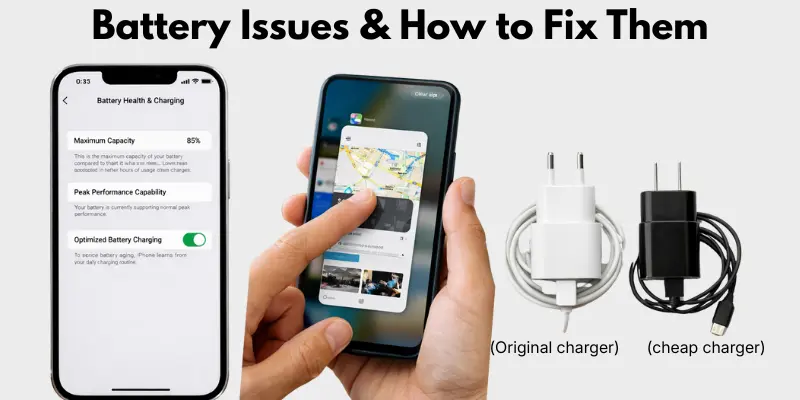
Common Battery Problems
- Battery draining fast
- Slow charging
- Phone not charging
Let’s look at simple solutions you can try at home.
Step-by-Step Fixes
Close background apps
Many apps keep running even when you do not use them. These apps use battery power.
- Open recent apps
- Close the apps you do not need
Use the original charger
Low-quality chargers can cause slow charging or charging errors.
- Always use the original charger and cable
- Replace damaged cables if needed
Check battery health
Old batteries lose their power with time.
- Go to phone settings
- Open Battery Health or Battery Status
- Replace the battery if the health is very low
Reduce screen brightness
High brightness uses more power. Lower it to save battery.
Prevention Tips
- Do not overcharge your phone overnight
- Avoid using heavy apps while charging
- Keep software updated for better battery performance
For example, many users notice fast battery drain because too many apps run in the background. Closing them can quickly improve battery life.
Phone Not Turning On or Stuck on Black Screen
Is your phone showing a black screen? Does it not turn on at all? Don’t panic. This problem looks scary, but most times it’s an easy fix.
Common Causes
- Battery is completely dead
- Software froze during startup
- A recent update caused a glitch
- Charging port or cable issue
Step-by-Step Fixes
Charge it first
Sometimes the battery is just empty. Plug in your phone and wait 15 minutes before trying again.
- Use the original charger
- Check for the charging icon on screen
- Try a different power outlet if nothing shows
Force restart your phone
A force restart can fix a frozen screen. It won’t delete your data.
- iPhone: Press and quickly release Volume Up, then Volume Down, then hold the Side button until the Apple logo appears
- Android: Hold the Power button and Volume Down button together for 10-20 seconds
Check for a stuck update
Sometimes an update gets stuck midway. This can cause a black screen.
- Wait 10-15 minutes without touching the phone
- Some updates take longer than expected to finish
Remove and reinsert the battery (if possible)
Some older phones let you remove the battery.
- Take the battery out
- Wait 30 seconds
- Put it back in and power on
When to See a Technician
- Screen stays black after all fixes
- Phone gets very hot before shutting down
- Phone was recently dropped or exposed to water
For example, many users panic when their phone won’t turn on. But a simple force restart fixes the problem in seconds. Try that first before assuming the worst.
Charging Port Problems: How to Clean and Fix a Blocked Port
Is your phone charging slowly, or not charging at all, even with a good charger? The problem might not be your charger. It could be a dirty charging port.
Why This Happens
Dust, lint, and dirt build up inside the port over time. This blocks the connection between your cable and phone. It’s one of the most overlooked causes of charging problems.
Step-by-Step Fixes
Turn off your phone first
Always power off your phone before cleaning the port. This keeps you safe and protects the phone.
Use a flashlight to check the port
Look inside the port with a flashlight.
- Check for dust, lint, or debris
- Look for any bent pins
Clean the port gently
- Use a soft, dry toothbrush or a small anti-static brush
- Gently brush out any dust or lint
- Avoid using metal objects, pins, or needles
Try compressed air
A can of compressed air works well for stubborn dust.
- Hold the can upright
- Spray in short bursts into the port
- Keep the phone facing downward so dust falls out
Test the charger again
After cleaning, plug in your charger and check if it charges normally.
Quick Prevention Tips
- Keep your phone away from pockets full of lint
- Use a port cover if you’re in dusty places often
- Clean your charging port once a month
For example, many users think their charger is broken. But often, it’s just a dusty port blocking the connection. A quick clean can fix the problem instantly.
Slow Performance & Freezing Apps
Does your phone hang or apps stop working suddenly? This usually happens when storage is full, cache files grow too large, or too many apps run at once. The good news is that you can fix this in a few simple steps.
Step-by-Step Fixes
Clear app cache
Cache files help apps load faster, but too many files can slow your phone.
- Open Settings
- Go to Apps
- Select the app
- Tap Storage → Clear Cache
Delete unused apps
Apps you do not use still take up storage and memory.
- Press and hold the app icon
- Tap Uninstall
- Remove apps you no longer need
Restart your phone
Restarting clears temporary memory and stops background tasks. This simple step often improves speed quickly.
Storage Tips to Prevent Slow Performance
- Keep at least 20–30% storage free for smooth performance
- Move photos and videos to cloud storage or a computer
- Avoid installing too many heavy apps
For example, if your phone storage is almost full, even new apps may freeze. Freeing some space can make the phone feel fast again.
Internet, Wi-Fi & Bluetooth Problems
Is your internet slow, Wi-Fi not connecting, or Bluetooth not pairing? These problems often happen because of temporary network errors or wrong settings. Simple resets can solve most issues in minutes.
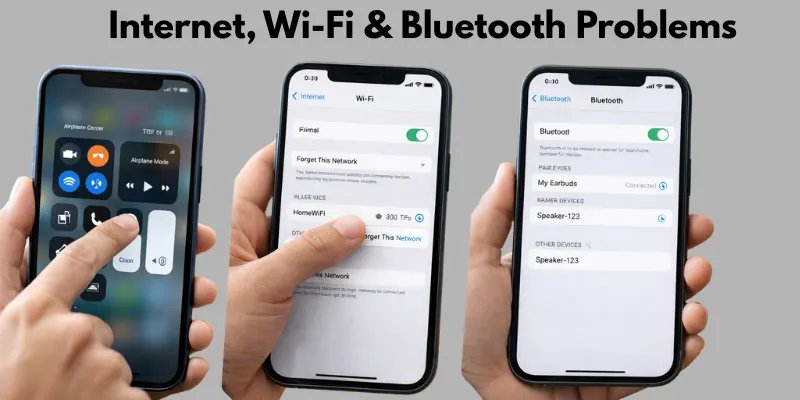
Step-by-Step Fixes
Turn Airplane Mode on and off
This step refreshes all network connections.
- Turn Airplane Mode ON for 20–30 seconds
- Turn it OFF and reconnect to the network
Forget and reconnect Wi-Fi network
Saved network errors can block a proper connection.
- Open Wi-Fi Settings
- Tap the network name
- Select Forget Network
- Connect again and enter the password
Restart your router and phone
Restarting removes temporary connection errors.
- Turn off the router for 1 minute, then turn it on
- Restart your phone and check the connection again
Check Bluetooth pairing again
If bluetooth devices do not connect:
- Turn Bluetooth OFF, then ON
- Remove the paired device
- Pair the device again
Quick Prevention Tips
- Keep your phone software updated
- Stay close to the router for a strong Wi-Fi signal
- Avoid connecting too many devices to the same network
For example, many Wi-Fi issues can be fixed quickly after restarting the router and reconnecting to the network. Try these simple steps before visiting a repair shop.
Touchscreen Not Working Properly
Is your touchscreen slow, not responding, or tapping by itself? The problem can be software-related or hardware-related. Knowing the reason helps you choose the right fix.
When It Is a Software Issue
Software problems usually appear after installing new apps or updates. The screen may lag or stop working for a short time.
Fixes you can try:
- Restart your phone to clear temporary errors
- Update the software to fix bugs
- Remove recently installed apps if the problem started after installation
When It Is a Hardware Issue
Hardware issues happen when the screen is cracked, wet, or physically damaged. In this case, the screen may not respond at all or respond only in certain areas. You may need professional repair.
Simple Cleaning and Quick Checks
Clean the screen
Dust, oil, or water drops can affect touch response.
- Use a soft, dry cloth
- Gently clean the screen surface
Remove the screen protector
A low-quality or damaged protector can block touch signals. Remove it and test the screen again.
Keep your hands dry
Wet or dirty fingers can reduce touch sensitivity.
For example, many users notice touch problems after applying a thick screen protector. Removing it often solves the issue quickly.
Sound & Speaker Problems
Is your phone too quiet, not making any sound, or is the microphone not working? Sound issues are common, but most can be fixed quickly at home. Problems can come from settings, dirt, or hardware.
Step-by-Step Fixes
Check sound settings
Sometimes the volume is low or muted by mistake.
- Open Settings → Sound & Vibration
- Make sure the volume is turned up
- Check if Do Not Disturb mode is off
Clean speaker grills
Dust or debris can block sound.
- Use a soft brush or dry cloth
- Gently clean the speaker openings
Test with headphones
Plug in headphones to see if the sound works.
- If headphones work but speakers don’t, the speaker may be blocked or damaged
Check the microphone
- Open the Voice Recorder app and record a short clip
- Play it back to see if the microphone is working
- If not, clean the mic opening gently
Quick Tip
Avoid using your phone in very dusty places, and keep the speaker area clean to prevent future sound issues.
For example, low sound is often caused by dust in the speaker grills, not the phone itself. Cleaning it can restore full volume instantly.
Camera Not Working or Blurry Photos
Is your camera not opening, freezing, or taking blurry photos? Many users face this problem, but it is usually easy to fix. Problems can come from dirty lenses, app glitches, or outdated software.
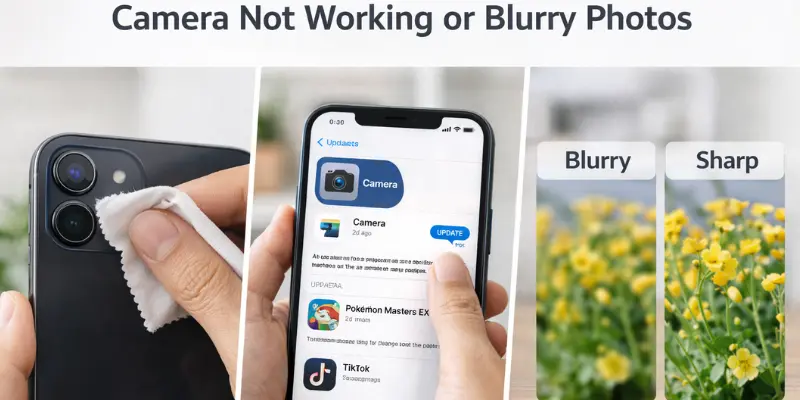
Step-by-Step Fixes
Clean the lens
Dirt, fingerprints, or dust can make photos blurry.
- Use a soft, dry cloth
- Gently wipe the camera lens
Update the camera app
Outdated apps can freeze or crash.
- Go to App Store (iphone) or Play Store (Android)
- Check for camera app updates
- Install the latest version
Update phone software
Old software can cause camera glitches.
- Open Settings → Software Update
- Download and install updates if available
Restart the camera or phone
A quick restart can fix minor glitches without any hassle.
Real-Life Example
Many users notice blurry photos after accidentally touching the lens with oily fingers. Cleaning the lens often restores sharp, clear pictures instantly.
Storage Full & App Crashes
Is your phone showing “Storage Full” or apps crashing randomly? These problems happen when phone storage is overloaded or apps are outdated. Managing storage properly can prevent slow performance and app crashes.
Step-by-Step Fixes
Delete old photos and videos
Large files take up space quickly.
- Go through your gallery
- Delete photos and videos you no longer need
- Consider moving important files to a computer
Use cloud backup
Cloud storage saves space and keeps files safe.
- Use Google Drive, iCloud, or OneDrive
- Upload photos, videos, and documents
- Delete uploaded files from your phone
Update apps regularly
Old apps can crash or freeze.
- Open Play Store (Android) or App Store (iPhone)
- Check for app updates
- Install the latest version
Quick Storage Checklist
- Delete unused apps
- Clear app cache
- Move large files to the cloud
- Keep at least 20–30% free storage
For example, users often see apps crash because the phone storage is nearly full. Freeing space and updating apps usually fixes this problem instantly.
Phone Overheating Problems
Does your phone feel hot after using it for a while? Overheating can happen for many reasons, but most are easy to fix. Common causes include direct sunlight, long gaming sessions, charging while using the phone, or too many apps running in the background.
Step-by-Step Fixes
Remove the phone case
Some cases trap heat and make the phone hotter. Take it off while charging or using heavy apps.
Avoid using your phone while charging
Playing games or streaming while charging increases the temperature. Let your phone charge without heavy use.
Close background apps
Many apps running at the same time cause your phone to work harder and heat up.
- Open recent apps
- Close apps you are not using
Move to a cooler place
Keep your phone away from direct sunlight or hot surfaces to prevent overheating.
Prevention Tips
- Limit long gaming or video sessions in hot environments
- Update apps and software for better efficiency
- Use lighter apps instead of heavy, resource-hungry ones
For example, users often notice overheating while gaming in direct sunlight. Simply moving indoors and closing unnecessary apps can cool the phone quickly.
When to Fix It Yourself vs When to See a Technician
Not all smartphone problems need a repair shop visit. Some issues are safe and easy to fix at home, while others need professional care. Knowing the difference can save you time, money, and prevent further damage.
When DIY Is Safe
- Battery draining or slow charging – You can check apps, clean charging port, and use the original charger.
- Slow performance or app crashes – Clear cache, delete unused apps, and restart the phone.
- Wi-Fi, Bluetooth, or sound issues – Simple resets, reconnecting networks, and cleaning speaker grills work well.
- Camera problems – Cleaning the lens and updating apps often solves the issue.
When to See a Technician
- Water damage – Internal components may be damaged; professional drying and repair are needed.
- Broken or cracked screen – DIY fixes may worsen the problem or cause injury.
- Swollen battery – This is dangerous and requires immediate replacement by a professional.
- Persistent hardware issues – If your phone still overheats, freezes, or has touch problems after DIY fixes.
For example, a scratched screen may work fine, but a swollen battery is risky and should never be ignored. Knowing when to act for yourself and when to seek help keeps your phone safe and working longer.
Preventive Tips to Avoid Future Smartphone Problems
It’s always better to prevent problems than fix them later. A few simple habits can keep your phone running smoothly and avoid common issues like battery drain, app crashes, and overheating.
Key Preventive Tips
Keep your software and apps updated
- Updates fix bugs and improve performance.
- Always install the latest system updates and app versions.
Back up your data regularly
- Use cloud storage or external drives to save photos, videos, and documents.
- This protects your data in case of crashes or accidental deletion.
Practice safe charging habits
- Use the original charger and avoid charging overnight.
- Do not use heavy apps while charging to prevent overheating.
Clean your phone regularly
- Wipe the screen, camera lens, and speaker grills to prevent dust build-up.
- Remove old apps and files to keep storage free and performance smooth.
Monitor battery and storage health
- Check battery health in settings periodically.
- Keep at least 20–30% of storage free for optimal speed.
For example, users who regularly clean their phone, update software, and back up data rarely face sudden slowdowns or app crashes. These simple steps save time, money, and frustration.
Conclusion
By following this guide on How to Fix Common Smartphone Problems, you’ve learned easy ways to make your phone faster, charge better, and run smoothly. You now know how to handle battery issues, slow apps, Wi-Fi problems, camera glitches, and more. Your phone should feel more responsive and last longer. Keep practicing these steps, back up your data regularly, and follow the preventive tips to avoid future issues. With these simple habits, you can confidently manage most smartphone problems at home and enjoy a hassle-free mobile experience.
FAQs
Battery drain usually happens because too many apps run in the background. High screen brightness or old apps can also use extra power. Closing unused apps and lowering brightness can help. Using the original charger ensures proper charging. Checking battery health regularly is also useful
Slow performance often happens when storage is almost full or when cache files are large. Clear app cache and delete apps you don’t use. Restarting your phone can also help temporarily. Keeping at least 20–30% free storage makes your phone faster.
First, try turning Airplane Mode on and off. Forget the network and reconnect with the password. Restart your phone and router if the problem continues. Make sure your phone software is up to date.
Touchscreen issues can be software or hardware-related. Restart your phone and check for software updates. Clean the screen and remove any thick screen protector. If the screen is cracked or physically damaged, see a technician.
To fix common smartphone problems, check your sound settings and make sure the volume is up. Turn off Do Not Disturb mode if it’s on. Clean the speaker and microphone openings gently, and test with headphones to see if the issue is with the speakers.
First, clean the camera lens to remove dust or fingerprints. Update the camera app and your phone’s software. Restart the phone to fix minor glitches. If the camera still doesn’t work, a technician may need to check it.
Keep your software and apps updated regularly. Back up important data to the cloud or computer. Use safe charging habits and avoid heavy use while charging. Clean your phone and manage storage to keep it running smoothly.




- Be Respectful
- Stay Relevant
- Stay Positive
- True Feedback
- Encourage Discussion
- Avoid Spamming
- No Fake News
- Don't Copy-Paste
- No Personal Attacks
- Be Respectful
- Stay Relevant
- Stay Positive
- True Feedback
- Encourage Discussion
- Avoid Spamming
- No Fake News
- Don't Copy-Paste
- No Personal Attacks
