How to Use a Mobile Phone: Simple Guide for Everyone
Published: 8 Aug 2026
Many people are confused when they first use a cell phone. New users or people switching to a smartphone may find the buttons, apps, and settings too much to handle. This can be overwhelming, especially for those who are new to smartphones or transitioning from a different device. You might be afraid of choosing the wrong option or missing something important.
Don’t worry; this guide will help you. This article explains how to use a mobile phone in a clear and friendly way, giving beginners simple instructions. You will get calm, step-by-step help to make you feel more confident and comfortable using your phone, without any stress or technical jargon.
What Is a Mobile Phone?
A mobile phone is a small device that helps people talk to each other from anywhere. You can make calls and send messages without using wires. Today, most people use a mobile phone every day because it makes their lives easier.
How to Set Up a New Mobile Phone
Setting up a new mobile phone for the first time can feel confusing, but it is basic if you follow the steps. This guide will help you prepare your phone for safe and easy use.
Inserting a SIM Card Correctly
A SIM card is a small card that lets your phone connect to mobile networks for calls, messages, and mobile internet.
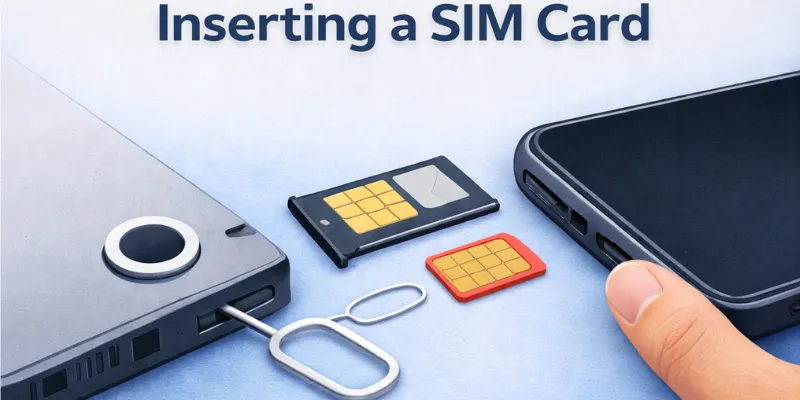
- Find the SIM slot on your phone (usually on the side).
- Use the SIM ejector tool or a small pin to open the tray.
- Place the SIM card carefully in the tray in the correct direction.
- Gently push the tray back into the phone.
Turning On the Phone for the First Time
Turning on a new phone is easy, but important to do it correctly.
- Press and hold the power button until the screen lights up.
- Wait for the phone to start completely; it may take a few seconds.
- Release the button when you see the brand logo or welcome screen.
Choosing Language and Region
The phone will ask you to select a language and region during setup.
- Pick the language you understand best.
- Choose your country or region so the phone shows the correct time, date, and local services.
- Confirm your choices to continue setup.
Connecting to Wi-Fi or Mobile Data
An internet connection is essential for using apps and updating your phone.
- Turn on Wi-Fi from the settings or swipe down the menu.
- Select your Wi-Fi network and enter the password.
Alternatively, turn on mobile data if Wi-Fi is not available.
Signing in with Google / Apple Account
A Google account (for Android devices) or Apple ID (for iPhone devices) is required to use apps, store data, and secure your phone.
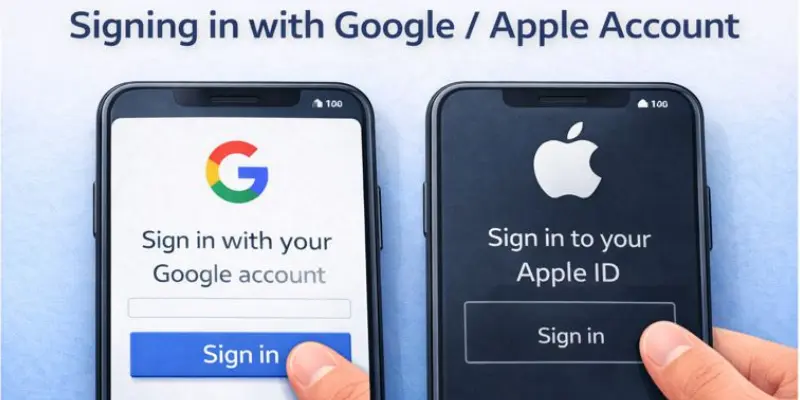
- Enter your account email and password.
- Follow the instructions to verify your account.
- Once signed in, you can download apps, back up data, and use cloud services.
Step-by-Step: How to Use a Mobile Phone
Using a mobile phone for the first time can feel tricky, but once you learn the basics, it becomes easier. This guide covers the basics, from turning on your phone to using apps and the internet. Follow each step slowly, and practice along the way
1. Turning On, Locking, and Unlocking
Turning on and unlocking your phone is the first step to using it. Locking keeps your phone safe when you are not using it.
- Press and hold the power button until the screen lights up.
- Swipe up or press the unlock key to open the home screen.
- Enter your PIN, password, or pattern if asked.
Lock your phone by pressing the power button once.
2. Understanding the Home Screen
The home screen is where you see all your apps, notifications, and quick settings. Learning it helps you use your phone easily.
- Look at the app icons on the screen. These open different functions like calls, messages, and the camera.
- Swipe down from the top to view notifications and quick settings, such as Wi-Fi and brightness.
- Swipe left or right to access more screens or apps.
3. Making and Receiving Calls
Making and receiving calls is one of the most basic functions of a phone.
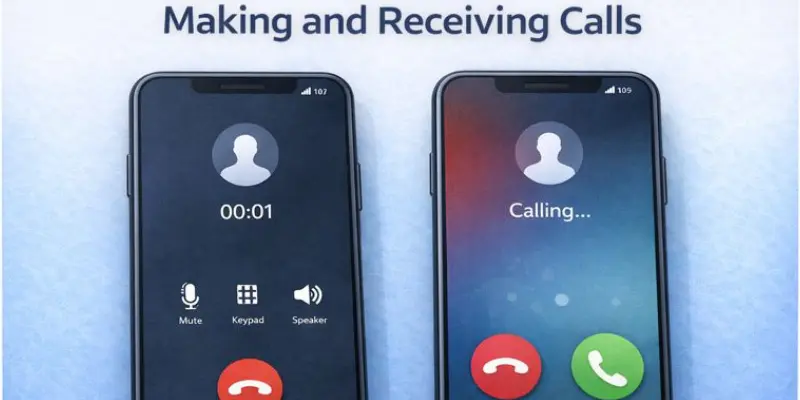
- Open the Phone app.
- Tap the dial pad or select a contact from your list.
- Press the call button to make a call.
- To receive a call, swipe or tap the answer button.
Press the red button to end the call.
4. Sending Messages
Sending messages allows you to communicate with people quickly without making a call.
- Open the Messages or texting app.
- Tap the new message icon.
- Type the phone number or select a contact.
- Write your message and press Send.
- You can also send emojis, pictures, or voice notes.
5. Using the Internet on a Mobile Phone
Using the internet lets you browse websites, watch videos, and use online apps.
- Turn on Wi-Fi or mobile data from the Quick Settings.
- Open a web browser app, like Chrome or Safari.
- Type a website name or search in Google.
- Scroll, click links, or watch videos as needed.
6. Installing and Managing Apps
Apps are small programs that let your phone do more things.
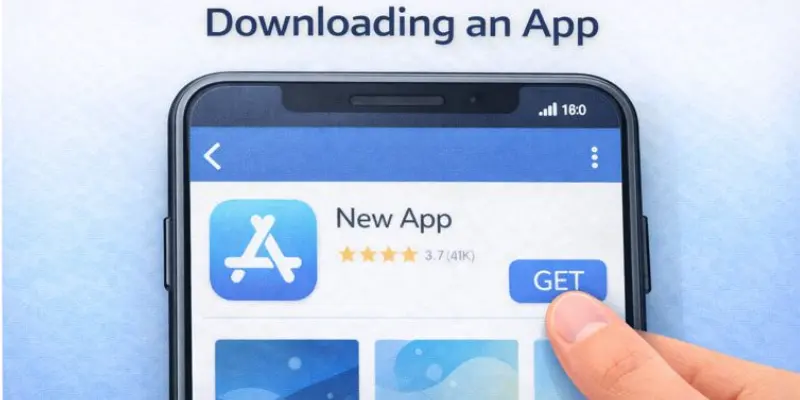
- Open the Google Play Store (Android) or App Store (iphone).
- Search for the app you want.
- Tap ‘Install’ or ‘Get’ to download it.
- To update apps, open the store and check updates.
- Delete apps you don’t need to save space.
Common Mobile Phone Gestures and Navigation
Using a mobile phone becomes much easier when you understand the basic gestures and navigation controls. These simple actions help you open apps, switch between screens, and move around your phone quickly. Spend a little time practicing these gestures, and you will feel more confident every day.
Tap and Double Tap
A tap is the most common gesture on a mobile phone. You use it to open apps, select options, or press buttons. Some apps also support a double tap for extra actions, such as zooming in on a photo.
Key points:
- Tap once to open apps, menus, or settings.
- Double tap when an app supports extra functions like zooming.
Swipe and Scroll
Swiping lets you move between screens or unlock your phone. Scrolling helps you read long pages, browse websites, or view social media posts.
Key points:
- Swipe left, right, up, or down to move around your phone.
- Scroll to read webpages, messages, or app content.
Pinch to Zoom
Pinch to zoom is useful when you want to make text or pictures bigger or smaller. It works in many apps, including the Gallery and web browsers.
Key points:
- Spread two fingers apart to zoom in.
- Pinch two fingers together to zoom out.
Using Navigation Buttons or Gestures
Most phones let you use either navigation buttons or gesture controls. Both options help you return to the previous screen, go to the home screen, or switch between apps.
Key points:
- Use the Home button or gesture to return to the main screen.
- Open Recent Apps to switch quickly between running apps.
Opening the Notification Panel
The notification panel shows new messages, missed calls, and quick settings. It also lets you control features like Wi-Fi, bluetooth, and brightness without opening the Settings app.
Key points:
- Swipe down from the top of the screen to open notifications.
- Tap a notification to view it or clear it when it is no longer needed.
Learning these simple gestures and navigation controls will help you use your mobile phone faster and with greater confidence. Practice them regularly until they become a natural part of your daily phone use.
Important Mobile Phone Settings You Must Know
Mobile phone settings are options that help you control how your phone works and behaves. They let you manage internet connections, sound, screen display, battery usage, and security. Learning these settings makes using your phone easier, safer, and more comfortable. Adjusting them properly helps your phone work the way you want every day.
Wi-Fi and Mobile Data Settings
These settings let your phone connect to the internet. You can choose to use Wi-Fi or mobile data depending on availability.
- Turn Wi-Fi on or off and connect to available networks.
- Turn mobile data on or off to save internet usage.
Sound and Notification Control
These settings manage your phone’s sounds and alerts. You can control ringtones, notifications, and vibration.
- Adjust the ringtone, notification sounds, and vibration.
- Set Do Not Disturb mode for quiet times.
Display and Font sizes
These settings adjust the appearance of your phone screen. You can make the text larger or adjust the brightness for greater comfort.
- Adjust brightness to make the screen easier to see.
- Adjust the font size or screen zoom for improved readability.
Battery and Power Saving Mode
These settings help your phone use battery efficiently. You can extend battery life and see which apps use more power.
- Enable Battery Saver mode to save power.
- Check app battery usage and manage it.
Privacy and Security Settings
These settings protect your personal information. You can control passwords, app permissions, and device security.
- Set up screen lock, fingerprint, or face unlock for security.
- Manage app permissions to control access to your data.
Accessibility Features for Easy Mobile Use
Accessibility features are options on your phone that make it easier for everyone to use. They help people see, hear, or use the phone more comfortably. These features are especially helpful for beginners, seniors, or anyone who needs extra support.
Increasing Text Size
This feature makes the letters on your phone bigger so they are easier to read.
- Go to settings and choose “Text Size” or “Font Size.”
- Increase the size until you can read comfortably.
Screen Zoom
Screen zoom makes all items on the screen bigger, not just text.
- Turn on screen zoom in settings.
- Use it to make buttons and menus easier to see and tap.
Voice Assistant
Voice assistants let your phone do things when you talk to it.
- Activate the voice assistant in settings or by saying a command.
- You can make calls, send messages, or open apps by speaking.
One-Hand Mode
One-handed mode makes it easier to use a large phone with one hand.
- Turn on one-hand mode in settings.
- The screen shrinks to one corner, allowing your thumb to reach everything.
Helpful Features for Seniors
Phones have special options for older users to make using them easier.
- Use simple mode to make icons bigger and fewer on the home screen.
- Enable hearing or visual aids if needed.
Mobile Phone Safety and Security Basics
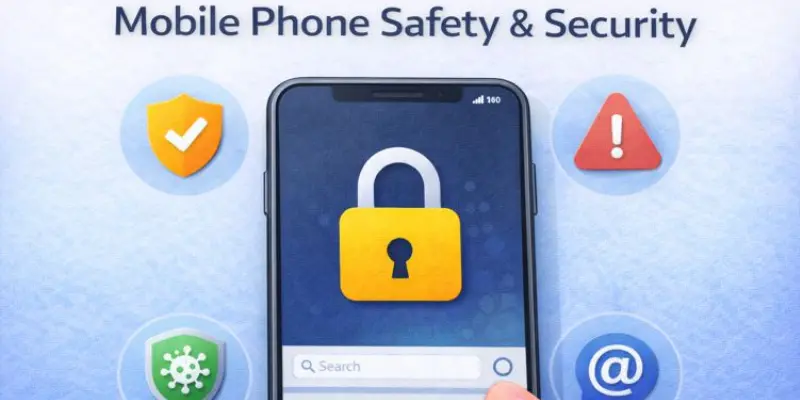
Keeping your mobile phone safe is essential. Safety and security settings protect your personal information, prevent unwanted access, and help you use the internet safely. Learning these basics makes your phone more secure and helps you avoid problems.
Screen Lock Importance
Screen lock protects your phone from being used by others.
- Set up a PIN, password, pattern, fingerprint, or face unlock.
- Always lock your phone when you are not using it.
App Permissions
App permissions control what information apps can access on your phone.
- Check which apps can access your camera, microphone, or contacts.
- Only allow permissions that are necessary for the app to work.
Avoiding Scams and Fake Links
Scams and fake links can steal your information or money.
- Don’t click on unknown links in messages or emails.
- Avoid downloading apps or files from untrusted sources.
Safe Internet Habits
Safe internet use keeps your phone and data secure.
- Use strong passwords for accounts and apps.
- Avoid public Wi-Fi for sensitive activities like banking.
How to Take Care of Your Mobile Phone
Taking care of your mobile phone helps it work better and last longer. Simple daily habits can protect your phone from damage and keep it running smoothly.
Battery Charging Tips
Proper charging keeps your battery healthy for a long time.
- Avoid letting the battery drop to 0% too often.
- Don’t overcharge the phone for many hours continuously.
Phone Storage Management
Managing storage ensures your phone runs fast and doesn’t run out of space.
- Delete apps, photos, or videos you don’t need.
- Move important files to cloud storage or a memory card.
Cleaning and Protection
Keeping your phone clean helps prevent damage and the spread of germs.
- Wipe the screen and body with a soft, dry cloth.
- Use a phone case and screen protector to protect your device from scratches and cracks.
Software and System Updates
Updating your phone keeps it safe and working well.
- Install system updates when your phone notifies you.
- Update apps regularly to fix bugs and get new features.
Mobile Phone Etiquette and Best Practices
Using a mobile phone the right way is just as important as knowing how to use its features. Good phone habits help you stay safe, respect others, and enjoy a better experience every day. By following a few simple practices, you can use your phone responsibly at home, school, work, or in public places.
Use Your Phone Responsibly
Your mobile phone is a helpful tool, but it should not distract you from important tasks. Try to use it only when needed and avoid spending too much time on the screen.
Key points:
- Use your phone for useful tasks and daily communication.
- Take regular breaks to reduce screen time and protect your eyes.
Respect Other People’s Privacy
Always ask for permission before taking someone’s photo or recording a video. Respecting privacy helps you build trust and avoid uncomfortable situations.
Key points:
- Ask for permission before taking photos or videos of others.
- Never share someone’s personal information without their consent.
Follow Good Phone Manners in Public
Using your phone politely shows respect for the people around you. Small habits can make a big difference in public places.
Key points:
- Keep your phone on silent or vibration in quiet places.
- Speak softly when making or receiving calls in public.
Avoid Using Your Phone While Driving
Using a phone while driving or crossing the road can be dangerous. Always focus on your surroundings to stay safe.
Key points:
- Never text or browse while driving.
- Stop in a safe place before using your phone if it is necessary.
Keep Your Phone Clean and Secure
A clean and secure phone works better and protects your personal information. Make phone care part of your daily routine.
Key points:
- Clean your phone regularly with a soft, dry cloth.
- Lock your phone when you are not using it to keep your data safe.
Good mobile phone habits make your device safer, last longer, and create a better experience for you and the people around you. Simple actions today can help you use your phone more responsibly every day.
Data Backup and Restore
Backing up your mobile phone means saving important data, like contacts, photos, and files. It keeps your information safe in case your phone is lost, damaged, or replaced. Restoring data lets you get all your important files back easily on a new phone.
Why Backup Is Needed
Backing up protects your important information from being lost.
- Prevents loss of contacts, photos, messages, and apps.
- Makes it easy to move data when you get a new phone.
Backing Up Contacts and Photos
Saving your contacts and photos ensures you don’t lose them.
- Use the phone’s built-in backup option to save contacts.
- Save photos and videos to cloud storage or an external device.
Cloud Backup Basics
Cloud backup stores your data safely on the internet.
- Sign in to your Google account (Android) or Apple ID (iPhone).
- Enable automatic backup for contacts, photos, and other important files.
Restoring Data on a New Phone
Restoring backup brings your saved information to a new device.
- Sign in to your Google or Apple account on the new phone.
- Follow the instructions to restore contacts, apps, photos, and other data.
Basic Mobile Phone Troubleshooting
Sometimes, your mobile phone may not work perfectly, and minor issues can happen. Troubleshooting means resolving these issues step by step. Most problems are simple to solve if you know the basics.
Phone Not Charging
If your phone does not charge, it can stop you from using it.
- Check that the charger and cable are working properly.
- Make sure the power outlet is working.
- Clean the charging port to remove dust or dirt.
- Try using a different charger or cable if available.
Phone Running Slow
A slow phone can make tasks take longer, and apps freeze.
- Close apps running in the background to free memory.
- Delete unnecessary files or apps to make space.
- Restart the phone to refresh its memory.
- Check for software updates to improve performance.
Internet Not Working
Sometimes Wi-Fi or mobile data may not work.
- Turn Wi-Fi or mobile data off and on again.
- Restart your phone to refresh the network connection.
- Check if the Wi-Fi network or mobile plan is active.
- Forget and reconnect to the Wi-Fi network if needed.
Apps Crashing
Apps may close suddenly or stop working properly.
- Update the app to the latest version.
- Clear the app cache to remove temporary files.
- Restart the phone and try again.
- Reinstall the app if it continues to crash.
Parental Control and Family Safety
Parental controls help keep children safe while using mobile phones. These settings let parents manage how much their children use the phone, which apps they can access, and what they see online.
Screen Time Limits
Screen time limits control how long a child can use the phone each day.
- Set daily time limits for the device.
- Schedule specific times when the phone can be used.
- Receive notifications when screen time is almost over.
- Pause the phone temporarily if needed.
App Restrictions
App restrictions limit which apps children can use.
- Block apps that are not suitable for children.
- Allow only approved apps to be installed.
- Set age ratings for apps in app stores.
- Prevent in-app purchases to avoid extra costs.
Child-Safe Browsing
Child-safe browsing keeps children away from harmful websites.
- Enable safe search in browsers.
- Block adult or unsafe websites.
- Use parental control apps for extra protection.
- Monitor browsing history regularly.
Conclusion
By following this guide, you now know how to use a mobile phone step by step. You have learned how to turn it on, make calls, send messages, use the internet, install apps, and keep your phone safe and organised. You also understand important settings, accessibility features, and basic troubleshooting to solve common problems.
Now it’s time to practice what you have learned. Explore your phone, try new apps, and use these tips every day to become more confident. With a little practice, using your mobile phone will feel easy and natural, and you will be ready to explore more advanced features in the future.
FAQs
Turn on your phone by holding the power button. Follow the on-screen instructions to choose your language, connect to Wi-Fi, and sign in with a Google or Apple account. Insert your SIM card if needed. Once set up, you can start making calls, sending messages, and exploring apps slowly.
You can increase text size and enable screen zoom to see things clearly. Use one-hand mode if your phone is large. Explore accessibility settings like a voice assistant to make tasks easier. Organizing your home screen with only important apps helps too.
Only download apps from official stores, like Google Play or App Store. Avoid clicking on unknown links in messages or emails. Keep your phone up to date with the latest software. Use a screen lock to prevent unauthorised access.
Close apps running in the background. Delete apps or files you don’t need. Restart your phone to refresh it. Check for software updates, as they can improve speed.
Reduce screen brightness and turn off unnecessary notifications. Use battery saver mode when needed. Close apps that are not in use. Avoid overcharging or letting the battery drain completely.
Use cloud storage like Google Drive or iCloud to save your data. Turn on automatic backup for contacts, photos, and other important files. This keeps your data safe if you lose or change your phone. You can restore it easily on a new device.
Use screen time limits to manage how long they use the phone. Set app restrictions to allow only approved apps. Enable child-safe browsing to block harmful websites. Check their usage regularly to ensure safety.
Open the Google Play Store (Android) or App Store (iPhone). Search for the app you want and tap Install or Get. To update apps, open the store and check for updates regularly. Delete apps you no longer need to save space.


- Be Respectful
- Stay Relevant
- Stay Positive
- True Feedback
- Encourage Discussion
- Avoid Spamming
- No Fake News
- Don't Copy-Paste
- No Personal Attacks
- Be Respectful
- Stay Relevant
- Stay Positive
- True Feedback
- Encourage Discussion
- Avoid Spamming
- No Fake News
- Don't Copy-Paste
- No Personal Attacks
