How do I Download a YouTube Video? Easy Steps for Android, iPhone, and MacBook
Published: 12 Oct 2026
Do you want to save a YouTube video on your phone? Maybe you want to watch it on a flight. Maybe your data is low. Whatever the reason, you are in the right place. Many people ask, how do I download a YouTube video? The answer is easier than you think. In this guide, you will learn how to download YouTube videos on Android, iPhone, and MacBook. We explain each step in simple words. We also share safe tips to protect your device. Ready to start? Let’s find the easiest way for you.
Can You Download YouTube Videos?
Yes, you can. But how you do it matters. Some methods are safe and simple. Others can put your phone at risk. Some tools also break YouTube’s rules. So it is smart to know your options first. Let’s look at the safe way, the risky way, and a few tips to protect your device.
The Safe Way: YouTube’s Own Download Button
YouTube has a built-in download feature. You can save a video inside the YouTube app. Then you can watch it offline. Here is a simple example. You are going on a long bus trip. You download a few videos at home on Wi-Fi. On the bus, you watch them with no internet.
A few things to know:
- The download button is in the YouTube app.
- Some videos need YouTube Premium.
- Free downloads depend on your country and the video.
- Downloaded videos stay inside the YouTube app.
- Screen recording is a backup option for personal viewing. It is a grey area under YouTube’s rules.
The Risky Way: Third-Party Tools
Many websites and apps say they can download any video. But YouTube’s rules usually do not allow this. Some of these tools also carry ads, fake buttons, or even viruses.
So think twice before you use them. Is a free tool worth the risk to your phone?
Stay on the Safe Side
Follow these simple tips:
- Download only videos you are allowed to save.
- Use the official YouTube option when you can.
- Save videos for personal use only.
- Do not re-upload or sell other people’s videos.
Now you know the basics. Next, let’s see which method works best for you.
Best Way to Download YouTube Videos (Quick Comparison)
Not sure which method to pick? This table will help you choose fast.
| Method | Best For | Cost | Safety |
| YouTube app download button | Android and iPhone | Free in some countries, Premium in others | Very safe |
| Screen recording | Android, iPhone, and MacBook | Free | Safe |
| QuickTime Player | MacBook | Free | Safe |
| YouTube Studio | Your own videos | Free | Very safe |
| Third-party apps and sites | Any device | Free or paid | Risky |
Which One Should You Pick?
Here are three easy rules:
- Want the safest way? Use the YouTube app.
- No Premium? Try screen recording.
- Downloading your own video? Use YouTube Studio.
Think of it like choosing a road. The official road is smooth and safe. The shortcut may save time, but it can be full of holes.
A Quick Tip
Check your phone’s storage first. Videos take up space. A short video may only need a little room. A long HD video can fill up your phone fast.
Ready for the steps? Let’s start with Android.
How to Download YouTube Videos on Android
Do you have an android phone? Good news. You have three ways to save a video. Let’s start with the safest one.
Method 1: Use the YouTube App (Official Way)
This is the best method for most people. It is safe and simple.
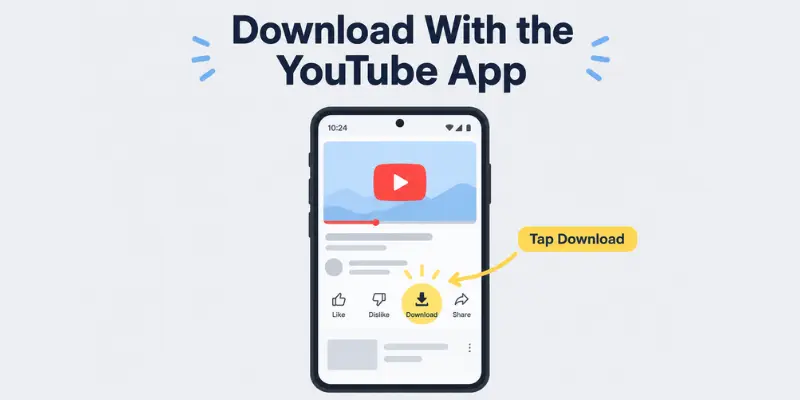
Steps:
- Open the YouTube app.
- Play the video you want to save.
- Tap the Download button under the video.
- Choose the video quality.
- Tap Download. Wait for it to finish.
Where do I find my video?
- Tap Library at the bottom.
- Tap Downloads.
- Your saved videos are there.
Real-life example: Sara has a long train ride tomorrow. Tonight, she downloads three videos on her home Wi-Fi. On the train, she watches them with no data.
Good to know:
- Some videos need YouTube Premium.
- In some countries, you can download certain videos for free.
- Downloads stay inside the YouTube app.
- Many downloads expire after some time. Connect to the internet now and then to keep them.
Method 2: Download Without YouTube Premium (Screen Recording)
No Premium? You can record your screen instead. Most Android phones have this feature built in.
Steps:
- Swipe down from the top of your screen.
- Tap Screen Record. If you do not see it, swipe again to find more options.
- Allow sound recording if the phone asks.
- Start recording.
- Play your video in full screen.
- Stop recording when the video ends.
Your new video goes to your Gallery.
What to know:
- Recording takes as long as the video itself.
- Turn on Do Not Disturb first. This stops calls and messages from popping up.
- Quality depends on your screen.
- Use this for personal viewing only.
Method 3: Third-Party Apps (Be Careful)
Many apps say they can download any video. But they come with risks:
- Fake apps with viruses
- Too many ads
- Apps that steal your data
- Apps that break YouTube’s rules
Still want to try one? Follow these safety tips:
- Install apps only from the Google Play Store.
- Read the reviews first.
- Check how many people downloaded the app.
- Say no to extra permissions. A video app does not need your contacts or messages.
- Never install files from unknown websites.
Ask yourself: is one video worth risking your phone?
Which Method Should You Choose?
- Want the safest way? Use Method 1.
- No Premium? Use Method 2.
- Method 3 is a last resort.
How to Download YouTube Video on iPhone
Using an iPhone? You have two safe options.
Method 1: Use the YouTube App
This is the easiest way.
Steps:
- Open the YouTube app.
- Play the video.
- Tap Download under the video.
- Pick the quality.
- Tap Download.
To watch it later, tap Library, then Downloads.
Good to know:
- Some videos need YouTube Premium.
- Downloads stay inside the YouTube app.
Method 2: Use Screen Recording
No Premium? Record your screen instead.
Steps:
- Open Settings, then Control Center.
- Add Screen Recording.
- Swipe down from the top-right corner of your screen.
- Tap the Record button.
- Play your video in full screen.
- Tap the red bar at the top to stop.
Your video goes to the Photos app.
Tip: Turn on Do Not Disturb first. Then no message pops up in your video.
Which One Is Better?
- Want the best quality? Use Method 1.
- No Premium? Use Method 2.
How to Download YouTube Video on MacBook
Using a MacBook? You have two safe options.
Method 1: Use Screen Recording (Free)
Your Mac has a built-in recorder. You do not need to install anything.
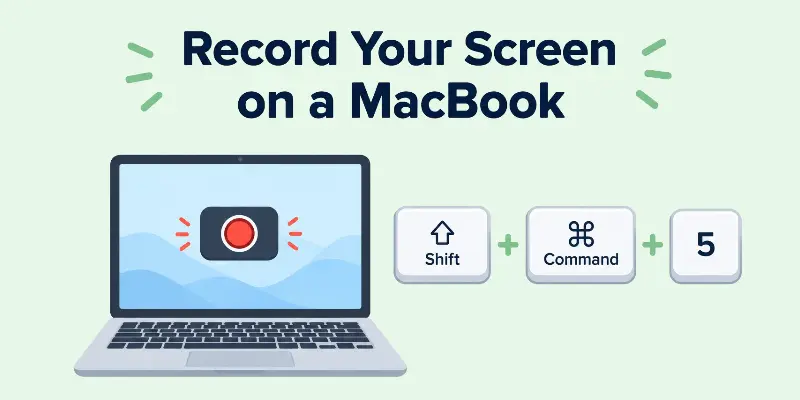
Steps:
- Open the video in your browser.
- Press Shift + Command + 5.
- Choose Record Selected Portion or Record Entire Screen.
- Click Record.
- Play the video in full screen.
- Click the Stop button in the menu bar at the top.
Your video saves on the Desktop by default.
Good to know:
- Recording takes as long as the video.
- A Mac does not record the video’s sound by default. You need a free audio tool to add it.
- Turn on Do Not Disturb first. Then no message pops up.
Method 2: Use YouTube Premium
Do you have Premium? Open YouTube in Chrome, Edge, Firefox, or Opera. Safari may not work.
Steps:
- Sign in to your Premium account.
- Open the video.
- Click Download under the video.
- Keep the browser tab open until it finishes.
To watch it later, click Downloads in the YouTube menu.
Good to know:
Connect to the internet now and then to keep them active.
Downloads stay inside YouTube. You cannot open them in another player.
What About Online Downloader Sites?
Many sites say they can save any video. But they often show fake buttons and heavy ads. Some break YouTube’s rules. Use them with care, or skip them.
Which One Is Better?
- Want a simple, free way? Use Method 1.
- Have Premium? Use Method 2.
How to Download YouTube Videos on Windows PC
Using a Windows PC? Here are two safe ways.
Method 1: Use Xbox Game Bar (Free)
Windows has a built-in recorder. You do not need to install anything.
Steps:
- Open the video in your browser.
- Press Windows + G to open Game Bar.
- Click the Record button. You can also press Windows + Alt + R.
- Play the video in full screen.
- Press Windows + Alt + R again to stop.
Your video saves in Videos, then Captures.
Good to know:
- Recording takes as long as the video.
- Turn on Focus Assist first. Then no message pops up.
- Game Bar records the browser window, not your whole desktop.
Method 2: Use YouTube Premium
Do you have Premium? Open YouTube in Chrome, Edge, Firefox, or Opera.
Steps:
- Sign in to your Premium account.
- Open the video.
- Click Download under the video.
- Keep the browser tab open until it finishes.
To watch it later, click Downloads in the YouTube menu.
Good to know:
Connect to the internet now and then to keep them active.
Downloads stay inside YouTube. You cannot open them in another player.
What About Download Software?
Many programs say they can save any video. But some carry ads or viruses. Some also break YouTube’s rules. Think twice before you install one.
Which One Is Better?
- Want a free and simple way? Use Method 1.
- Have Premium? Use Method 2.
How to Download Your Own YouTube Videos
Did you upload a video to YouTube? Then you can download it for free. It is safe and easy.
Method 1: Use YouTube Studio
Use a computer for this method.
Steps:
- Go to YouTube Studio and sign in.
- Click Content on the left side.
- Find your video.
- Click the three dots next to it.
- Click Download.
Your video saves as an MP4 file in your Downloads folder.
Real-life example: Ali lost the original file of his birthday video. He opened YouTube Studio. In two minutes, he had a copy back.
Method 2: Download All Your Videos at Once
Do you have many videos? Use Google Takeout.
Steps:
- Go to Google Takeout.
- Choose YouTube and YouTube Music.
- Select your videos.
- Click Create export.
- Google sends you a download link.
Good to know:
- This can take some time if you have many videos.
- The files may be large. Check your storage first.
Why Use This Method?
- It is free.
- It is safe.
- You keep the full video file.
- You do not need any extra tools.
How to Download YouTube Videos in HD
Want a sharp, clear video? Better quality also uses more storage.
Choose Quality in the YouTube App
- Tap Download under the video.
- Pick a quality.
- Tap Download.
Want one quality for all downloads? Go to Settings, then Downloads. Choose your Download quality.
What About Screen Recording?
Your copy looks as good as your screen shows. So play the video in HD before you record.
Quality vs. Storage
| Quality | Storage Use |
| Low | Small |
| HD | Medium |
| Ultra HD | Large |
Real-life example: Replace it with this: “Zain has 64 GB of storage. He downloads ten long videos in HD. His phone fills up fast. Next time, he picks standard quality.
Quick Tips
- Small phone screen? Choose HD.
- Low storage? Choose a lower quality.
How to Download YouTube Videos Without Software
Do you want to avoid installing extra apps? Good idea. Extra software can slow your device or carry viruses.
Use What You Already Have
You can save videos with tools already on your device.
- YouTube app: Tap the Download button under the video.
- Screen recording on Android and iphone: Open the control panel and tap Screen Record.
- Mac: Press Shift + Command + 5.
- Windows PC: Press Windows + G, then click Record.
You can find the full steps in the sections above.
What About Online Download Sites?
These sites work in your browser. You do not install anything. But they come with risks:
- Fake buttons and pop-up ads
- Links that lead to harmful pages
- Sites that break YouTube’s rules
Stay Safe
- Close any pop-up you did not ask for.
- Never download a file you did not expect.
- Do not enter personal details on these sites.
- Leave the site if it feels strange.
Real-life example: Hina clicked a big green Download button on a free site. It installed an unknown app on her phone. She had to reset the phone. A built-in screen recorder would have been safer.
Is It Safe to Download YouTube Videos?
It can be. Safety depends on the method you use.
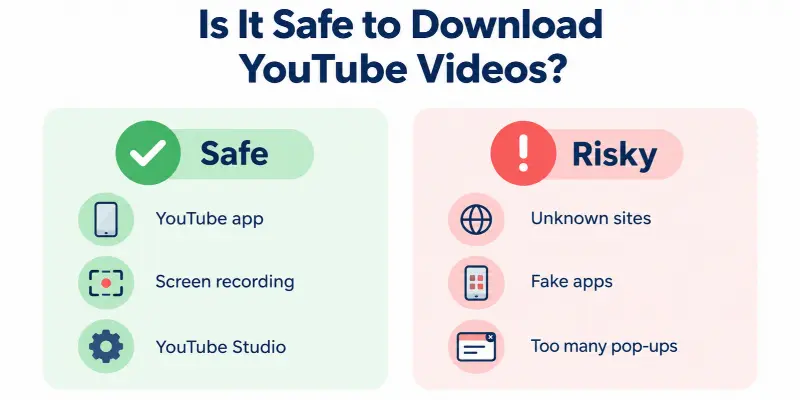
Safe Methods
- The YouTube app’s Download button
- Built-in screen recording
- YouTube Studio for your own videos
Risky Methods
- Unknown websites with heavy ads
- Apps from outside the Google Play Store or App Store
- Software that asks for extra permissions
5 Safety Tips
- Use official tools first.
- Install apps only from the Google Play Store or App Store.
- Read reviews before you install anything.
- Keep your phone’s security updates on.
- Do not open files you did not ask for.
Warning Signs of a Fake Tool
Does the site or app do any of these?
- Shows many pop-up ads
- Asks for your contacts or messages
- Asks you to install another app first
- Says your phone has a virus
If yes, leave right away.
What If You Clicked Something Bad?
- Close the page.
- Delete any app you just installed.
- Run a security scan.
- Change your passwords if you typed any.
Real-life example: Bilal installed a free downloader app. It asked for his contacts. He said no and deleted the app. His phone stayed safe.
Common Problems and Fixes
Is your download not working? Try these quick fixes.
Video Won’t Download
- Check your internet.
- Update the YouTube app.
- Make sure the video allows downloads.
Storage Is Full
- Delete old downloads.
- Choose a lower quality.
Download Stops Halfway
- Switch to a stronger Wi-Fi network.
- Restart the app and try again.
Can’t Find the Video
- YouTube app: Tap Library, then Downloads.
- Screen recording: Check your Gallery, Photos, or Desktop.
Download Disappeared
Downloads can expire. Connect to the internet and open the app to keep them active.
Tips to Save Data and Storage
Want to save space and data? These easy tips help.
- Use Wi-Fi. Download videos on Wi-Fi, not mobile data.
- Pick lower quality. HD or standard uses less space than 4K.
- Delete old videos. Remove videos you already watched.
- Check your storage. Look at your free space before you start.
- Download only what you need. Skip videos you will not watch.
Real-life example: Maryam downloads her videos at night on home Wi-Fi. She picks standard quality and deletes them after she watches. Her phone always has space.
Small habits make a big difference. Which tip will you try first?
Conclusion
So, how do I download a YouTube video? You can do it on Android, iPhone, MacBook, and Windows PC. The safest way is the YouTube app, and screen recording works well if you do not have Premium. You can also download your own videos with YouTube Studio. Avoid unknown sites and apps, keep your videos for personal use, and check your storage before you start. Which method will you try today?
Faqs
Yes. In some countries, the YouTube app offers free downloads for certain videos. You can also use screen recording. Your own videos download for free from YouTube Studio.
YouTube’s rules allow downloads only through its own features. Other tools may break these rules. Save videos for personal use only. Never re-upload or sell them. Laws differ by country, so check yours.
Yes. Use screen recording on your phone, Mac, or PC. You can also download your own videos with YouTube Studio.
- YouTube app downloads: Tap Library, then Downloads.
- Screen recordings: Check your Gallery, Photos, or Desktop.
Yes. The YouTube app can download long videos if you have enough storage. Screen recording takes as long as the video itself.
Start with the YouTube app. It is safe and simple. No Premium? Try screen recording.

- Be Respectful
- Stay Relevant
- Stay Positive
- True Feedback
- Encourage Discussion
- Avoid Spamming
- No Fake News
- Don't Copy-Paste
- No Personal Attacks
- Be Respectful
- Stay Relevant
- Stay Positive
- True Feedback
- Encourage Discussion
- Avoid Spamming
- No Fake News
- Don't Copy-Paste
- No Personal Attacks
