Transfer Contacts From Android to iPhone
Published: 27 Jan 2026
You want your contacts on your new iPhone, and you do not want missing names or duplicate people. This guide shows the best method for your case, so you do not waste time. I will help you transfer contacts from Android to iPhone in an easy way that works. Many guides jump into steps too fast, but I will help you choose the right method first. This saves time and keeps your contact list clean. You will also learn how to avoid duplicates and missing names. Question: Is your iPhone new or already set up?
Quick Picker
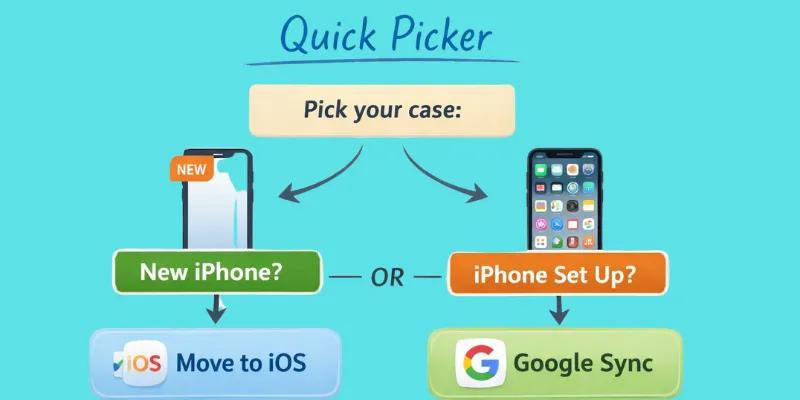
[Pick your case—best method box]
- New iPhone (not set up): Move to iOS
- iPhone already set up: Google sync
- Contacts on SIM: Import SIM contacts
- No login / want a file: VCF (.vcf) file
- Only a few contacts: Share one by one.
- Need a PC tool: Only trusted tools
Quick meaning (1 line each):
- Google Sync: It keeps your contacts the same on Google, Android, and iPhone.
- VCF (.vcf) file: It is a contact list file you can save and move.
- Trusted tools: Use well-known tools from Apple, Google, or big brands, and avoid random apps.
Are you setting up your iPhone for the first time right now?
Do you know where your contacts are saved on Android (Google, phone, or SIM)?
Tips
- Pick ONE method. Do not mix methods.
- Check out five important names after you move.
Tiny real-life example
Sara moved to a new iPhone and used Google Sync. Her work contacts showed up in minutes.
What to do next
- Choose one method from the box and follow only those steps.
- Open Contacts on your iPhone and search for five key names to confirm.
Before You Start (1-minute checklist)
- Charge both phones.
- Turn on Wi-Fi (for Move to iOS and Google sync).
- Check where contacts are saved on Android:
- Google account
- Phone storage
- SIM card
- Google account
- Decide where you want contacts on your iPhone:
- iCloud
- Gmail
- iCloud
Do your contacts show up when you open Gmail on Android?
SIM vs eSIM (simple box)
SIM = a small plastic card that can hold some contacts.
eSIM = a digital SIM inside the phone. It is not a card.
eSIM usually does not store your contacts.
Tiny real-life example
Ali thought his contacts were on the SIM, but they were in Google. He used Google Sync and fixed it quickly.
Next:
- Find where your contacts are saved on Android (Google, phone, or SIM).
- Pick one method based on that, then move your contacts to iCloud or Gmail.
Method 1—Move to iOS (best for a new iPhone)
Use this when
This section explains when to use this method. When your iPhone is brand-new and still in setup, use it. If your iPhone is already set up, this method will not show. Do you see the iPhone setup screens right now?
Steps
This section provides the exact steps to move your contacts.
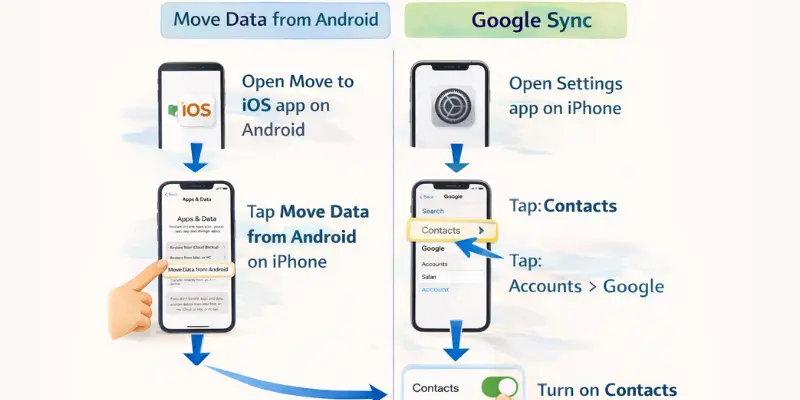
- Start the iPhone setup until you see Apps & Data.
- Tap Move Data from Android.
- On your Android device, open the Play Store and install Move to iOS.
- Open Move to iOS on Android and tap Continue.
- When your iPhone shows a code, enter it on Android.
- On Android, select Contacts and start the move.
- Keep both phones close until it finishes. Do not close the apps.
Tip: Keep Wi-Fi on and keep both phones charged.
Wi-Fi means wireless internet.
If it fails:
- Keep both screens on and unlocked.
- Put both phones on the same Wi-Fi.
- Restart both phones and try again.
Quick check
This part helps you confirm the move worked.
- Open Contacts on your iPhone.
- Search any 3 names you know.
- Tap each name and check that the phone number looks right.
Method 2—Google Sync (best if iPhone is already set up)
Use this when
This part helps you know if this method fits your case. Use Google Sync when your iPhone is already set up, and you want a clean way to transfer contacts from Android to iPhone without starting over. It also works well if you already use Gmail.
- Your iPhone is already set up and in use.
- Your contacts are linked to a Google (Gmail) account.
Do you use Gmail on your android phone?
Do you want your contacts to update on both phones?
Explain in simple words.
This part explains what “Google Sync” means in easy words. Google Sync means Google keeps one contact list for you, and it shows the same contacts on both phones when you sign in. A Google account is your Gmail sign-in.
- Edit a contact once, and it updates on both phones.
- You do not need a cable or a computer.
Steps
This part gives you clear steps to turn on contact sync on your iPhone. Follow the steps in order, and wait a little after you turn it on.
- On Android, open the Contacts app.
- Make sure contacts save to your Google account (not “Phone only”).
- On iPhone, open Settings.
- Tap Contacts > Accounts.
- Tap Add Account > Google.
- Sign in to Gmail.
- Turn on Contacts. Tap Save.
- Open Contacts on iPhone and wait 2–5 minutes.
- Keep Wi-Fi on during sync.
- Open Contacts once to help it load.
Tiny real-life example:
Mia had an iPhone that was already set up. She added her Gmail, and her contacts showed up in minutes.
Extra tip (very important)
This part helps you stop duplicates and missing names. Too many accounts can show the same person twice, so keep only the account you really use for contacts.
- Go to Settings > Contacts > Accounts and turn off extra contact accounts.
- After syncing, check five important names (family and work).
Method 3—Import Contacts From SIM (offline option)
Use this when
This part helps you confirm this method is the right match for you. Use it when your contacts are saved on the SIM card, and you want a quick offline move with no Wi-Fi. It works best for a small or medium contact list.
Do you have a physical SIM card?
Steps
This part walks you through the exact taps on your iPhone. Follow these steps in order, and wait until the import ends.
- Put the SIM in the iPhone.
- Open Settings.
- Tap Contacts.
- Tap Import SIM Contacts.
Safety tip: Do not remove the SIM during import.
Simple note
This part tells you what the SIM may miss, so you do not panic later. SIM may not carry every detail. It can miss things like email, notes, birthdays, and extra number labels.
SIM vs eSIM (clear box):
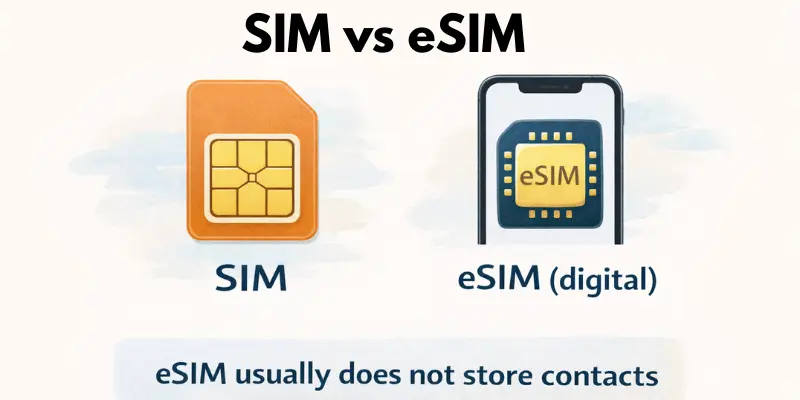
- SIM is a small card. It can hold some contacts.
- eSIM is digital inside the phone. The eSIM is primarily used for the mobile plan.
- eSIM usually does not store contacts.
Method 4—VCF File (.vcf) (no login, one-time move)
Use this when
This part helps you recognize if this method fits your needs. Use it when you want a one-time move without syncing. This procedure will not keep contacts updated later.
Do you want a one-time move or an ongoing sync?
Explain in simple words.
This part explains what a VCF file is in easy words. A VCF file is a contact file.
Steps
This part gives you the short steps to move your contacts to a file.
- Export contacts on Android as .vcf.
- Send it to your iPhone (email or Drive).
- Open it on iPhone and add contacts.
Tip for big lists
This part helps you avoid problems when you have many contacts. Export in smaller parts if needed.
- Signs of trouble: the file will not open, or the import stops midway.
- Fixes: Split the file into smaller parts, and try again on Wi-Fi.
Method 5—Transfer Only a Few Contacts (fast share)
Best for: People who only need a few contacts.
Do you only need to move a few key people today?
This method is fast because you share one contact card at a time. You do not need to set up or sync. It also helps you avoid moving a huge list when you do not need it.
- Open a contact on Android.
- Tap Share.
- Pick Email or Message.
- Send it to your email or your own number.
- On iPhone, open the message or email.
- Tap the contact card. Then tap Add or Create New Contact.
- Check the phone number and email, then tap Save.
Repeat for each contact you want to move. If a contact already exists on the iPhone, update it to avoid duplicates.
- Safety tip: Send only to yourself.
- Quick check: Make sure the contact shows in your iPhone Contacts app.
Method 6—Third-party apps or PC tools (use with care)
Use this when
This part tells you when a tool may help you. Try the free methods first. Use a tool only if you need extra control and trust it. Extra control can mean you want to move only some contacts, or you want a clean backup copy.
Do you really need a tool, or will a free method work?
Safety tips
This section outlines simple safety steps before you use any tool.
- Read reviews.
- Check what data it can access.
- Avoid spammy tools.
- Do not share your passwords.
- Check the price before you start.
Warning: If a tool looks pushy or shady, skip it.
Next:
- Try a free method first.
- If you still need a tool, pick a trusted one and follow the safety tips.
After Transfer (most guides skip this)
Confirm it worked (2 minutes).
This part helps you make sure your contacts really moved over. Do you see the names you need most?
Use this quick checklist:
- Search 3–5 key names (family, work, doctor).
- Check the contact count (a rough check is fine).
- Make one test call to a trusted safe number.
Fix duplicate contacts.
This part helps you clean up repeats, so your list looks neat. Do you see the same person twice?
Try these simple steps:
- Merge duplicates (join the same person as one).
- Please disable the additional contact source if necessary to prevent a second account from adding duplicate names.
- Go to Settings > Contacts > Accounts and turn off Contacts for the account you do not use.
- Go to Settings > Contacts > Accounts and turn off Contacts for the account you do not use.
Tiny real-life example:
Ben turned on both iCloud and Gmail contacts. He saw doubles. He turned off one account, and the repeats stopped.
Keep contacts safe
This part helps you keep contacts safe and easy to find later.
Use these steps:
- Pick one main place: iCloud or Gmail.
- Keep sync ON so new contacts save there.
- Warning: If you sync in two places, you may get duplicates later.
Done checklist (3 steps):
- Key names show up.
- Duplicates are gone.
- One main account is set, and sync is ON.
Troubleshooting (quick fixes people search)
Move to iOS is stuck
This part helps when the Move to iOS transfer stops, freezes, or stays on the same screen, so you can finish moving contacts during the new iPhone setup.
- Restart both phones.
- Use strong Wi-Fi (a steady home internet connection).
- Keep phones plugged in.
- Keep both screens on and unlocked.
- Please try moving the phones closer to the Wi-Fi router if possible.
- If it still freezes, keep both screens on and try again.
Google contacts are not showing
This part helps when you sign in to Gmail on iPhone, but your names still don’t appear, or the list looks empty or outdated.
- On iPhone, go to Settings > Contacts > Accounts > Google.
- Turn Contacts ON for Google.
- Open the Contacts app and wait 2–5 minutes.
- Close Contacts and open it again.
- Check that you signed in to the correct Gmail account.
If contacts still do not show, remove the Google account and add it again.
SIM import missing
This part helps when the SIM import brings only a few names, or none at all, because many contacts are not saved on the SIM card.
- Your contacts may be in phone storage, not SIM.
- On Android, check Contacts and see if it says “Phone” or “Google.”
- If SIM import misses names, use Google Sync or a VCF file instead.
Verify the success of any fix by looking at three to five key names.
Conclusion
So guys, in this article, we’ve covered transfer contacts from Android to iPhone in detail. My personal pick is Move to iOS if your iPhone is new, because it moves your contacts during setup and keeps things clean. If your iPhone is already set up, I recommend Google Sync because it can keep your contacts updated when you add or edit a name later. After you finish, do a quick check so you feel sure: compare the contact count, search 5 key names, and make one safe test call. Now choose the method that fits your case and do it today—what will you use: Move to iOS or Google Sync?
FAQs
The easiest way depends on your iPhone setup. Move to iOS if your iPhone is new and still in setup. Use Google Sync if your iPhone is already set up.
You might save some contacts in “Phone storage” instead of your Google account or SIM. Your iPhone may also show contacts from a different account than you expect. Check your main account and search for a few key names.
You may sync contacts from two places at the same time, like iCloud and Gmail. That can create duplicates. Keep one main contact account and merge repeats.
Yes, you can use the SIM import method if your contacts are on the SIM card. You can also share a few contacts at a time. Wi-Fi helps move to iOS and Google Sync.
No, eSIM is mainly for your mobile plan. It is digital inside the phone, not a contact card. eSIM usually does not store contacts.
Yes, open a contact on Android and tap Share. Please send it to yourself via email or message, and then save it on your iPhone. Repeat for each contact you need.
A VCF file is a contact file. It helps you move contacts once without syncing. It also gives you a backup you can keep.
They will update only if you use sync, like Google Sync or iCloud Sync. A VCF file is a one-time move that will not update later. Pick one main place to save new contacts.
No, you can do it with your phones using Move to iOS, Google Sync, SIM import, or sharing contacts. A computer can help if you want more control over files. Most people do not need one.
This moves your contact names and numbers, not your chat history. WhatsApp chats follow WhatsApp’s own move steps. Your contacts help WhatsApp show names, but chats are separate.


- Be Respectful
- Stay Relevant
- Stay Positive
- True Feedback
- Encourage Discussion
- Avoid Spamming
- No Fake News
- Don't Copy-Paste
- No Personal Attacks
- Be Respectful
- Stay Relevant
- Stay Positive
- True Feedback
- Encourage Discussion
- Avoid Spamming
- No Fake News
- Don't Copy-Paste
- No Personal Attacks
