What is a hotspot in a mobile phone?
Published: 8 Jan 2026
Have you ever wondered how your phone can connect to the internet when Wi-Fi is unavailable? At first, it may seem a little strange, but don’t worry! This guide will teach you what a mobile hotspot is, how it works, and how to use it to keep your devices connected while on the go. We can help you whether you’re traveling, working from home, or just need a backup internet connection. This guide will teach you how to set up and use this helpful feature.
What is a Hotspot?
A hotspot is a feature on your phone that lets it share its internet connection with other devices, such as a laptop, tablet, or another phone. Your phone basically works like a small Wi-Fi router, allowing other devices to connect to its network. This is very useful when you need to stay connected while on the go, and there is no Wi-Fi available.
Hotspot, Mobile Hotspot & Phone Hotspot — What’s the Difference?
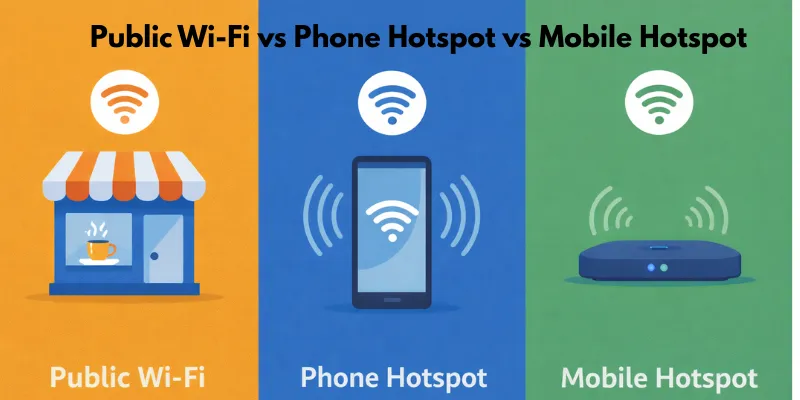
A hotspot lets you connect to the internet wirelessly. There are three types: public Wi-Fi, which is available in public places; phone hotspot, which uses your phone’s data; and mobile hotspot, a small device that creates a Wi-Fi network for multiple devices.
Public Wi-Fi Hotspot
A public Wi-Fi hotspot is a location where you can connect to the internet in a public setting, such as a library, airport, or café. Public Wi-Fi is easy to use, but it’s not always safe, so your personal information could be at risk.
Key Features:
- Location: Found in public spaces like cafes, airports, libraries, and shopping centers.
- Cost: Often free, but some may require a purchase or a fee for access.
- Security Risks: Shared by many people, increasing the risk of hacking or data theft.
- Speed: Connection speed can vary depending on the number of users on the network.
Example:
- You’re at a coffee shop, and you connect to their free Wi-Fi to check your emails.
- At the airport, you connect to the free Wi-Fi to browse websites before your flight.
Phone Hotspot
With a phone hotspot, you can turn your phone’s cellular data into a Wi-Fi network that other devices can connect to. It’s useful for getting online while on the go, but it can quickly drain your phone’s battery.
Key Features:
- Data Sharing: Uses your phone’s mobile data to create a Wi-Fi network for other devices.
- Battery Drain: Prolonged use can quickly drain your phone’s battery, especially when connected to multiple devices.
- Easy Setup: Simple to set up through your phone’s settings without needing extra equipment.
- Data Limits: Depending on your phone’s data plan, you may not be able to share as much data as you would like.
Example:
- You’re at a bus stop, and you use your phone’s hotspot to connect your laptop to the internet.
- You share your mobile data with a friend so they can access the web on their tablet while traveling.
Mobile Hotspot
A mobile hotspot is a small, portable device that uses cellular data to connect to Wi-Fi. It works better for long periods of time and doesn’t drain your phone’s battery as a phone hotspot does.
Key Features:
- Dedicated Device: A separate portable device that connects to cellular data networks to provide Wi-Fi.
- Multiple Connections: Can connect several devices at once, making it great for families or small teams.
- Longer Battery Life: Doesn’t drain your phone’s battery since it’s a standalone device.
- Better Reliability: More stable and faster internet compared to phone hotspots, especially in areas with poor mobile network coverage.
Example:
- On a road trip, you use a mobile hotspot to provide Wi-Fi to your family’s devices, including phones, laptops, and tablets.
- During a business trip, you use a mobile hotspot to ensure a strong and secure internet connection for your laptop, phone, and tablet.
Why This Matters
Your ideal hotspot will depend on your location, internet needs, and the number of devices you have. Understanding the differences between public Wi-Fi, phone hotspots, and mobile hotspots can help you select the best option for your needs.
Key Considerations:
- Choose Based on Your Needs: If you only need internet for a short period, public Wi-Fi may be sufficient. If you’re on the go or need more security, a phone or mobile hotspot may be a better option.
- Security & Reliability: Public Wi-Fi can be insecure, so a phone or mobile hotspot is often a safer and more reliable option.
- Cost & Data Usage: Public Wi-Fi is free, but phone hotspots and mobile hotspots rely on cellular data plans, which may have limits or extra costs.
Example:
- If you need internet access while waiting in a café, public Wi-Fi may suffice. But if you’re traveling and need secure, reliable access to work, a mobile hotspot is a better choice.
- You’re at home and want to provide Wi-Fi for multiple devices—using a mobile hotspot might be the most efficient and cost-effective option.
How a Mobile Hotspot Works
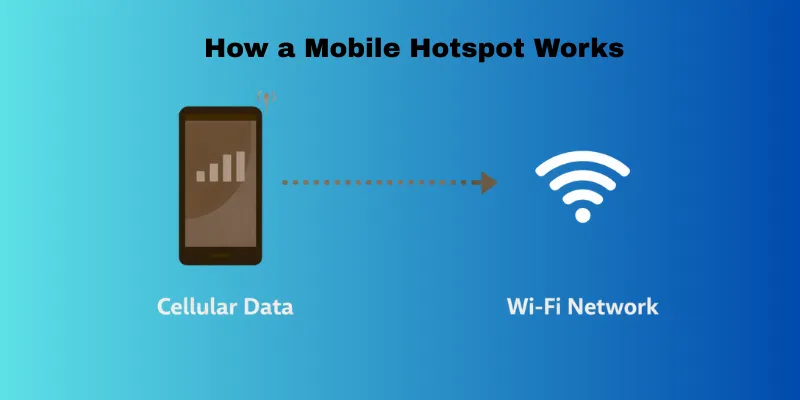
A mobile hotspot is a small device that connects to a cellular phone network and allows you to use Wi-Fi to get online. It utilizes the same technology as your phone to access mobile data but also allows other devices, such as laptops, tablets, and even smartphones, to connect to the internet. This is a straightforward explanation of how it works.
Cellular Data → Wi-Fi Network
- A mobile hotspot connects to a cellular network, just like your phone does for internet access.
- It takes the mobile data from the cellular network and converts it into a Wi-Fi signal, which devices like laptops, tablets, and other phones can connect to.
What Devices Need (SIM, Plan, Signal)
- SIM Card: A mobile hotspot device requires a SIM card to connect to the cellular network. The SIM provides the necessary data connection.
- Data Plan: A mobile hotspot needs a cellular data plan to use mobile data. You need a plan that provides sufficient data to meet your needs.
- Signal: The hotspot device must be in an area with good cellular network coverage (4G or 5G signal) to provide a stable and fast internet connection.
Speed Expectations (4G vs 5G Basics)
- 4G: Provides fast internet speeds, typically good for general browsing, video streaming, and light work tasks. Speeds can range from 10 Mbps to 100 Mbps, depending on network conditions.
- 5G: It has much faster speeds, which are ideal for activities that need a lot of bandwidth, like gaming, streaming HD videos, and downloading big files. In the best conditions, 5G speeds can go over 1 Gbps, but the amount depends on where you are.
Types of Hotspots
Hotspots have different benefits depending on your internet needs. Let’s look at the different kinds of hotspots, such as phone hotspots, dedicated mobile hotspot devices, and public hotspots.
Phone Hotspot (Built-in Phone Feature)
Most new smartphones come with a built-in phone hotspot. It turns your phone into a Wi-Fi hotspot, allowing other devices to use its cellular data connections. This is a quick and easy way to connect other devices, like laptops or tablets, to the internet when you’re on the go.
- Easy Setup: Activate through your phone’s settings with just a few taps.
- Battery Drain: Using your phone as a hotspot can quickly drain its battery if used for extended periods.
- Data-Dependent: The performance depends on your phone’s mobile data plan and signal strength.
Dedicated Mobile Hotspot Device
A MiFi, or mobile hotspot device, is a small, portable device that allows you to connect to the internet using cellular data. A mobile hotspot device doesn’t use your phone’s battery as a phone hotspot does, and it usually works with more than one device at a time. These devices usually come with their data plans, which makes them great for when you need to connect multiple devices to the internet at the same time.
- Multiple Device Support: Can connect several devices simultaneously without draining your phone’s battery.
- Longer Battery Life: Designed for long-term use without using your phone’s battery.
- Portable: Small, lightweight, and easy to carry around.
Public Hotspots vs Personal Hotspots
Anyone can use public Wi-Fi networks in places like libraries, airports, and cafes. These networks allow anyone within range to connect, either for free or for a fee. But public hotspots may not be safe because many people use the same network.
- Public Hotspots: Often free, but can be less secure and slower depending on user traffic.
- Personal Hotspots: A more secure option where you control access, either through your phone or a dedicated hotspot device. They are generally more stable and secure compared to public Wi-Fi.
Turning On Hotspot
Turning on a hotspot allows you to share your mobile data with other devices. Here’s how to enable the hotspot feature across different platforms.
On Android: Exact Steps
Steps to Turn On Hotspot on Android:
- Open Settings: From your home screen or app drawer, open the “Settings” app.
- Navigate to Connections: Scroll down and tap on “Connections” or “Network & Internet” (depending on your device).
- Select Hotspot & Tethering: Tap on “Hotspot & Tethering”.
- Enable Mobile Hotspot: Toggle the “Mobile Hotspot” switch to the ON position.
- Configure Your Hotspot (optional): You can tap on “Set Up Wi-Fi Hotspot” to change your network name (SSID), password, or network settings.
- Connect Devices: Other devices can now find your mobile hotspot by selecting it from their Wi-Fi networks and entering the password you set.
On iPhone: Settings and Toggles Explained
Steps to Turn On Hotspot on iPhone:
- Open Settings: Tap the “Settings” app from your home screen.
- Go to Cellular: Scroll down and tap on “Cellular”.
- Tap Personal Hotspot: Select “Personal Hotspot” from the list.
- Enable Personal Hotspot: Toggle the “Allow Others to Join” switch to ON.
- Set Up Wi-Fi Password (optional): If you haven’t set a password, tap on “Wi-Fi Password” to create one for your network.
- Connect Devices: Your hotspot is now active. Devices can find your iPhone in their Wi-Fi settings and join using the password you created.
On Other Devices (Tablets/Mac): Short but Clear Steps
For Tablets (Android or iOS):
- Open Settings: Open the “Settings” app.
- Look for Hotspot Options: Go to “Network & Internet” or “Cellular”.
- Activate Hotspot: Toggle on “Mobile Hotspot” or “Personal Hotspot” to enable the hotspot.
- Configure Network: Set up your network name and password (optional).
- Connect: Other devices can now connect using the hotspot network.
For Macs:
- Open System Preferences: Click on the Apple menu in the top left and select “System Preferences”.
- Go to Network: Select “Network” and then select Wi-Fi.
- Connect to Hotspot: Choose your mobile hotspot network from the list and enter the password.
- Start Browsing: Your Mac is now connected to the hotspot.
How to Connect Other Devices
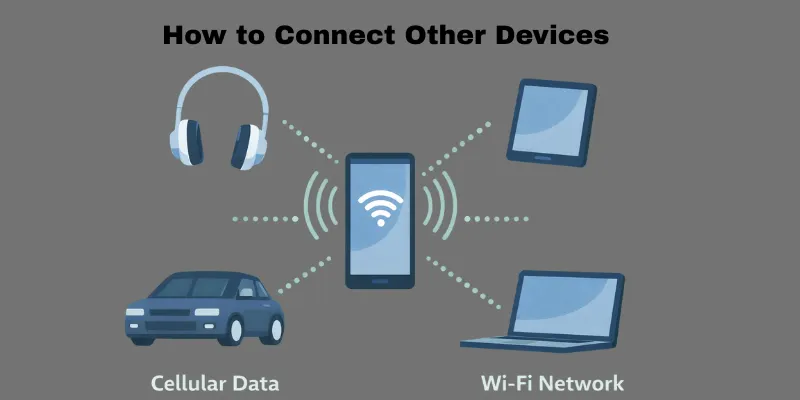
You can connect many different devices to your hotspot once it’s turned on. These include laptops, tablets, and smart TVs. You can also share the internet using USB or Bluetooth, which are other options. This is how to do it:
Laptops
Connecting your laptop to a mobile hotspot is a straightforward process. Just follow these steps:
- Open Wi-Fi Settings: On your laptop, click on the Wi-Fi icon in the taskbar or menu bar.
- Select Your Hotspot: From the list of available networks, choose the name of your mobile hotspot (SSID).
- Enter the Password: If prompted, enter the password for your hotspot.
- Connect: After entering the correct password, your laptop will connect to the internet through the hotspot.
Tablets
To connect a tablet to a mobile hotspot, follow these steps (similar to connecting a laptop):
- Go to Wi-Fi Settings: Open the Wi-Fi settings on your tablet.
- Select the Hotspot Network: Look for your mobile hotspot’s name in the available networks.
- Enter the Password: Input the password if required.
- Start Browsing: Once connected, you can begin browsing the internet on your tablet.
Smart TVs
Some smart TVs allow you to connect to a mobile hotspot for internet access, though it may depend on the model. Here’s how to connect:
- Open Wi-Fi Settings: On your smart TV, go to the Network or Wi-Fi settings.
- Select Your Hotspot: Look for your mobile hotspot’s name in the list of available networks.
- Enter the Password: If required, type in the hotspot password.
- Connect: Once connected, your TV will be able to stream content or use other online features through your mobile hotspot.
USB & Bluetooth Alternatives
If you want to connect devices without using Wi-Fi, you can use USB or Bluetooth as alternatives.
USB Tethering:
- Connect Your Phone to the Device: Use a USB cable to connect your phone to the device.
- Enable USB Tethering: On your phone, go to Settings > Network & Internet > Hotspot & Tethering, and toggle USB Tethering to ON.
- Automatic Connection: Your device will automatically detect the USB connection and begin using your phone’s data.
Bluetooth Tethering:
- Pair Devices: Turn on Bluetooth on both your phone and the device you want to connect to. Pair the devices via Bluetooth settings.
- Enable Bluetooth Tethering: On your phone, go to Settings > Network & Internet > Hotspot & Tethering and toggle Bluetooth Tethering to ON.
- Connect via Bluetooth: On the device you want to connect, select your phone from the Bluetooth settings and follow the on-screen prompts to complete the connection.
What is a Hotspot in a Mobile Phone
Here, we’ll discuss the pros and cons of using a mobile hotspot. It has a lot of good points, but there are also a few bad ones to think about.
Advantages
A mobile hotspot can be a great tool for staying connected on the go. Here are some of its key benefits:
- Provides internet access anywhere with cellular coverage.
- Allows multiple devices to connect at once.
- No extra equipment needed, just your phone.
- It can be a lifesaver when there’s no Wi-Fi available.
- Works well for travel or remote areas.
- Provides a backup internet option in case Wi-Fi fails.
- Easy to set up and use.
- Convenient for temporary internet needs.
Disadvantages
While convenient, mobile hotspots do come with some downsides. Here are a few things to consider:
- Drains your phone’s battery quickly.
- Can consume a lot of mobile data, leading to extra charges.
- Speed can be slower than regular Wi-Fi, especially on 4G networks.
- Relies on a stable cellular network, which may not always be available.
- It may not support too many devices simultaneously.
- This may incur additional costs, depending on your mobile plan.
Hotspot & Data Usage Explained
Understanding data consumption and carrier data usage restrictions is crucial when using a mobile hotspot. In this section, we’ll explain how mobile data is used, the differences in carrier plans, and how to check your data usage.
Does It Use Mobile Data? Yes (and How Data is Counted)
Yes, when you turn on your mobile hotspot, it uses your mobile phone’s data to create an internet connection for other devices. This means every website, video, or app you access through the hotspot will count toward your data usage.
How Data is Counted:
- Each device connected to your hotspot uses data from your plan.
- Activities like browsing, video streaming, or downloading files will consume more data than light tasks like checking emails.
- Your carrier will count all data usage from the hotspot towards your monthly data allowance, just like regular mobile data use.
Carrier Restrictions and Common Plan Differences
Different carriers have varying rules and limitations regarding the use of mobile hotspots. Here are a few things to keep in mind:
- Hotspot Data Limits:
Some plans include a specific amount of hotspot data, and once it’s used up, speeds may be reduced, or extra charges may apply.
- Speed Throttling:
After using a certain amount of data, carriers may slow down your connection, limiting the speed of the hotspot.
- Plan Types:
Unlimited Plans: Some carriers offer “unlimited” plans, but they may still limit hotspot data or reduce speeds after a certain amount of usage.
Dedicated Hotspot Plans: Certain plans are specifically designed for hotspot use and may include additional data or faster speeds.
How to Check Usage on Android/iPhone
It’s essential to monitor your hotspot data usage to avoid exceeding your plan’s limits. Here’s how to check your data usage on both Android and iPhone:
On Android:
- Open Settings: Go to your phone’s Settings.
- Data Usage: Scroll down and select “Network & Internet”, then tap “Data Usage”.
- View Hotspot Usage: Tap “Mobile Hotspot” to see how much data you’ve used.
On iPhone:
Data Usage: Scroll down to see “Cellular Data Usage”. This will show you how much data you’ve used, including hotspot usage.
Open Settings: Tap “Settings” on your iPhone.
Cellular: Select “Cellular” from the options.
Troubleshooting Common Problems
Using a mobile hotspot is convenient, but sometimes things don’t work as expected. If you’re facing issues, here are some common problems and solutions to get you back online.
Hotspot Not Showing Up / Can’t Connect Device
If your hotspot isn’t showing up or you’re unable to connect a device, try these solutions:
- Check Hotspot Settings: Ensure the hotspot feature is enabled in your device’s settings.
- Check Data Connection: Ensure your mobile data is active and has a strong signal. Without data, the hotspot won’t work.
- Restart Your Device: Sometimes, a quick restart of both your phone and the device you’re trying to connect can resolve the issue.
- Check for Interference: If you’re in an area with many Wi-Fi networks, interference could cause your hotspot to not show up. Try changing the Wi-Fi channel in your hotspot settings.
- Update Your Software: Ensure your device’s software is up to date, as outdated software can sometimes cause connectivity issues.
Device Connected but No Internet
If your device connects to the hotspot but doesn’t have internet access, try these troubleshooting steps:
- Check Data Connection: Ensure that your phone has an active and working mobile data connection. If there’s no data signal, the hotspot won’t work.
- Disable and Re-enable Hotspot: Turn off your hotspot and then turn it back on. This can help reset the connection.
- Toggle Airplane Mode: Try turning on Airplane Mode for a few seconds and then turning it off. This can help reset your network connection.
- Reconnect Device: Disconnect the device from the hotspot and reconnect it, entering the correct password if needed.
- Check Data Plan: Verify that your mobile data plan is active and that you haven’t exceeded your data limit or run out of data.
Slow Performance
If your hotspot is working but the internet is slow, here’s what you can do:
- Check Network Signal: A weak cellular signal will result in slow hotspot speeds. Move to an area with better cell phone coverage or one closer to a cell tower.
- Limit Connected Devices: The speed can slow down if too many devices are connected to the hotspot. To make things work more efficiently, unplug devices that aren’t in use.
- Switch to 4G/5G: If your hotspot is on a slower network (such as 3G), consider switching to a faster connection if available (4G or 5G).
- Restart the Device: Restart both the hotspot and connected devices to refresh the connection.
- Check for Background Apps: Background apps on your phone or connected devices might be using data and slowing down the hotspot speed. Close unnecessary apps.
- Contact Your Carrier: If you experience consistent slow speeds, your carrier may be throttling your data, or there could be a network issue.
Conclusion
In this guide, we cover everything you need to know about hotspots in mobile phones, including how to use them and troubleshoot common issues. You can now maximize your mobile hotspot by learning how it works, connecting devices, and keeping it secure.
My personal recommendation is to always secure your hotspot with a strong password and, if possible, use a VPN for extra protection. It’s easy to forget about security, but trust me, it’s important to keep your data safe, especially when using public networks.
FAQs
No, you need a SIM card with an active data plan to use your phone as a hotspot. Without a SIM card, your phone can’t connect to the cellular network to provide internet. However, if you have a Wi-Fi connection, you can share that using your phone’s hotspot feature.
You can usually limit the number of devices that can connect by changing the settings in your phone’s hotspot. Find something like “Maximum Connections” or “Connected Devices” and select the number of devices you want to allow to connect. This helps keep the connection from getting too slow because of too many devices.
Yes, you can use a mobile hotspot for gaming, but the experience may vary. For games that require high-speed internet, you might experience some lag or slower speeds, especially on 4G networks. Using 5G for gaming should provide a much smoother experience.
No, a mobile hotspot relies on your phone’s cellular connection. If your phone has no signal, the hotspot won’t work because there’s no internet connection to share. You need at least a minimal signal from your carrier for the hotspot to function.
You can use multiple data plans with a mobile hotspot device, like a portable hotspot (MiFi). But your phone can only use one data plan at a time, so if you want to share internet from another source, you’ll need a separate mobile hotspot device.
Yes, the hotspot will use the same data speed as your phone’s mobile connection. If you’re on a 4G network, the hotspot will provide 4G speeds. The hotspot will be even faster if you’re connected to a 5G network. The performance depends on your phone’s signal and carrier.
You can stream video on a mobile hotspot, but keep in mind that it will use a lot of data. Some streaming services that use a lot of data are Netflix, YouTube, and Hulu. Check that your plan has enough data to cover this, or you might have to pay more.
To improve battery life while using a hotspot, keep your phone plugged in if possible. You can also lower the number of connected devices, reduce your screen brightness, and turn off other apps that might be running in the background.

- Be Respectful
- Stay Relevant
- Stay Positive
- True Feedback
- Encourage Discussion
- Avoid Spamming
- No Fake News
- Don't Copy-Paste
- No Personal Attacks
- Be Respectful
- Stay Relevant
- Stay Positive
- True Feedback
- Encourage Discussion
- Avoid Spamming
- No Fake News
- Don't Copy-Paste
- No Personal Attacks
