What is mobile data? Complete Guide to Stay Connected!
Published: 9 Aug 2026
Have you ever thought about how your phone can connect to the internet without Wi-Fi? It can be difficult to understand at first, especially if you don’t know how it works. But don’t worry, we’re here to help! This guide will tell you everything you need to know about mobile data, including how it works and how to use it wisely. We can help you whether you’re new to smartphones or just want to know more.
We’ll discuss how mobile data allows you to stay connected while on the go, how it differs from Wi-Fi, and why it’s essential for modern smartphones. This guide will help you better manage your mobile data.
What is mobile data?
Mobile data is an internet service that allows your phone to go online without using Wi-Fi. It is important because it keeps smartphones connected anywhere and at any time. It allows apps and websites to work when you travel or leave home. Your phone uses a mobile network to send and receive information. You can turn it on or off in your phone settings. Many plans also set limits to help control usage and cost.
How Mobile Data Works
When you open an app or website on your phone, it sends a request for information. The network receives this request and sends the content back to your screen. The entire process happens very fast and feels instant. Mobile data enables your phone to stay connected when Wi-Fi is unavailable.
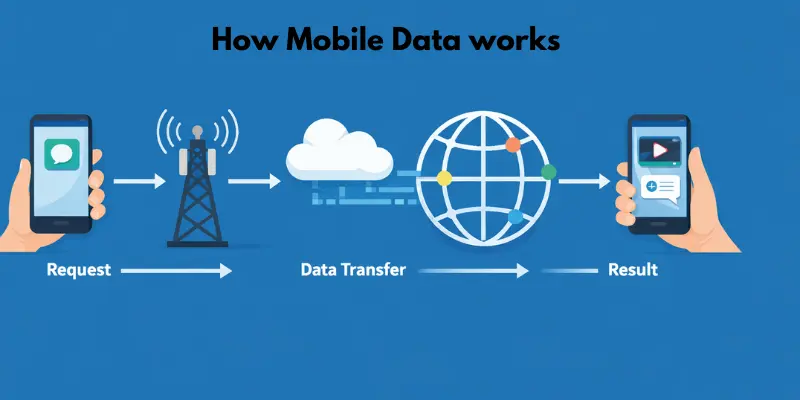
- Your phone sends a request when you tap an app or link
- The network finds and sends the needed information
- Your screen shows the content in seconds
How Cell Towers & Networks Work
Cell towers are tall structures that help phones communicate. Your phone connects to the nearest tower around you. That tower passes your data through the network. Think of it like making a call using a nearby cell phone tower. You speak, and the closest tower picks it up; the message then moves forward. When you move, your phone switches towers smoothly.
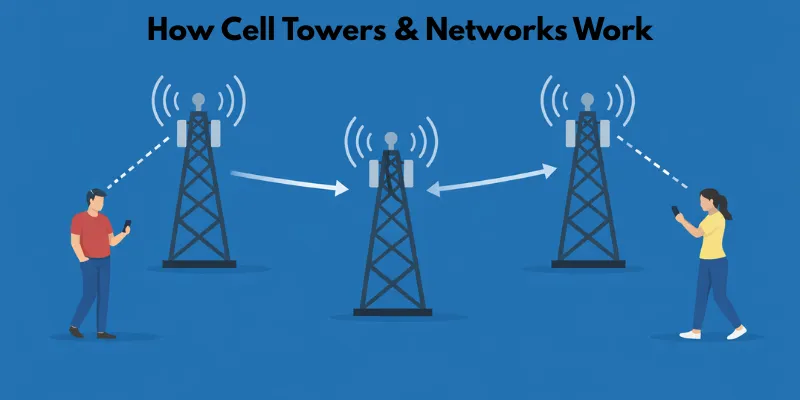
- Cell towers send and receive phone signals
- Phones always connect to the nearest tower
- Towers help data move across the network
What Are Data Packets?
Data packets are small pieces of information. Your phone splits information into these small parts before sending it. The network sends them and joins them again on your screen. Imagine sending a book with many small pages. Each page arrives one by one, then forms the full book. This helps apps and websites load faster.
- Information breaks into small pieces
- Each piece travels on its own
- The phone puts everything back together
Mobile Network Types
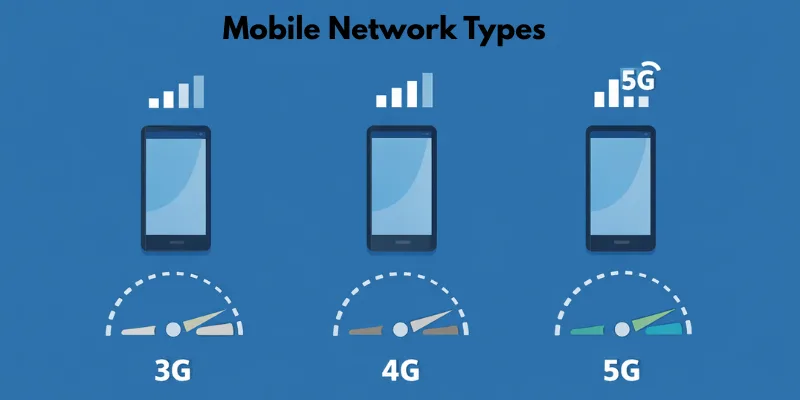
Mobile network types show how your phone connects to the internet. Each type offers a different speed and experience. Newer networks feel faster and handle more tasks with ease.
3G Network
3G is an older mobile network that still works in some areas.
- It feels slow for today’s use
- It works for calls, texts, and light browsing
- It struggles with videos and large apps
4G Network
4G is the most common network people use today.
- It feels fast and smooth for daily use
- It works well for browsing, videos, and social apps
- It handles online games and video calls easily
5G Network
5G is the newest and fastest option.
- It feels very fast, almost instant
- It works great for streaming, gaming, and large downloads
- It performs best in busy areas with many users
Which Network Do Most Users Need Today?
Most users only need 4G right now. It offers a good balance of speed, coverage, and reliability. It supports almost everything people do on their phones without extra cost or effort.
Mobile Data vs Wi-Fi
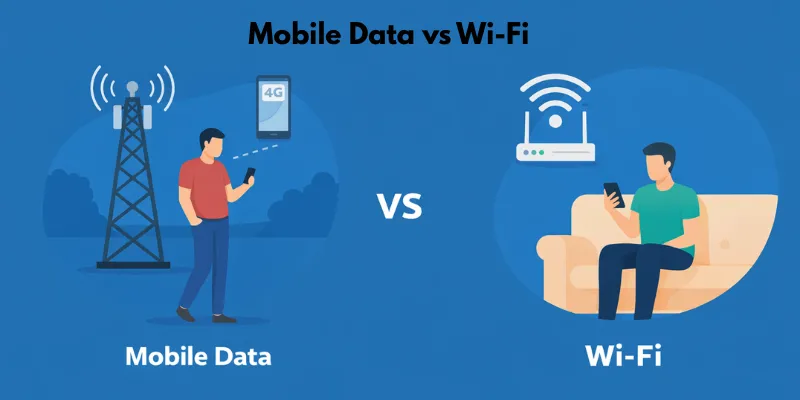
Mobile data and Wi-Fi both enable your phone to connect to the internet. They work in different ways and suit different needs. Here is a clear and simple comparison.
Key Differences at a Glance
- Coverage: Mobile data works almost everywhere outside your home. Wi-Fi works best at home, in offices, and in public places.
- Speed: Wi-Fi often feels faster and more stable. Mobile data feels good on 4G and very fast on 5G.
- Cost: Mobile data typically incurs higher costs and has usage limits. Wi-Fi is often cheaper or unlimited.
When to Use Mobile Data
Use mobile data when you are away from home and do not have Wi-Fi. It keeps your phone connected while you travel, walk, or sit in a car. It is best for quick tasks like checking messages, using maps, or browsing the web.
When to Use Wi-Fi
Use Wi-Fi when you are at home, at work, or in any fixed location. It gives a stronger and more stable internet connection for daily use. It works best for watching videos, downloading files, and saving your mobile data.
What Uses Mobile Data
Mobile data gets used when your phone connects to the internet without Wi-Fi. Many everyday actions use it, often without you noticing. Simple tasks can slowly increase usage, while heavy tasks can quickly drain it.
- Watching videos or reels: Streaming YouTube, TikTok, or short clips while outside uses a lot of data quickly.
- Using social apps: Scrolling through Instagram, Facebook, or chatting on WhatsApp repeatedly uses data.
- Maps and travel apps: Checking routes, traffic, or directions on the road uses data in real time.
- Apps running in the background, such as app updates, cloud sync, and email refresh, use data even when the phone is idle.
Benefits of Mobile Data
Mobile data does more than connect your phone to the internet. It helps you stay connected, complete everyday tasks, and access important online services wherever you go. Whether you are traveling, working, or studying, mobile data keeps your phone useful even when Wi-Fi is unavailable.
Stay Connected Anywhere
One of the biggest benefits of mobile data is that it works in many places without needing a Wi-Fi connection. You can stay online while traveling, shopping, or spending time outdoors.
Key points:
- Access the internet even when Wi-Fi is not available.
- Stay connected while traveling or moving from one place to another.
Access Online Services
Mobile data lets you use many online services whenever you need them. You can check emails, browse websites, use maps, and open your favorite apps without waiting for a Wi-Fi connection.
Key points:
- Use websites, apps, and online services at any time.
- Get directions, search for information, and send emails on the go.
Helpful in Emergencies
Mobile data can be very useful during emergencies. It allows you to contact family members, use navigation apps, or search for nearby hospitals and other important services.
Key points:
- Contact people quickly when you need help.
- Use maps and emergency services without relying on Wi-Fi.
Supports Work and Learning
Many people use mobile data for work and education. It helps you join online meetings, complete assignments, and access learning resources from almost anywhere.
Key points:
- Attend online classes or meetings while away from home.
- Access work files and learning materials whenever needed.
Mobile data makes everyday life easier by keeping you connected wherever you are. When you understand its benefits, you can use it more confidently and make the most of your mobile data plan.
How Much Mobile Data Do Common Activities Use?
Mobile data usage varies depending on the activity you’re doing. Video streaming, for example, uses much more data than browsing websites or checking social media. By understanding how much data different activities consume, you can better manage your data plan. This section will help you understand how much data typical activities, such as streaming, browsing, and social media use, making it easier to track and control your mobile data.
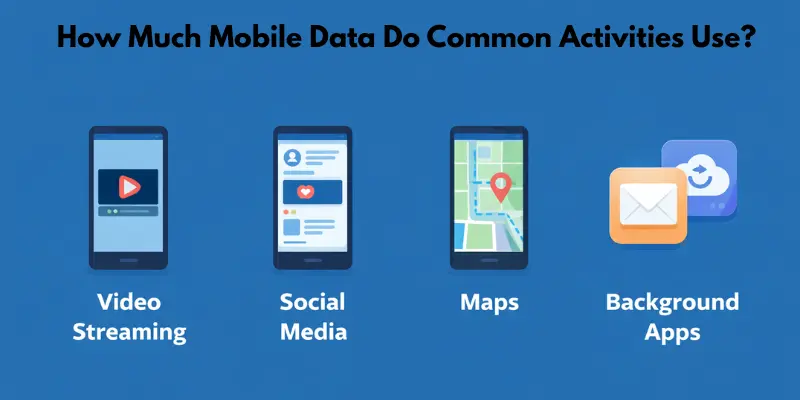
SD Video Streaming (1 hour): Uses 300 MB of data.
- Daily: 300 MB | Monthly: 9 GB
HD Video Streaming (1 hour): Uses 1.5 GB of data.
- Daily: 1.5 GB | Monthly: 45 GB
4K Video Streaming (1 hour): Uses 7.2 GB of data.
- Daily: 7.2 GB | Monthly: 216 GB
Social Media Browsing (1 hour): Uses 150 MB of data.
- Daily: 150 MB | Monthly: 4.5 GB
Web Browsing (1 hour): Uses 60 MB of data.
- Daily: 60 MB | Monthly: 1.8 GB
Music Streaming (1 hour): Uses 50 MB of data.
- Daily: 50 MB | Monthly: 1.5 GB
Video Calling (1 hour): Uses 500 MB of data.
- Daily: 500 MB | Monthly: 15 GB
How to Check Mobile Data Usage on Your Phone
If you have a limited data plan, check your phone’s data usage to avoid going over. We’ll show you how to check your data usage on both Android and iPhone devices in the steps below. This guide is designed for beginners to help you keep track of your data.
On Android
Follow these easy steps to check your mobile data usage on an Android phone:
- Open Settings: Find and tap on the “Settings” app on your android phone.
- Go to Network & Internet: Scroll down and select “Network & Internet” or “Connections,” depending on your phone model.
- Tap on Mobile Network: Look for and tap on “Mobile Network” or “Data Usage.”
- View Data Usage: Under the “Data Usage” section, you’ll see a detailed overview of your mobile data usage for the current billing cycle. You can also set limits or receive warnings if you’re getting close to your data cap.
These steps should work for most Android phones, but the names of menus may vary slightly depending on the brand and version of Android you’re using.
On iPhone
Checking your mobile data usage on an iPhone is just as simple. Follow these steps:
- Open Settings: Tap the “Settings” app on your iphone‘s home screen.
- Select Cellular: Scroll down and tap “Cellular” or “Mobile Data.”
- Check Data Usage: In the “Cellular Data Usage” section, you will find your current data usage for the current billing period. You can also reset this data usage counter at the beginning of each billing cycle to keep track accurately.
For iPhone users, please note that your data usage may not be 100% accurate, as your carrier’s billing periods or updates may differ slightly. You can reset the usage stats manually at the start of your billing cycle.
How to Reduce Mobile Data Usage
It’s frustrating when you run out of mobile data faster than expected. Whether it’s from streaming videos, browsing social media, or using apps in the background, it can feel like data disappears in no time. However, don’t worry-this guide provides simple, easy-to-follow steps to save your data and keep you on track.
Turn Off Background Data
Many apps use data even when you’re not actively using them. These apps continue to run in the background, sending updates and notifications. This can quickly add up without you realizing it.
Here’s how to turn off background data:
- On Android:
- Go to Settings.
- Tap Network & Internet.
- Select Data Usage and then Background Data.
- Toggle off apps that don’t need to use data when you’re not using them.
- Go to Settings.
- On iPhone:
- Go to Settings.
- Tap Cellular.
- Scroll down to see a list of apps.
- Toggle off apps you don’t want using data in the background.
- Go to Settings.
Turning off background data for apps you rarely use can save a lot of data.
Use Data Saver Mode
Data Saver mode helps reduce data usage by limiting background processes and lowering the quality of certain content (like videos). This is especially useful when you’re on the go and need to save every bit of data.
Here’s how to activate Data Saver mode:
- On Android:
- Open Settings.
- Tap Network & Internet.
- Select Data Saver and enable it.
This will limit the amount of data apps can use, especially in the background.
- Open Settings.
- On iPhone:
- Go to Settings.
- Tap Cellular.
- Select Cellular Data Options and turn on Low Data Mode.
This will reduce automatic downloads and background data usage.
- Go to Settings.
Data Saver mode is great when you’re near the end of your data cycle or traveling in an area with limited coverage.
Download Content on Wi-Fi
Downloading content, like videos, music, or apps, while connected to Wi-Fi is one of the easiest ways to save mobile data. You can enjoy your favorite content without using up your data allowance.
- For Videos and music: many streaming apps, such as Netflix, Spotify, and YouTube, allow you to download content while connected to Wi-Fi. Downloading your shows or playlists ahead of time ensures you don’t need to stream them using mobile data.
- For Apps: Whenever possible, download apps and updates while on Wi-Fi. This will help you avoid the surprise of a large data bill from app downloads.
Downloading content when you have Wi-Fi access is an easy and effective way to reduce mobile data usage.
App-Specific Controls
Some apps use more data than others, and fortunately, most apps allow you to control the amount of data they use. You can limit data usage for specific apps to ensure you’re only using mobile data when necessary.
Here’s how to manage app data usage:
- On Android:
- Open Settings.
- Tap Network & Internet, then Data Usage.
- Select Mobile Data Usage and choose the app you want to manage.
- Toggle off Background Data or adjust other settings to limit usage.
- Open Settings.
- On iPhone:
- Open Settings.
- Tap Cellular.
- Scroll down to see which apps are using mobile data.
- Turn off data for apps that don’t need it.
- Open Settings.
By managing app-specific settings, you can make sure that only the most essential apps use your mobile data.
Mobile Data Plans Explained
Choosing the right mobile data plan can be confusing, especially with the numerous options available. But don’t worry! This guide breaks down everything you need to know about mobile data plans in a simple and easy-to-understand way. By the end, you’ll feel confident about picking the plan that works best for you.
What is a Data Plan?
A data plan is a service that allows you to use the internet on your mobile phone. It gives you a certain amount of data to use each month for browsing, streaming, social media, and other online activities. The plan is usually part of your mobile phone contract with a carrier. Depending on the plan, you can get a set amount of data (like 10GB) or unlimited data for a flat fee.
Limited vs Unlimited Data
There are two main types of data plans: limited and unlimited. Here’s what each means:
- Limited Data: With a limited data plan, you get a fixed amount of data each month. For example, you might have 5GB, 10GB, or 50GB of data to use. Once you reach your limit, you either have to pay extra charges or your data speed might slow down. This plan is usually cheaper but requires you to be mindful of how much data you use.
- Unlimited Data: An unlimited data plan means you can use as much data as you want without worrying about running out. However, some unlimited plans may slow down your speed after you reach a certain data usage limit. Such a plan is ideal for heavy users who stream videos, download large files, or use a significant amount of data on the go.
Prepaid vs Postpaid
When it comes to paying for your data plan, there are two main options: prepaid and postpaid. Here’s the difference:
- Prepaid Plans: With a prepaid plan, you pay for your data upfront, before you use it. You can choose a plan with a specific data allowance, and once you’ve used it, you can either top up or wait for your next plan cycle. Prepaid plans are flexible, and you don’t have to sign a long contract. However, once your data runs out, you lose access to the internet unless you add more.
- Postpaid Plans: With a postpaid plan, you use your data first and pay for it at the end of the month. This is often part of a contract where you pay a fixed monthly fee. Postpaid plans usually come with more data and additional benefits, but you may be locked into a contract for a year or two. It’s outstanding if you prefer a predictable monthly bill.
Common Mobile Data Problems & Fixes
Dealing with mobile data problems can be frustrating. Whether your data isn’t working, it’s running too slow, or it’s draining faster than expected, these issues happen to everyone at some point. But don’t worry-this guide will help you resolve these problems easily with practical solutions that anyone can try.
Mobile Data Not Working
If your mobile data isn’t working, it could be due to several common issues. Here’s how to fix it:
Reasons:
- Airplane Mode: If Airplane Mode is turned on, it disables mobile data.
- Network Issues: There might be network outages in your area.
- Incorrect Settings: Your mobile data settings might be off.
Fixes:
- Turn Off Airplane Mode: Check if Airplane Mode is turned on. If it is, turn it off from your phone’s settings or the quick settings menu.
- Restart Your Phone: Sometimes, simply restarting your phone can fix the issue.
- Check Mobile Data Settings: Go to your Settings > Network & Internet (Android) or Settings > Cellular (iPhone), and ensure mobile data is enabled.
- Check for Network Outages: Sometimes, the issue is with your carrier’s network. Check their website or call customer support to see if there are any known outages.
Data is Slow
Experiencing slow mobile data can be frustrating, but there are several reasons why this issue may occur. Here’s how to speed things up:
Reasons:
- Network Congestion: If you’re in a busy area, such as a mall or a stadium, many people may be using the network at once.
- Weak Signal: If you’re in a spot with a weak signal, your data speed can suffer.
- Background Apps: Some apps use data in the background, slowing things down.
Fixes:
- Move to a Better Location: If you’re in a weak signal area, try moving to an open space or near a window.
- Turn Off Background Apps: Close apps that are using data in the background. On Android, go to Settings > Apps and disable data for apps you’re not using. On iPhone, go to Settings > Cellular and turn off data for unnecessary apps.
- Switch to 4G/5G: If you’re on 3G, switch to a faster network. Go to Settings > Network & Internet (Android) or Settings > Cellular (iPhone) and ensure you’re connected to 4G or 5G if available.
- Use Data Saver Mode: Some phones have a Data Saver mode that reduces background data usage and can help improve speed. Turn this on in your settings.
Data Drains Too Fast
It’s frustrating when your mobile data disappears too quickly. Here’s how to slow down that data drain:
Reasons:
- Automatic App Updates: Apps may update themselves automatically, consuming data.
- Streaming High-Quality Content: Streaming videos or music in high definition uses a lot of data.
- Background Data: Some apps use data in the background without you knowing.
Fixes:
- Turn Off Auto Updates: Disable automatic app updates. On Android, go to Google Play Store > Settings > Auto-update apps and choose Do not auto-update apps. On iPhone, go to Settings > App Store and turn off App Updates.
- Limit Streaming Quality: Set streaming apps to stream videos in lower quality. For example, set YouTube to 480p instead of 1080p or 4K.
- Use Wi-Fi for Downloads: Whenever possible, download media like videos, music, or apps while connected to Wi-Fi, so you don’t use up your mobile data.
- Monitor Data Usage: Regularly check your data usage in your phone’s settings and see which apps are using the most data. This will help you make adjustments where needed.
Network Switching Issues
If your phone keeps switching between networks, it can cause connection instability and slow data speeds. Here’s why it happens and how to fix it:
Reasons:
- Weak Network Signal: If your phone is in an area with a weak signal, it might constantly switch between 4G and 3G or between different carriers.
- Network Settings: Your phone might be set to automatically switch between networks, which can cause issues if the signal strength fluctuates.
Fixes:
- Disable Network Switching: On Android, go to Settings > Network & Internet > Mobile Network, and turn off Automatically select network. On iPhone, you can try manually selecting a network in Settings > Cellular > Network Selection.
- Turn Off 5G (If Not Needed): If your 5G signal is weak, turn off 5G and stick to 4G. On Android, go to Settings > Network & Internet > Mobile Network and select Preferred network type. On iPhone, go to Settings > Cellular > Cellular Data Options and turn off 5G.
- Keep Your Phone Updated: Ensure your phone’s software is up to date, as updates often resolve network-related issues.
Mobile Data While Traveling & Roaming
Traveling abroad is exciting, but using your mobile data can become confusing. Many people are unsure about roaming and the costs that come with it. Don’t worry—this guide will help you understand roaming and how to manage mobile data while traveling, so you can avoid unnecessary charges.
What Roaming Means
Roaming occurs when you use your mobile phone outside your home country. Here’s a simple breakdown of what roaming involves:
- Roaming is using mobile data outside your home country: It allows you to stay connected to the internet, make calls, and send texts while abroad.
- Roaming occurs when your phone connects to a local network: Your home carrier arranges with foreign networks to provide service for you.
- It can lead to higher charges: Since your home carrier has to pay the local network, they pass these costs on to you.
Why Roaming Costs More
Roaming charges can catch you off guard, but understanding why the costs are higher can help you manage your usage better. Here’s why it happens:
- Extra fees for using a foreign network: Your carrier charges you because they pay the local network to provide you with service.
- Higher rates for data and calls: Using mobile data or making calls while roaming can cost significantly more than at home.
- Charges for data can add up fast: Simple activities like checking emails or browsing social media can lead to unexpected costs.
How to Avoid High Charges
Now that you understand roaming, let’s look at some practical tips to help you avoid high roaming charges while traveling:
- Use Wi-Fi whenever possible: Connect to free Wi-Fi in hotels, cafes, or airports to save on mobile data.
- Enable Data Saver mode: Limit background data usage on your phone to avoid accidental data consumption.
- Buy a local SIM card: Get a local SIM card when you travel to access cheaper data and call rates.
Conclusion
So, we’ve covered what mobile data is, how it works, and its uses for staying connected on the go. Whether it’s for browsing, streaming, or messaging, mobile data plays a key role in keeping us online without Wi-Fi. My advice? Be mindful of your data usage and select a plan that suits your phone usage. That way, you can avoid surprises on your bill. Alright, folks—stay tuned for more tips and keep learning!
FAQs
Mobile data lets your phone connect to the internet when you’re not on Wi‑Fi. You can browse websites, open social apps, watch videos, send emails, or use maps when you’re out and about. It keeps you online wherever there’s a cell signal.
No. Mobile data comes from your cellular network (your service provider), while Wi-Fi comes from a local router in places like your home or a café. Mobile data lets you go online without being near a router.
You need a mobile plan or prepaid data tied to your SIM or esim to use mobile data. Without a plan, your phone may not be able to connect to the cell network for internet access. If you run out of data, you must buy more or use Wi‑Fi only.
Mobile data works through cell towers that send internet signals to your phone using wireless radio waves. Your device talks to these towers and lets you browse, stream, or use apps on the go.
These are different network generations that affect your internet speed.
- 3G is older and slower.
- 4G is faster and great for most things.
- 5G is the fastest, especially for HD video and gaming. Your phone connects to the best one available around you.

- Be Respectful
- Stay Relevant
- Stay Positive
- True Feedback
- Encourage Discussion
- Avoid Spamming
- No Fake News
- Don't Copy-Paste
- No Personal Attacks
- Be Respectful
- Stay Relevant
- Stay Positive
- True Feedback
- Encourage Discussion
- Avoid Spamming
- No Fake News
- Don't Copy-Paste
- No Personal Attacks
